.png)
Group Appointments - Invoices, Claims, and Notes
PracticeQ allows you to schedule more than one client for the same time slot to allow for group and family sessions. Here is how invoices, claims, and notes work for group appointments.
Group Appointment Scenarios
- Group sessions for unrelated clients
- Group sessions for families and couples
Group Sessions for Unrelated Clients
Allow in Booking Settings:
- Click Booking → Booking Settings.
- Select the Services tab.
- Click Edit for the service that requires group sessions.
- Select the Advanced tab.
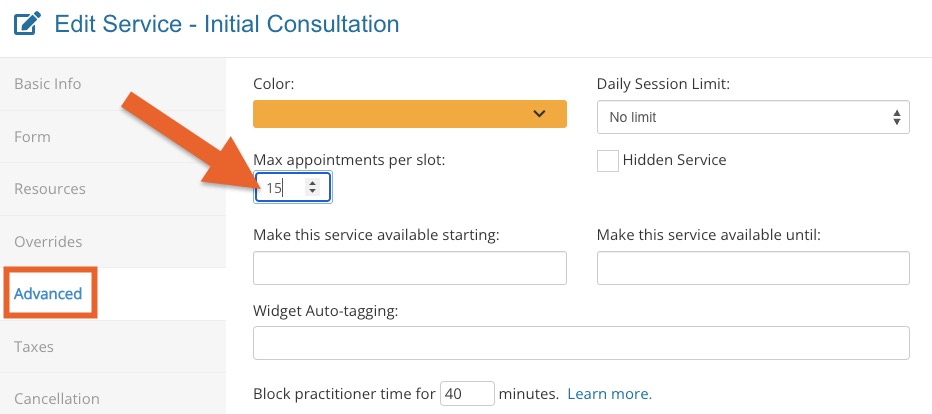
- In the Max appointments per slot field, enter how many clients you will allow to book in the same time slot.
How invoices work:
- Clients will book separate appointments for the time slot, so there will be a separate invoice for each client.
How claims work:
- Clients will book separate appointments for the time slot, so there will be a separate claim for each client.
How notes work:
- Clients will book separate appointments for the time slot, so there will be a separate note for each client.
If you wish to use the same note for two or more clients, do the following:
- Open the note you wish to use.
- Click More → Replicate.
- In the Replicate Note window, enter the name of the client to whom you wish to copy the note.
- Click Replicate Note.
- Don't forget to link the replicated note to the correct appointment on the client's timeline. For more information on how to do this, read Link Treatment Notes to Appointments.
Group Sessions for Families and Couples
Allow in Booking Settings:
- Click Booking → Booking Settings.
- Select the Services tab.
- Click Edit for the service that requires group sessions.
- Select the Advanced tab.
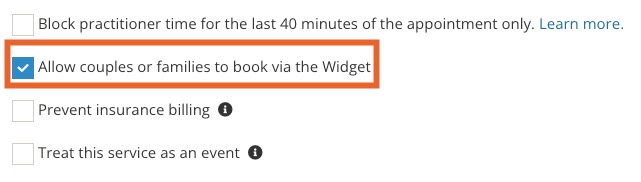
- Check the box labeled Allow couples or families to book via the Widget.
How invoices work:
- Clients will book the appointment as a family, so there will be a single invoice containing all client information.
- If staff books the appointment for a family using the Add Client feature, the behavior will be the same as above.
How claims work:
- Clients will book the appointment as a family, so there will be a single claim containing all client information.
- If staff books the appointment for a family using the Add Client feature, the behavior will be the same as above.
How notes work:
- Notes attached to appointments with multiple clients will show all clients attending the appointment at the top of the note.
- When you finish the note and save, lock, or sign it, PracticeQ will ask you if you want to replicate the note to any other clients associated with the linked appointment.
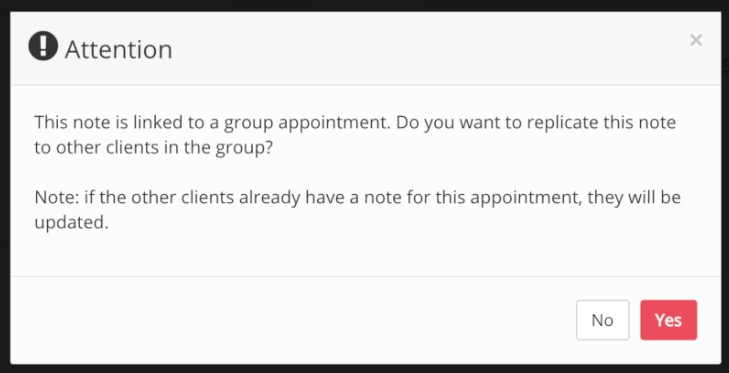
- This will clone the entire note, including signatures.
- Every time one of these notes are locked, the system will ask you if you want to "sync" it to keep all notes updated.
