.png)
Link Treatment Notes to Appointments
PracticeQ lets you link client treatment notes to appointments. This convenient feature allows you to jump to a note directly from your calendar and quickly spot appointments with missing notes.
Watch the video or follow the instructions below.
Link a Note to an Appointment
There are two ways to link a note to an appointment:
From the Appointment Dialog
- Click Bookings and locate the appointment.
- Open the appointment dialog.
- Click More → Create Note.
The note you create will automatically link to the appointment.

From an Existing Note
- Click Lists → Clients and open the client's profile.
- Locate the note on the client's timeline.
- Click More → Link Appointment.
- Choose the appointment to link to the note.

To ensure that the appointment's procedure code appears in the PDF of the note, open the Treatment Note template editor. Click the three dot icon and select Settings. Check the box labeled Include Procedure Codes in PDF.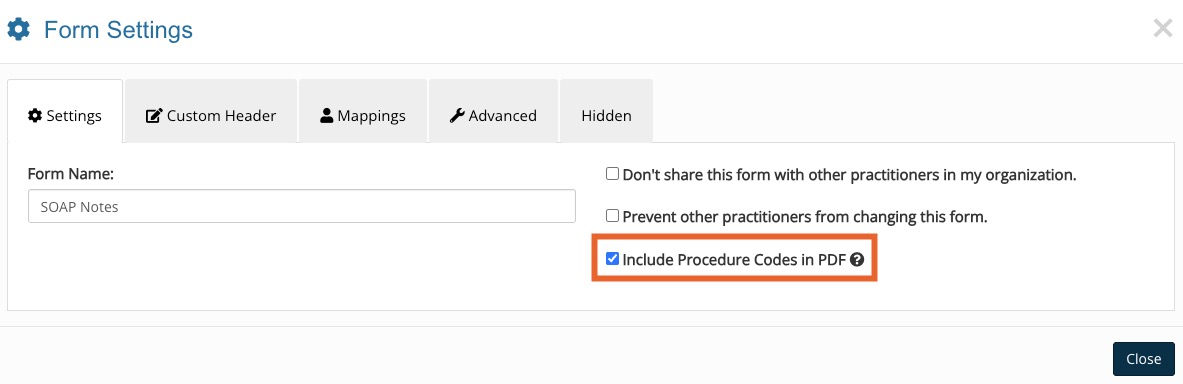
Unlink a Note from an Appointment
- Click Lists → Clients and open the client's profile.
- Locate the note on the client's timeline.
- You will see a message that the note is linked to an appointment. If there are multiple clients associated with an appointment, they will be listed at the top of the note as well.
- Click unlink.
