.png)
Prepare for Your Teams Meeting with Support
Have you scheduled a Microsoft Teams meeting with a member of the PracticeQ support team? Here is what to expect and how to prepare your device for the call.
What to expect:
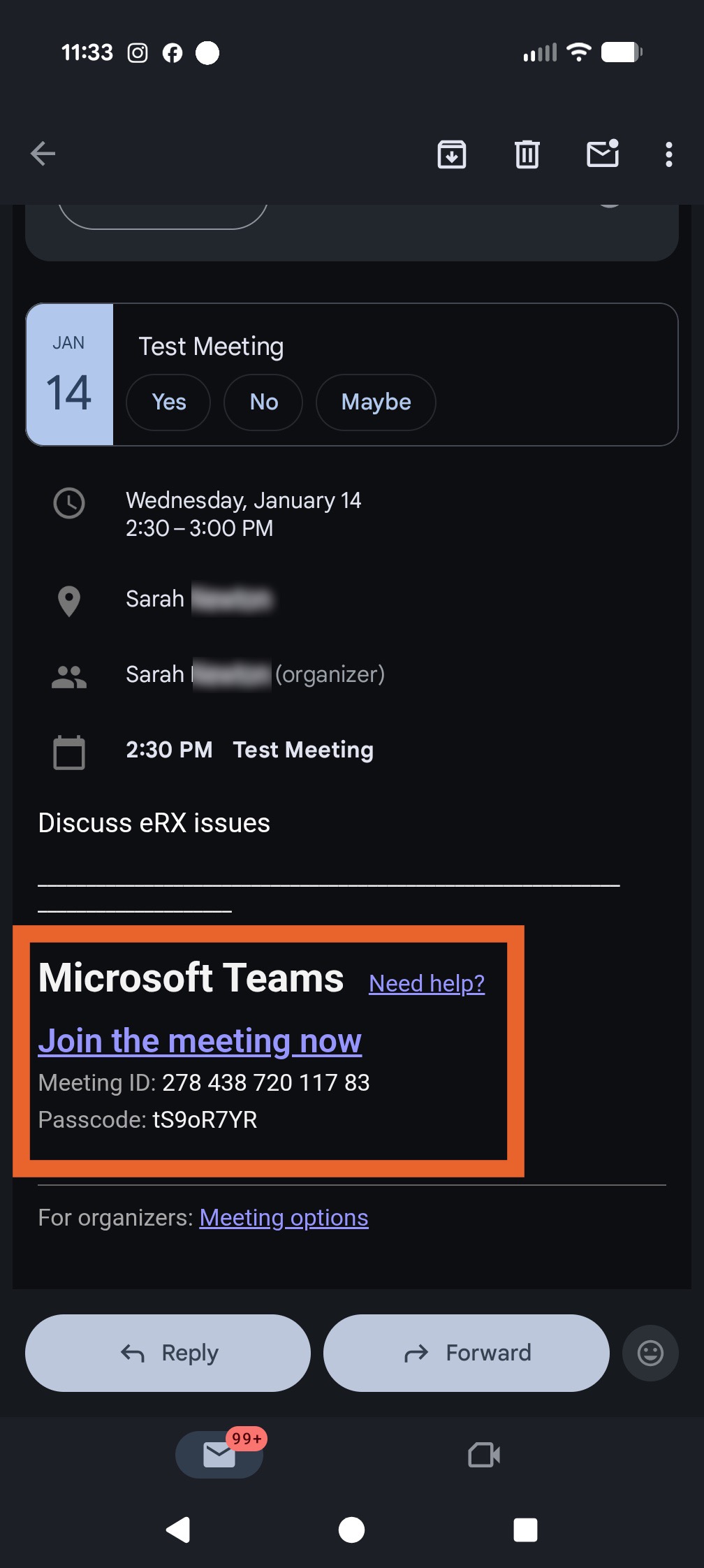
- You will receive an email invitation from the Support Team member immediately after the meeting is created.
- The email will allow you to add the meeting your calendar. It will contain the following:
- A link to join the meeting
- The Meeting ID
- The meeting Passcode
 Prepare Your Device:
 Prepare Your Device:
You do not have to download the Microsoft Teams application to join the meeting! Read below for users who have and do not have the Teams application:
If you have the Microsoft Teams application:
- Select Settings... from the Microsoft Teams menu.
- Select Devices from the menu on the left.
- Select the Speaker and Microphone sources you wish to use for the meeting.
- Toggle the mic sensitivity auto-adjust to on or off. This tool allows Teams to automatically adjust your microphone sensitivity to make your voice as clear as possible.
- If you are going to be a noisy environment for the call, enable the Noise suppression settings.
- For a more interactive experience, enable the Spatial audio setting.

If you do not have the Microsoft Teams application:
- You will join the meeting from your browser.
Note: Microsoft Edge and Chrome browsers provide the best call experience. If you are using another browser, please make sure it is updated as much as possible for your device.
- When you choose the Continue from this browser or Join from the browser option, you will work with your browser to allow audio and camera settings.