.png)
Engage - Active and Inactive Patients
When you send campaigns in Engage, you have the option to send to All Patients or All Active Patients. Read below to learn how to mark clients "Inactive" in Engage.

How to Make a Patient "Inactive" in Engage
In PracticeQ:
- Archive the patient in PracticeQ. Once the information syncs from PracticeQ to Engage (this may take 5+ minutes), the patient will become inactive in Engage.
- Delete the patient in PracticeQ. Once the information syncs from PracticeQ to Engage (this may take 5+ minutes), the patient will become inactive in Engage.

In Engage:
- Click Engage from the PracticeQ toolbar.
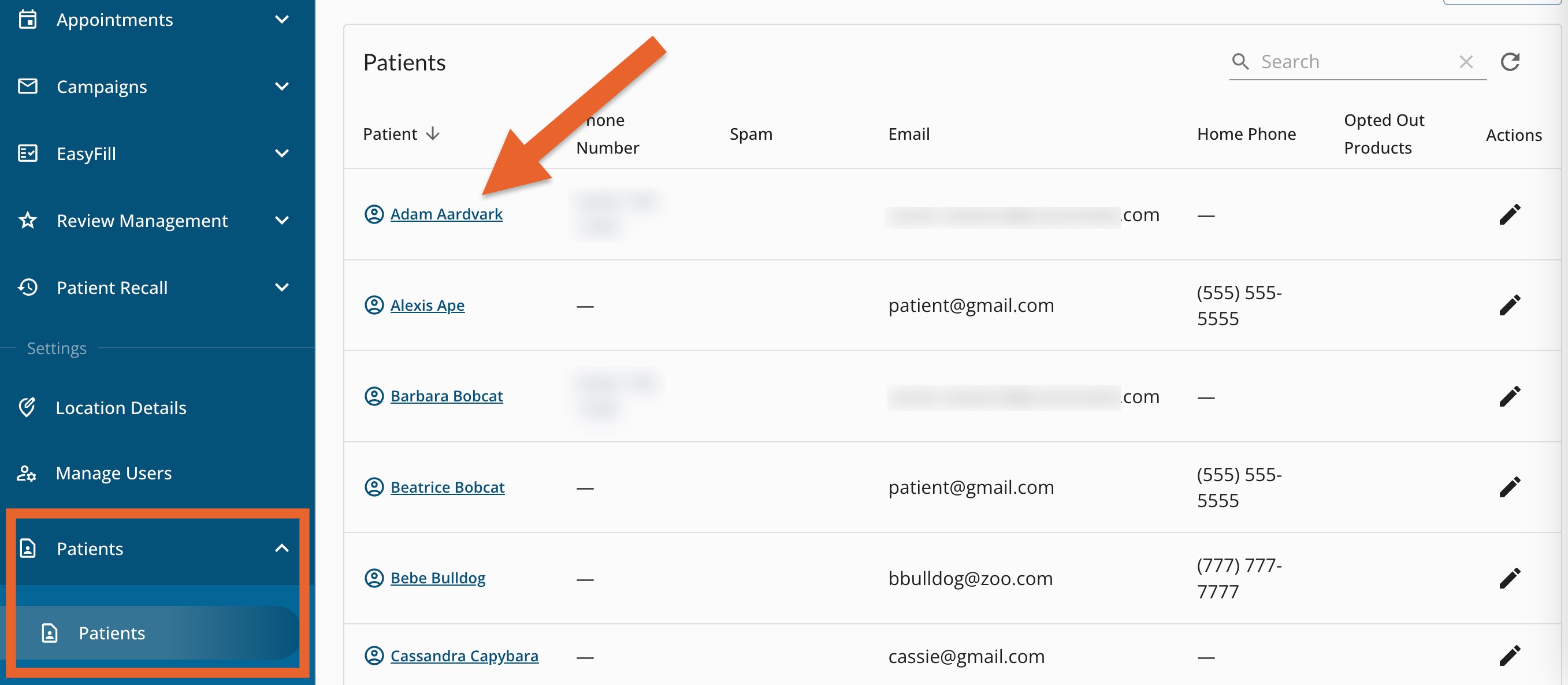
- Click Patients → Patients.
- Click the patient's name from the list.
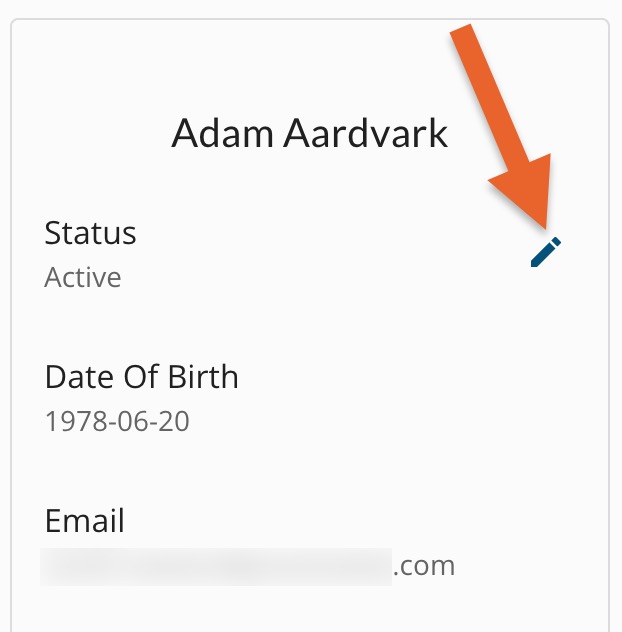
- When the patient profile opens, click the pencil icon next to the Status title.
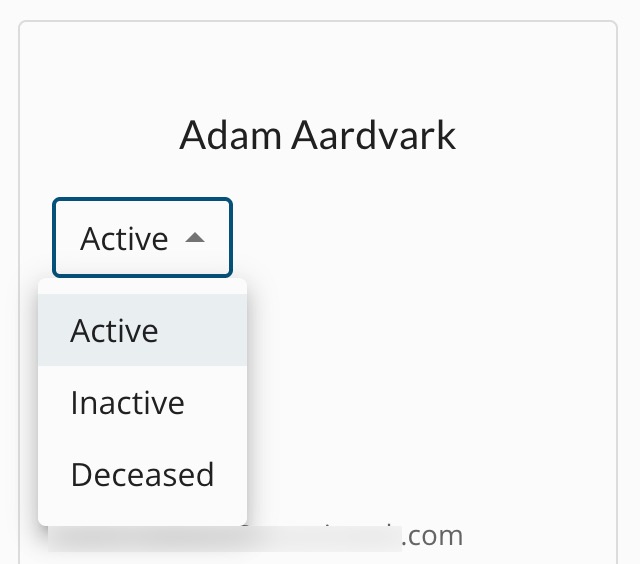
- A status dropdown menu will open:
- Select Inactive if the patient has discontinued treatment.
- Select Deceased if the patient has passed away. This will prevent non-appointment related messages, such as Birthday reminders, from sending.