.png)
Assign a Form to a Service
Link a form to a service in your Booking Settings so the form sends automatically when clients book the service.
- Click Bookings → Booking Settings.
- Select the Services tab.
- Locate the service and click Edit.
- In the editing window that opens, select the Form tab on the left.
- In the Choose an Intake form for this service dropdown menu, select your desired form. See Note below about the options available.
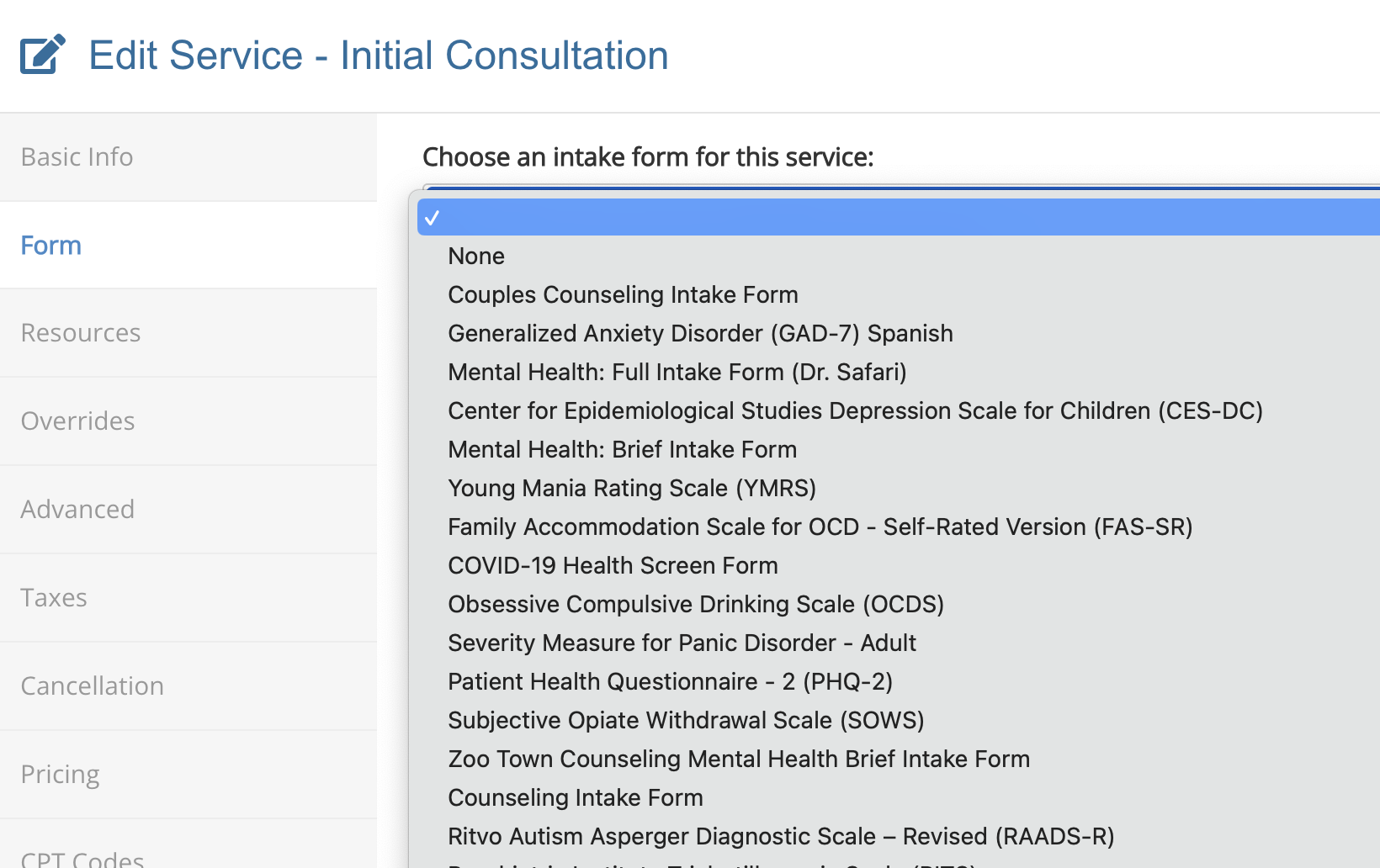
- Check the box labeled Send form even if client has filled it out before if you wish for clients to complete the form every time they book the service.
- Check the box labeled Default form when booking service for new appointments if you want the form to auto-populate in the Form field when a staff member books the service from the booking calendar.
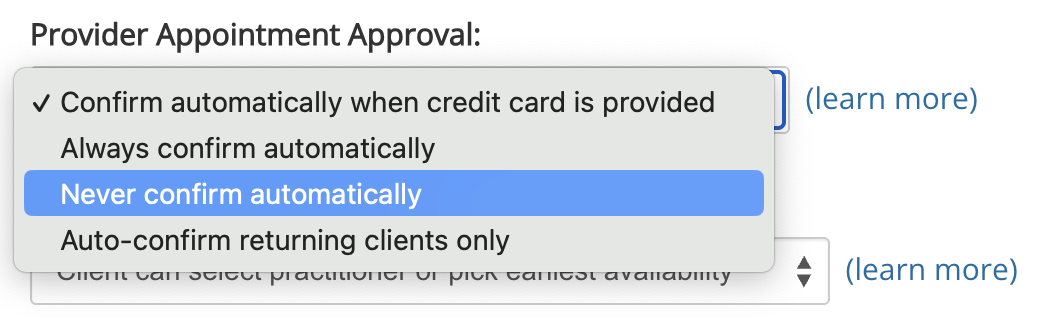
- Check the box labeled Send form before appointment is confirmed if you want to remove the requirement that the booking be confirmed before the form email is sent.
- This setting only applies when the Never confirm automatically setting is enabled.
- The above setting can be found in Booking → Booking Settings, in the Settings tab.
Note: Standalone consent forms cannot be assigned to services. However, if you create an Intake Package containing both questionnaires and consent forms, you may select the Intake Package.