Update Card on File and/or Billing Address
The account admin can update the payment card or billing address for a PracticeQ subscription directly in the application!
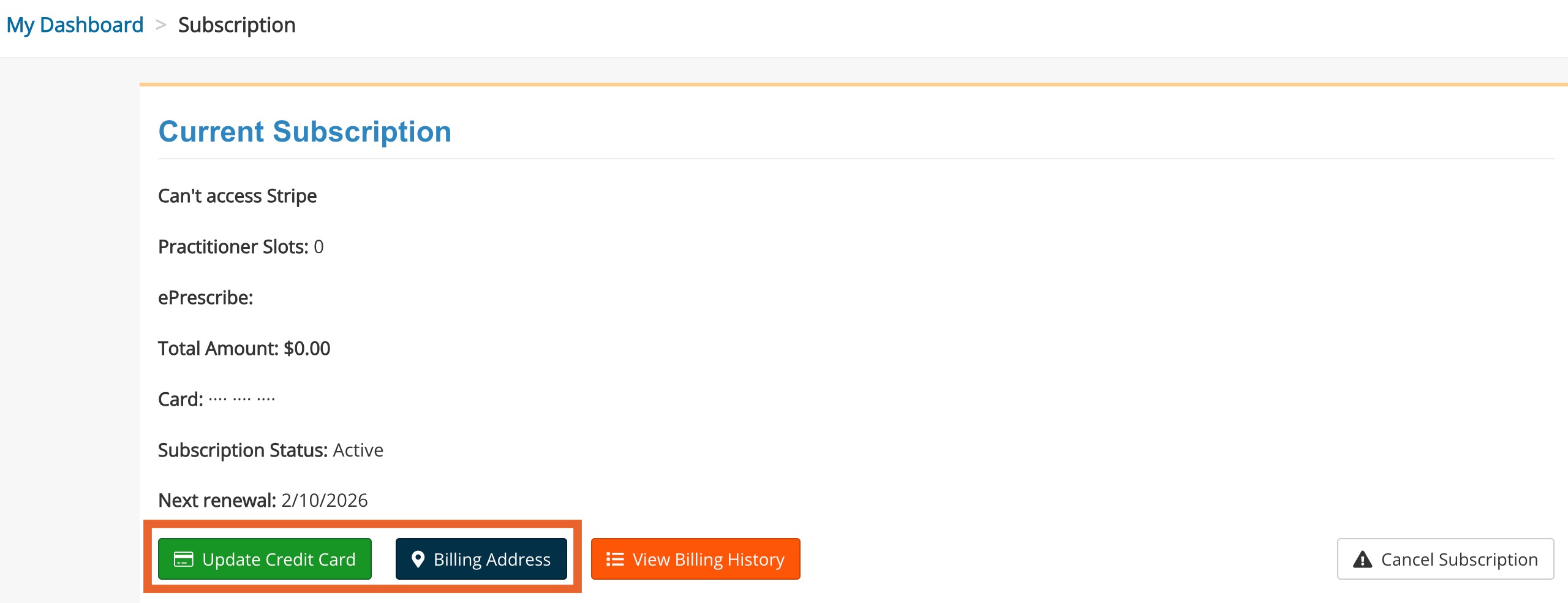
Update card on file
- Click More → Subscription.
- Click the Update Credit Card button.
- Enter the new credit card number, expiration date, and CVV.
- Click Confirm.
Update billing address
- Click More → Subscription.
- Click the Billing Address button.
- Make the necessary edits to the Country, City, Street Address, and Postal Code.
- Click Save.
No results found
.png)
