.png)
Engage - Add a Button to a Campaign
Add a button to an Engage email campaign to take clients to the site of your choosing!
- Click Engage from your PracticeQ toolbar.
- Click Campaigns.
- Select the Templates tab.
- Find the template you wish to use, and click Select. You can use a default template, or create your own.
- In the To field, select the clients to whom you wish to send the campaign. In this example, the practice wants to send all clients their monthly newsletter.
- Edit the Subject, Title, and Body of the email. Click the variables to pull individual client information from their PracticeQ profile.
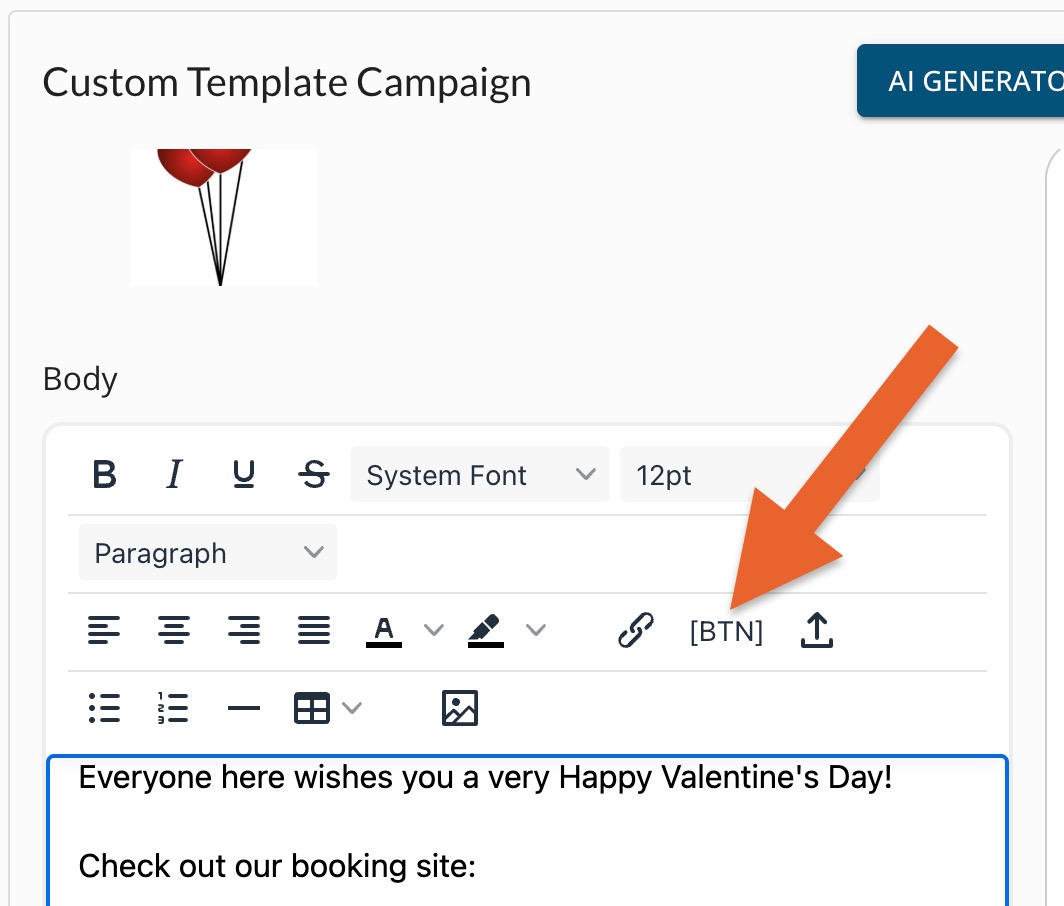
- Place your cursor where you would like the button to appear,
- In the editing toolbar, click the [BTN] icon.
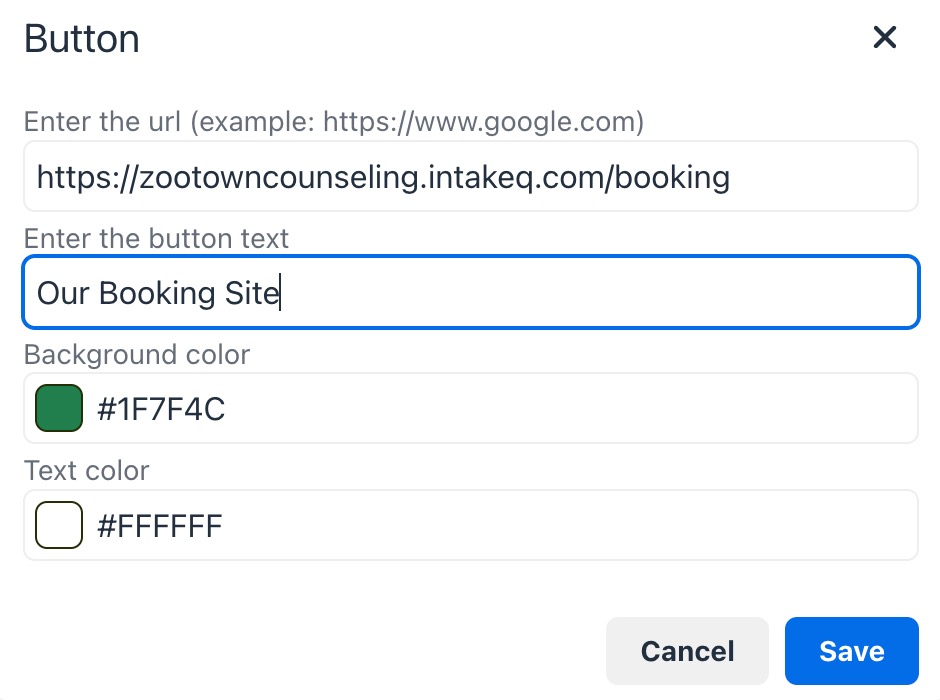
- In the Button window:
- Copy and paste the URL you want to attach to the button
- Enter the button text
- Select a background and text color
- Click Save.
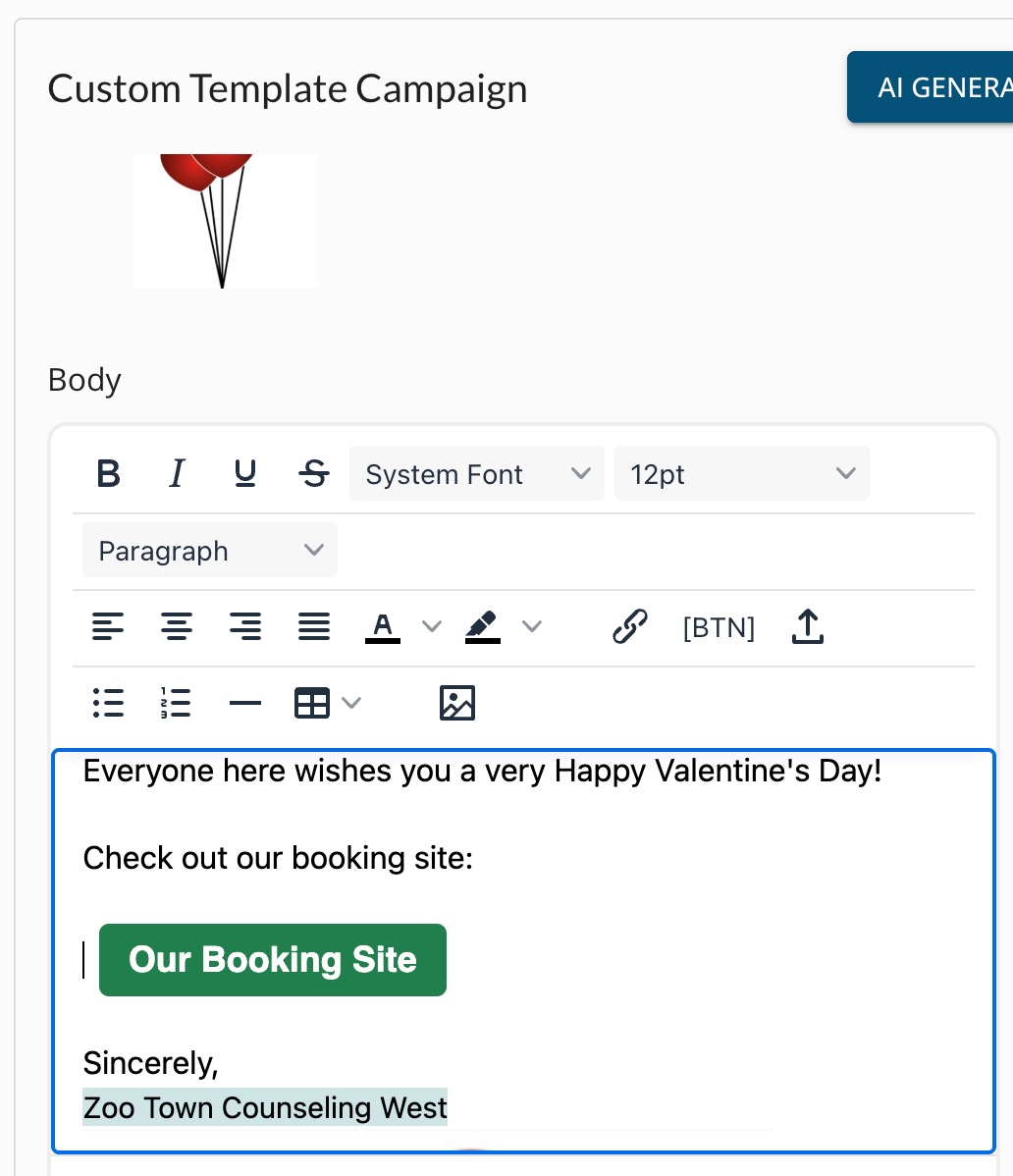
- Your button will appear in the template according to your specifications.
NOTE: If the button in your test email does not take you to your desired URL, please try this variation on Step 8: add the button without adding the URL. Then highlight the button, click the link tool, and add the URL.
