.png)
What Determines an Appointment Price?
Discover how PracticeQ prioritizes your settings to determine what a client is charged for an appointment.
PracticeQ determines appointment prices by using a special priority and the layers listed below. The first layer has the most power in determining the appointment price; the third layer has the least power.
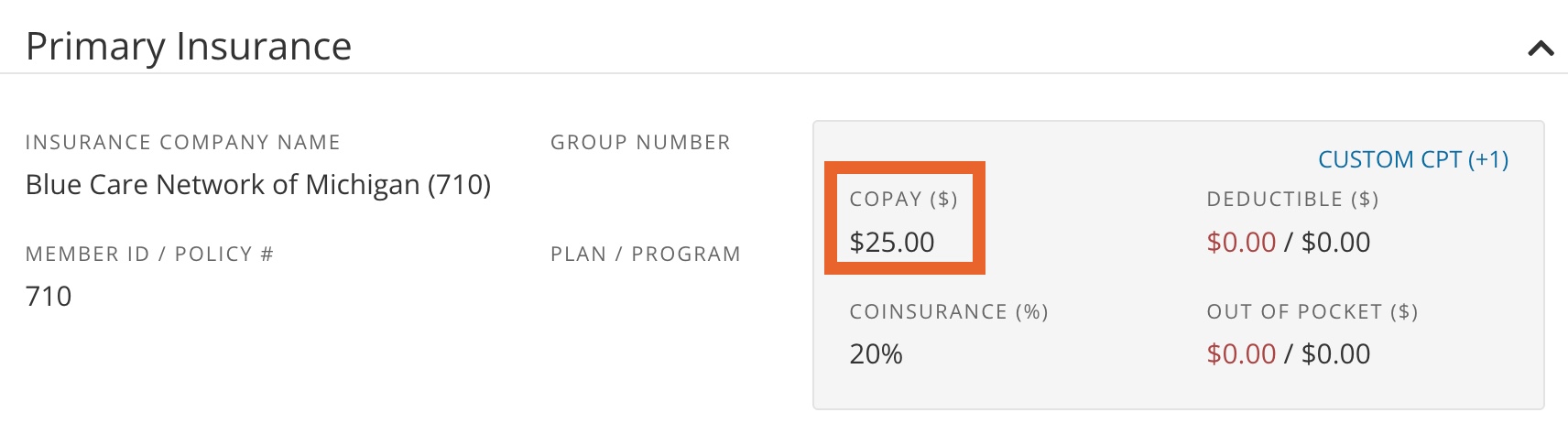
Special Priority: Copay amount
- PracticeQ will always use the copay amount entered in the Insurance section of the client profile when charging the client, as long as the copay amount was present at the time of booking.
First Layer: Price Schedule
- If the client has a Price Schedule entered, PracticeQ will use this as the highest override for the price to be charged to the client (if billing type is Self-Pay) or to insurance (if billing type is Insurance).
- The Discount Amount is the regular price minus the price schedule price.
- If you have set a Fixed Amount in the client's price schedule, it will always override the regular price entered in the Basic Info tab for the service under Bookings → Booking Settings → Services.
- For example, if the regular price is $100, but you set it to $125 (fixed amount) in a client's price schedule, PracticeQ will charge $125 for the client's appointment.
- The REG. PRICE column will always display the service setting's Basic Info price; however, that is not necessarily what PracticeQ will use to calculate the appointment price; see the information below about the Second Layer of prioritization.

Second Layer: Information entered for the service in the Pricing tab
- If the client's Price Schedule (Layer 1) features a discount amount/percentage, PracticeQ will base the discount or percentage off of what is entered in the Pricing tab of Bookings → Booking Settings → Services. (If applicable for client's practitioner and location.)
- For example, if the client's practitioner is Sarah Safari and they are scheduled at the Zoo Town Counseling West location, PracticeQ will take the price in the Pricing tab ($225) and subtract the Discount Amount in the client's Price Schedule ($25), so the client will be charged $200 for the appointment.
***The Pricing tab is the only place in the system where you can enter pricing overrides for specific practitioner/location combos.

Third Layer: Information entered for the service in the Basic Info tab
- If there is no special pricing entered in the Pricing tab for a service and no Price Schedule is in place, PracticeQ will honor the price entered in the Basic Info tab for the service under Bookings → Booking Settings → Services.

Important Notes:
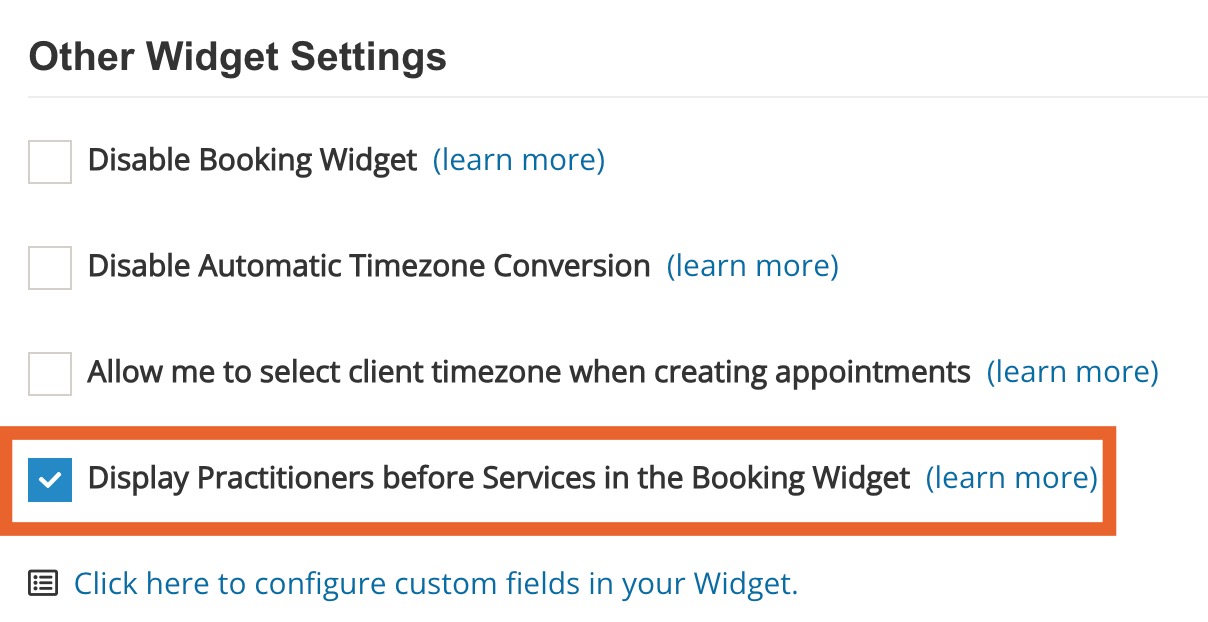
- If you check the box labeled Display Practitioners before Services in the Booking Widget in the Settings tab of your Booking Settings, clients will choose their practitioner first, then their service. (The default is for the client to select the service first, so this setting inverts the order.)
- In a multi-practitioner practice where the pricing varies by practitioner, we highly recommend that you enable this setting so the client will see only the practitioner-specific price entered in the service's Pricing tab.
- PracticeQ determines an appointment price based on the settings present at the time of booking. Changing the settings after the appointment is booked has no effect.
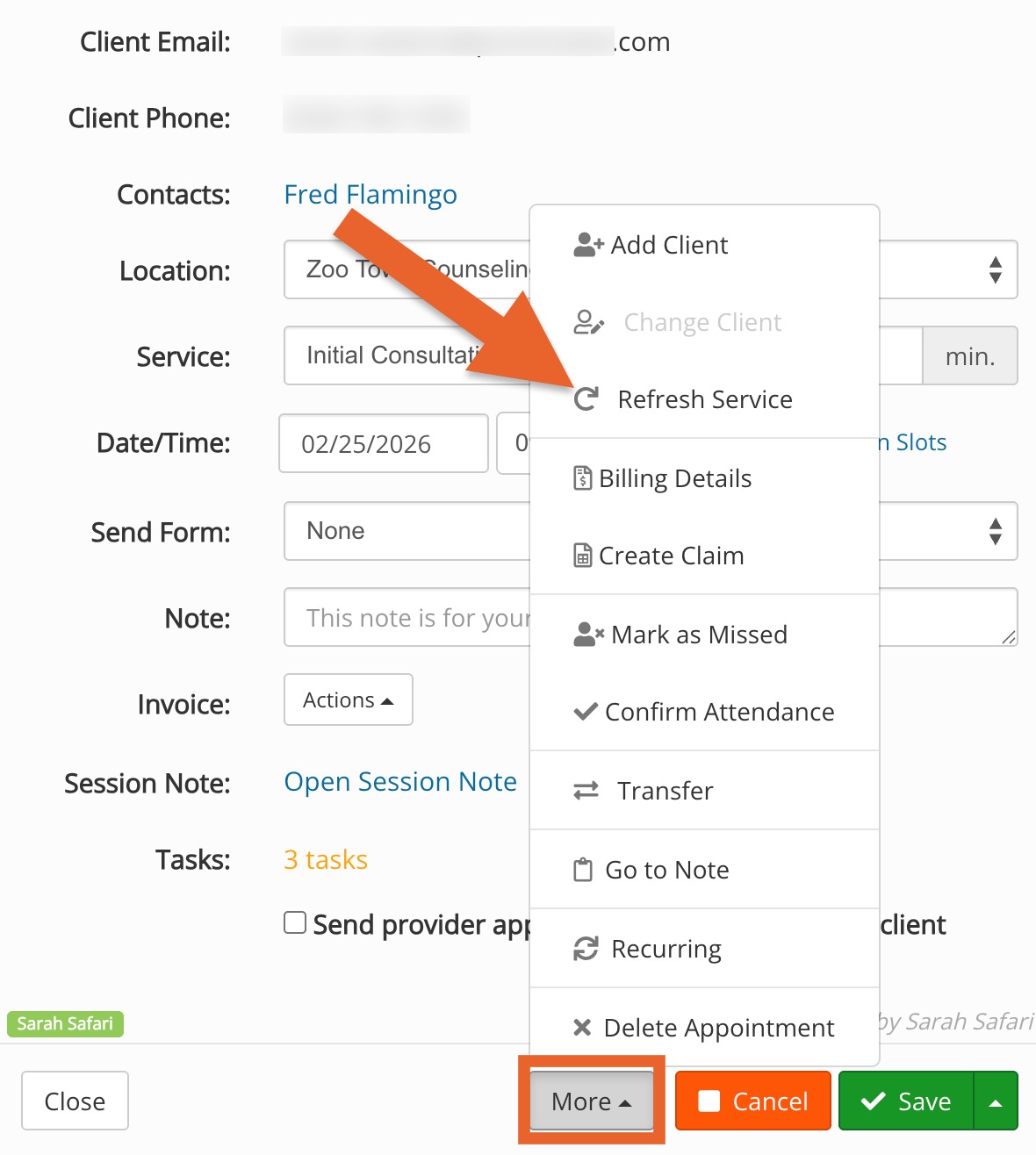
- To enforce the settings you entered after booking, open the appointment dialog and select More → Refresh Service.
- The Refresh Service tool will not update the Procedure Code pricing; this must be done manually under the Billing Details option.
- There is no way to bulk-update Procedure Code pricing for existing appointments at this time.