.png)
Engage - Set Up Telehealth Reminders
It's easy to transition your Telehealth Appointment Reminders in PracticeQ to Engage!
Step One: Copy the email reminder from PracticeQ
- Click Bookings → Booking Settings.
- Select the Messages tab.
- Locate the Telehealth Reminder and click Edit.
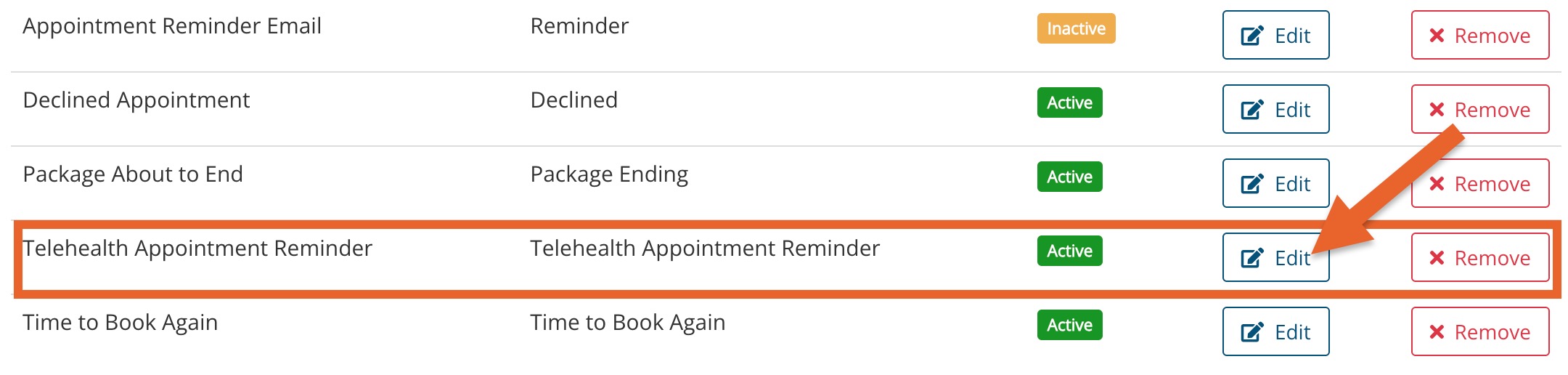
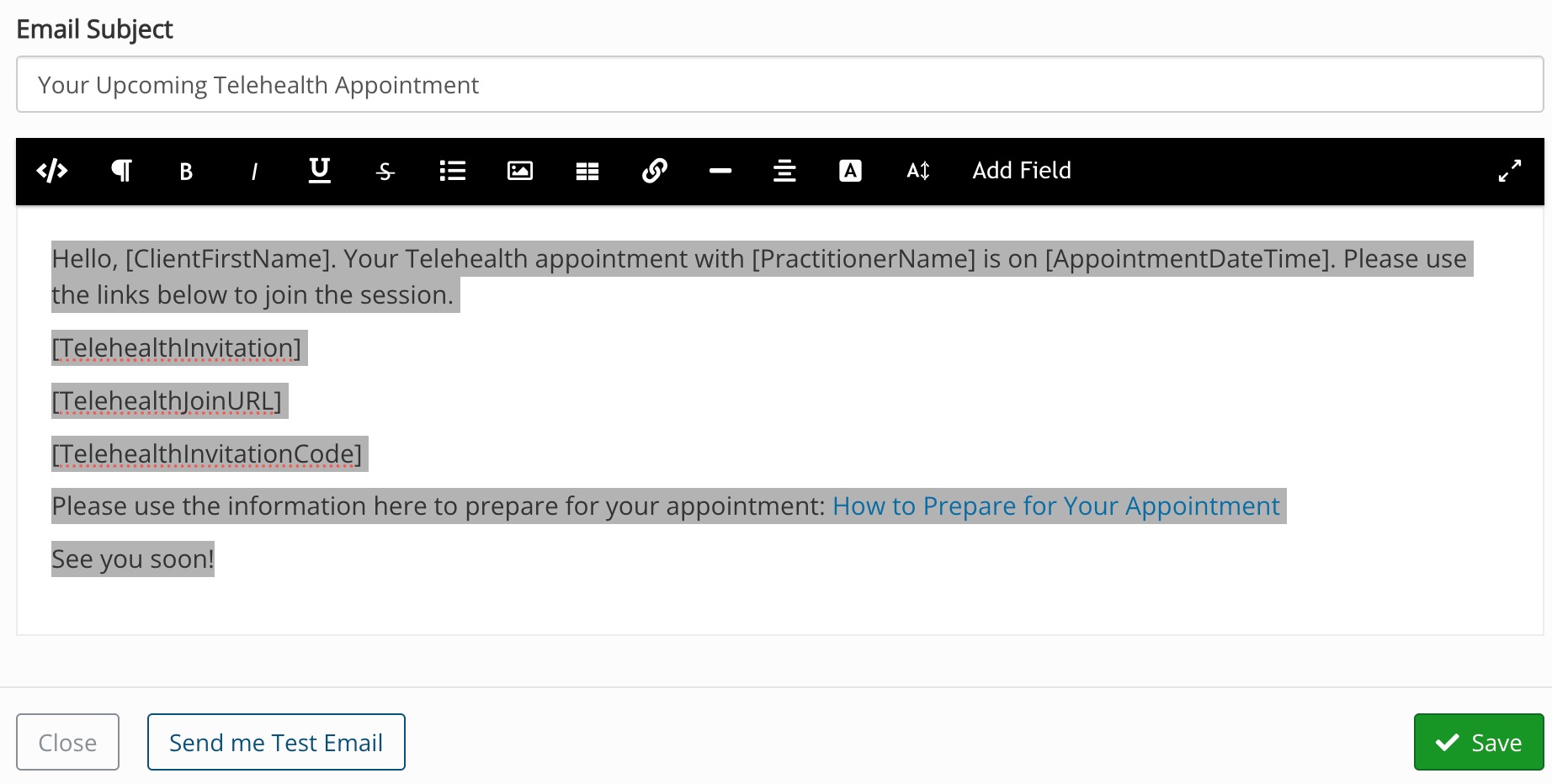
- Copy the reminder content.
 Step Two: Create the reminder as email and/or text in Engage
 Step Two: Create the reminder as email and/or text in Engage
- Click Engage from your PracticeQ toolbar.
- Click Templates → Appointments.
- Click the gear wheel for one of the existing Appointment reminders in the list, or create a new one by clicking Create New Schedule.
- Check the box labeled Telehealth.
- Select when the reminder will send, such as 1 day before the appointment.
- Click Save. You will see a computer icon next to the reminder, indicating that it is designated as a Telehealth reminder.
- Click Text or Email to edit the message.
- Paste the message in the text box.
- Replace the bracketed PracticeQ variables with the blue Engage variables. Simply click them from the menu above to insert them.
- Click Save. Do not skip step 9; only Engage variables will pull the correct information into the reminder.
In your text message templates, do not remove the STOPtoOptOut language; this is necessary to allow clients the chance to unsubscribe.
