.png)
Add a Client Contact
Add contacts to client profiles to expand communication to family members and authorized third parties.
You can create a profile for minor clients with no email or phone as long as a contact is also added with a valid email or phone number upon creation.
Add the contact when creating the client
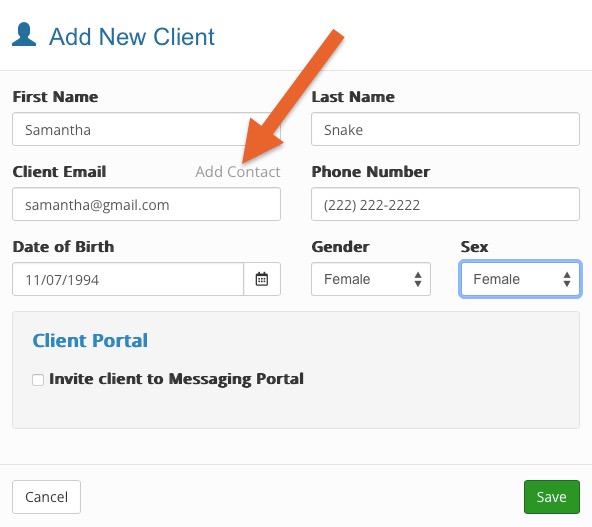
- Click the Add New Client button from the homepage.
- Click Add Contact.
- Enter contact details and click Save Contact.
- All contacts added are listed on the Add New Client screen. You can edit them before saving.
Add the contact in the client profile
- Click Lists → Clients and open the client profile.
- Scroll down to the Contacts section.
- Click + add contact to enter a new contact for the client.
- Enter the Name, Email, Phone Number and Relationship for the contact. These are not required fields, but they will be required in order for the contact to receive notifications.
Note: You will notice that the client is also listed as a contact. This allows you to disable the notifications for the client if needed. For situations where the client is a child and does not have a phone or email, you can list the parents as contacts and disable notifications to the client's email if they are the same as the parent.

Grant contact permissions
- Appointment Reminders
- Includes appointment reminders related to appointments for the client
- Appointment Confirmations
- Includes appointment confirmations, appointment cancellation notifications, and missed appointment notifications
- Scheduled Emails and SMS
- Any scheduled emails or SMS related to the appointment
- Can manage appointments
- A client's contact can log into the booking widget and reschedule, schedule and delete appointments for the contact
