.png)
Invite a Contact to a Client's Portal
Invite a client's contact to the portal to create a new messaging channel between the contact and the practitioner. This allows the contact to pay for invoices, manage appts, view shared documents, complete forms, and complete signatures for the client.
You have two options to invite a contact to the portal:
- Via the Contacts list on the client profile
- Within the portal itself on the portal messages page
In the Client Profile
- The same email address can be used by the contacts for different clients. For example, the parent of two children can be added as a contact under each child, with the same email.
- Contacts of multiple clients can switch between clients in the portal. Clicking the down arrow beside the profile name will display the list of clients that are linked with the contacts email. Select and click the Client's Name to switch to the client's portal account.
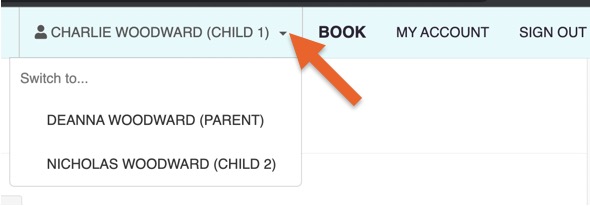
- A person can also have a portal as a contact and a portal as a client, using the same email address.
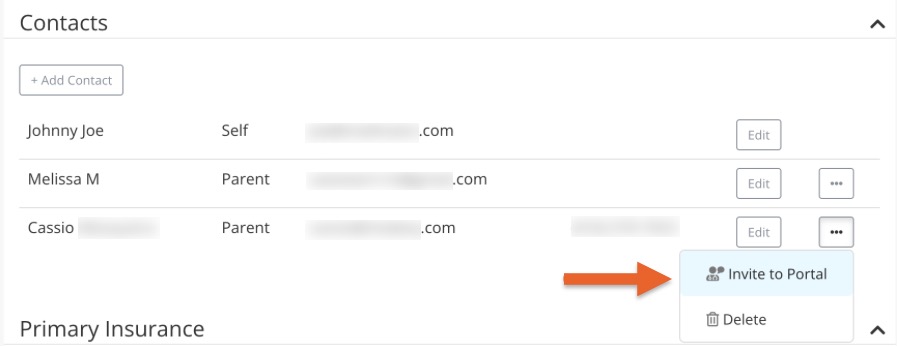
From the Portal Messaging Page
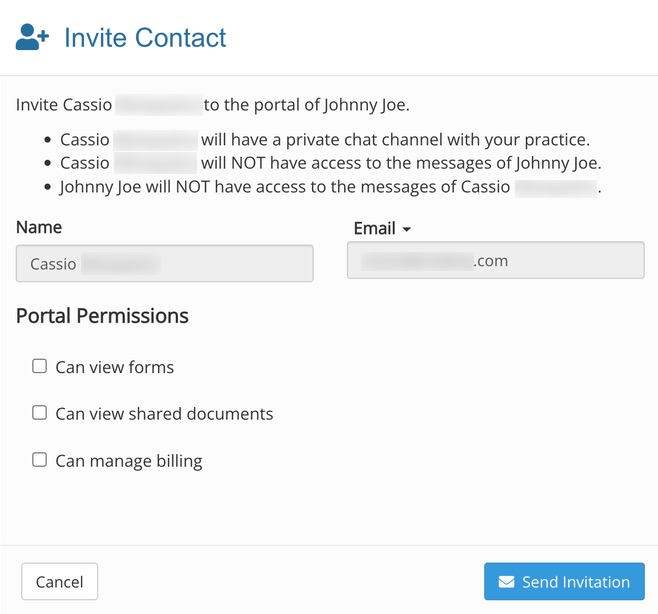
When inviting contacts to the portal, you have the following permissions: 
- Can view forms
- This allows the contact to view and forms between the practitioner and the client
- Can view shared documents
- This allows the contact to view any shared documents between the client and the practitioner
- Can manage billing
- This allows the contact to view and pay invoices and modify saved credit cards
- Once the contact has portal access, you can see the relationship to the client in the portal messages list.
Note: We cannot send GFEs to a contact at this time.
- This allows the contact to view and pay invoices and modify saved credit cards

Send Portal Messages to Contacts
- Message the contact from the client profile or from the portal itself.
Note: The Messages tab in the client profile will always ONLY be the messages from the client, not the contacts.
