.png)
Update a Service: Best Practice
At times you may need to update a service in your booking settings. Follow the guidance in this article to ensure the process is handled correctly.
Example: You wish to remove the Massage Short Session service, and add the Acupuncture service.
DO NOT do the following:
- Do not overwrite the name of the Massage Short Session service with the Acupuncture name.
Why not?
- The original service record for Massage Short Session will still exist, despite its new name.
- Renaming it to Acupuncture will cause all past and future appointments that were scheduled as Massage Short Service to show scheduled as Acupuncture, creating confusion for clients and staff.
Instead, do the following:
Phase out the old service:
- Select the Services tab.
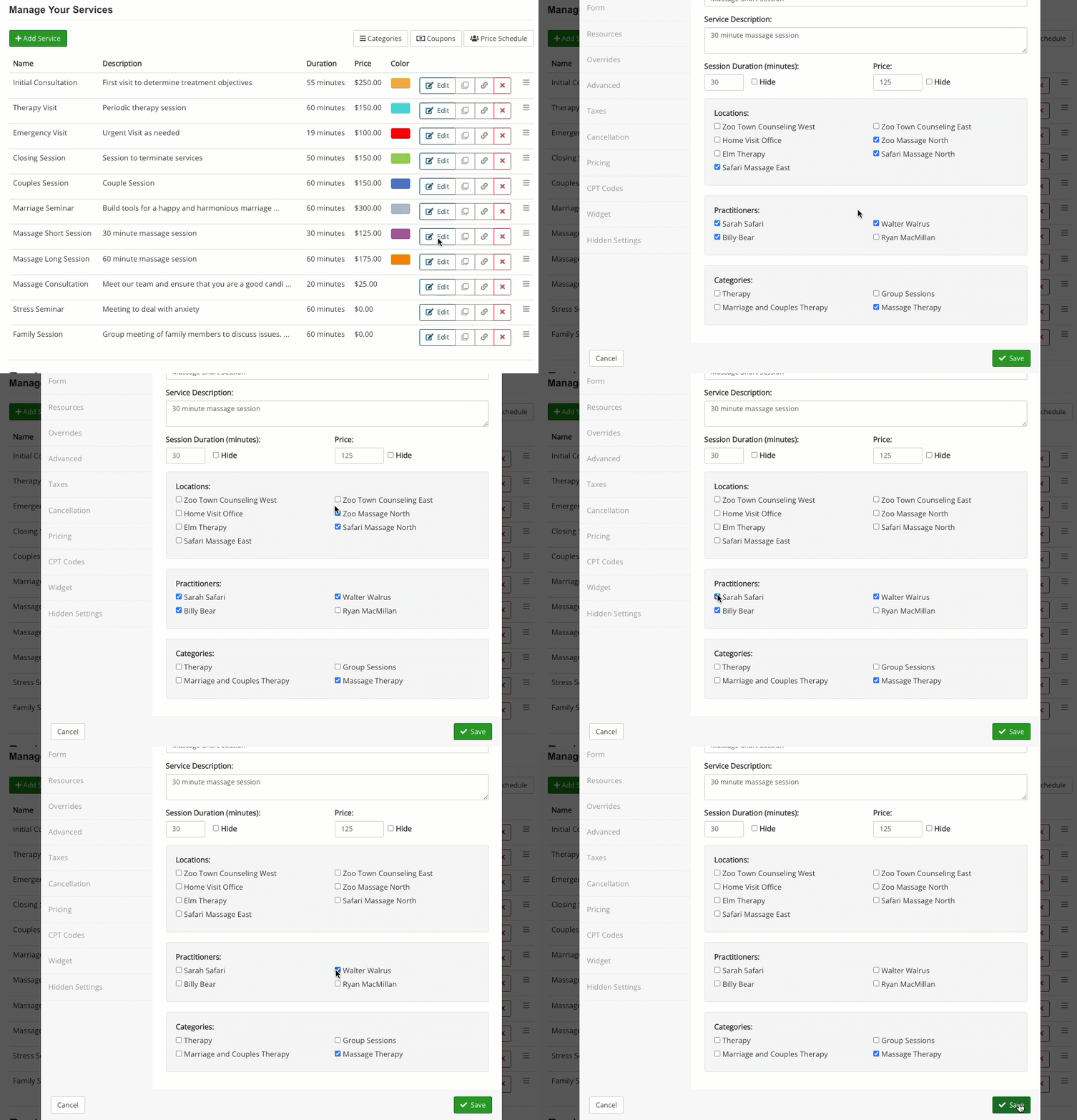
- For the Massage Short Session service, click Edit.
- Select the Basic Info tab.
- Uncheck all practitioners for the service.
- Uncheck all locations for the service.
- Click Save.
- Once this is done, the Massage Short Session service will be impossible to schedule:
- Clients will not be able to schedule it via the booking widget
- Staff will not be able to schedule it manually from the booking calendar
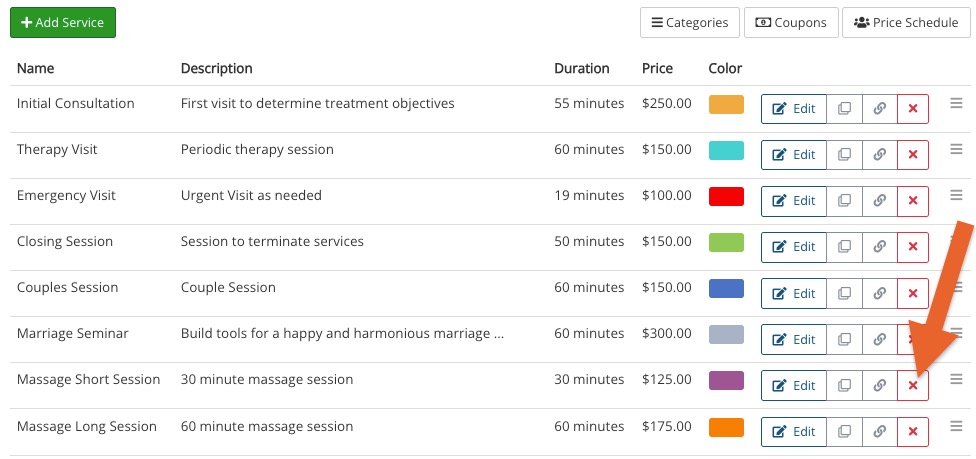
- After the existing Massage Short Session appointments have been completed, you may delete the service by clicking the red X button next to its name.
Add the new service:
- Click the Add Service button.
- Create a new service with the Acupuncture name.
- Select the Basic Info tab.
- Check all practitioners who will offer the service.
- Check all locations that will offer the service.
- Click Save.