.png)
RevolutionEHR: Link a Single IntakeQ Practitioner to Multiple RevEHR Practitioners
You can link one IntakeQ practitioner to multiple RevolutionEHR practitioners. Use the steps below to complete the setup.
Clients must complete the question and submit the form for the mapping to work correctly.
Add the Custom Field
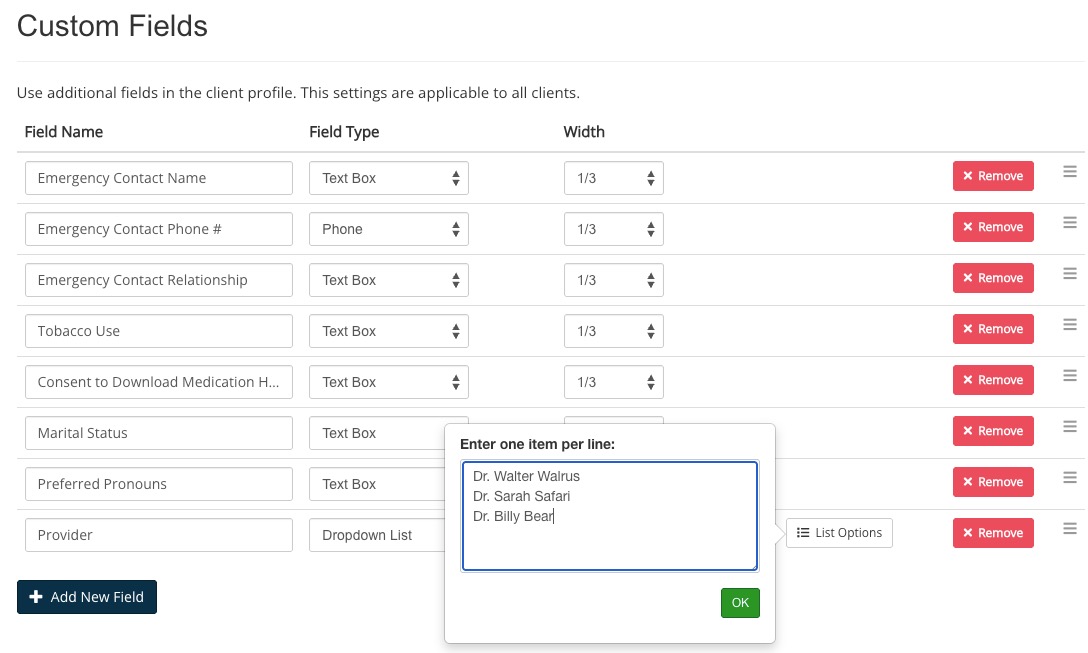
- Click Lists → Clients.
- Click Profile Settings.
- Select the Custom Fields tab.
- Click Add New Field.
- Name the field Provider.
- For Field Type, select Dropdown List.
- Enter the provider's names in the exact spelling/order they appear in More → Settings → Integrations → Rev EHR.
- Click Save Settings.
Add the Question to Your Form
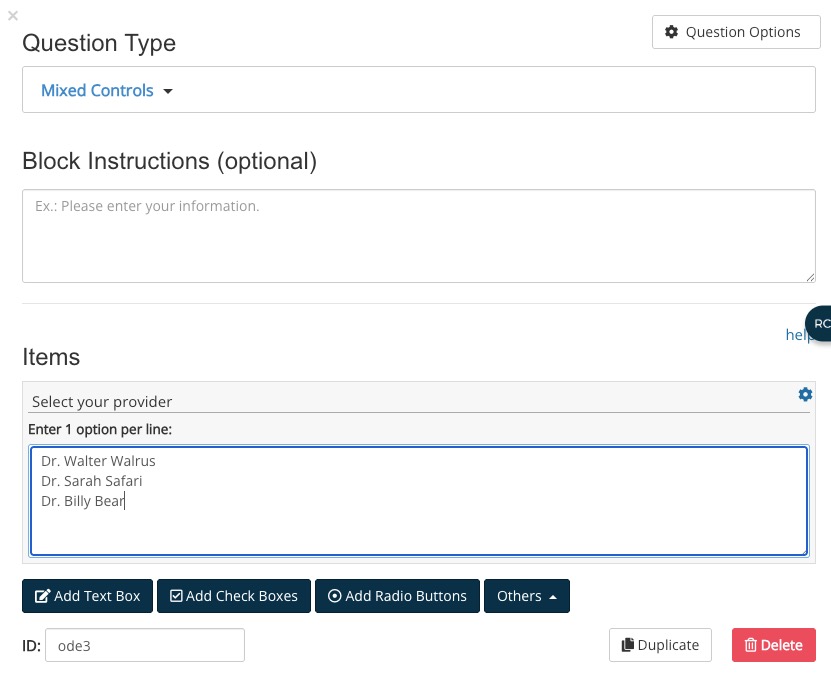
- Open the form for editing.
- Click Add New Question.
- Select the Mixed Controls question type.
- Click Others and select Add Dropdown.
- Copy and paste the provider names from the Custom Field settings you just completed. Confirm that the providers are:
- Spelled exactly the same
- Listed in the same order
- Listed one per line
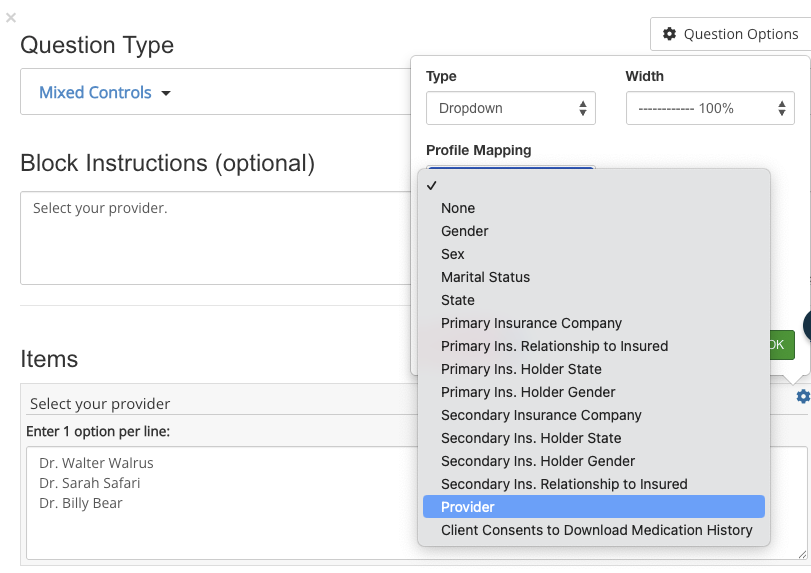
- Click the gear wheel icon for the question item.
- Select Dropdown from the Type dropdown menu.
- Select your custom field from the Profile Mapping dropdown menu.
- Click OK.