.png)
AI Form Builder: Create and Edit a Consent Form Draft
Let the AI Form Builder create a consent form draft for you in just a few clicks.
- Click My Forms and scroll to the Consent Forms section.
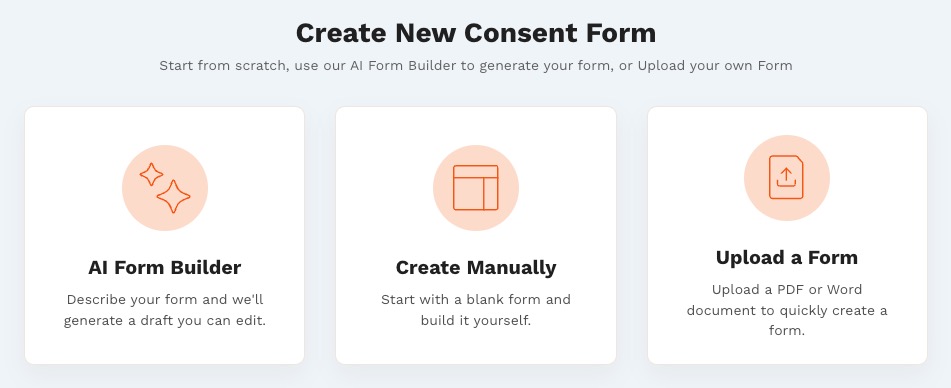
- Click the Create New button (now located next to the New Folder button).
- Three options will display:
- AI Form Builder
- Create Manually
- Upload a Form
- Click the AI Form Builder option.
- In the first screen, select your Specialty from the dropdown menu.
- Type the first few letters of your specialty to jump to it on the list.
- If your specialty is not in the list, you may select a similar specialty, or Other.
- Click Continue.
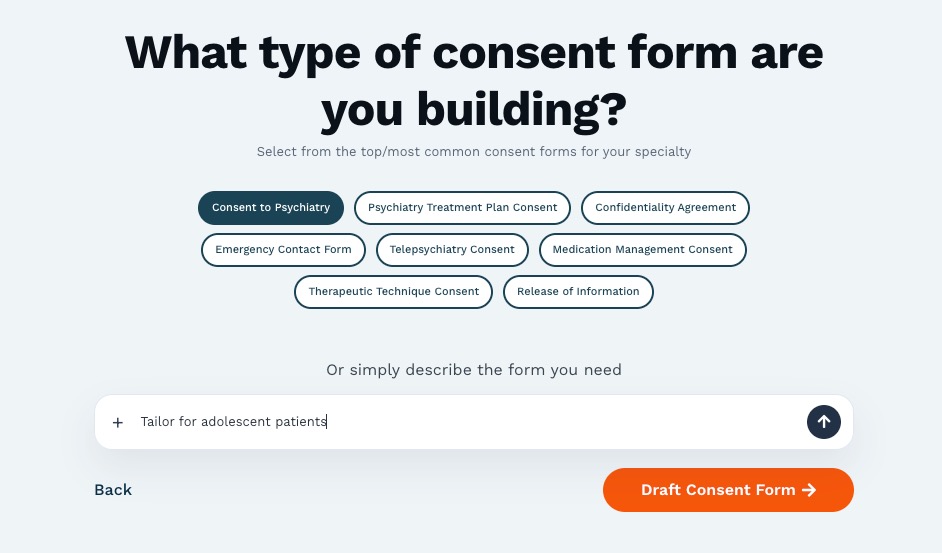
- On the next screen, select the Type of Consent Form you wish to create.** See Live Chat Function information below.
- Click Draft Consent Form.
- The AI Form Builder will process your input to create a consent form draft.
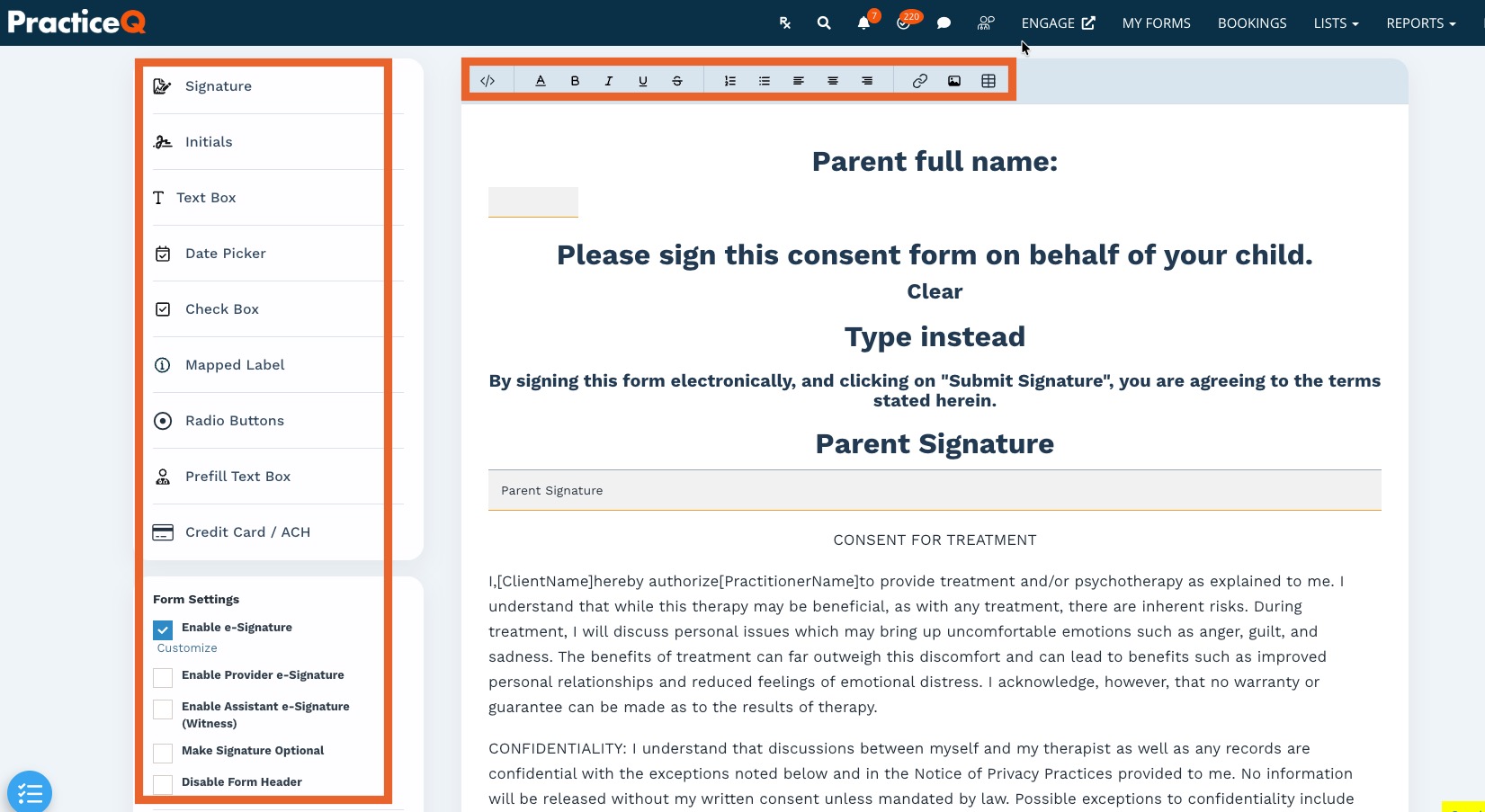
- To edit the title of the form, click the pencil icon.
- Use the word processing tools at the top of the text editor to refine your form.
- To add elements, such as text boxes or date pickers, place your cursor where you would like the element to be. Select the element from the menu on the left to insert it.
- On the bottom left, select your desired Form Settings using the provided checkboxes.
- Click Preview to view your consent form as your clients will see it. The preview will open in a new browser tab.
- Click Publish when you are ready to add it to your forms collection.
IMPORTANT: Do not close the browser tab as you edit your AI-generated consent form draft. Once you have closed the tab, you will not be able to return to the original draft.
Live chat function
**If none of the options fit your needs, type into the How can I help you? field to begin a live AI chat.
IMPORTANT: Anything you add in the live chat will be processed instead of any prompted suggestions that have been selected. Your selected specialty will still be utilized in the live chat. The live chat and the prompted suggestions operate exclusively.
- Example: If you select the Consent for Psychiatry suggestion AND type Tailor for adolescent patients, AI will not process both requests; it will only process your chat prompt. In that scenario, it is best to type Consent for psychiatry for adolescent patients in the chat.
NOTE: In order to provide optimal results, each live chat is limited to 5 AI interactions.