.png)
Custom CSS for Forms
Ready to personalize your forms? Try these popular CSS (Cascading Style Sheets) customizations to create the look you want.
IMPORTANT:
CSS customizations are the sole responsibility of the user/practice, including the practice’s staff, resources, and any third-party or technical support they choose to use. IntakeQ/PracticeQ does not provide, manage, or maintain custom CSS configurations.
Please note: IntakeQ/PracticeQ does not support or troubleshoot errors, issues, or unexpected results caused by custom CSS. Any CSS-related issues must be reviewed and resolved by the user/practice or their qualified technical resource.
What if my CSS customizations don't work/do not turn out the way I intended?
- Remove the customization code.
- Ask your clinic tech support team for assistance.
NOTE: The web customizations below refer to questionnaires only; they will not apply to attached consent forms.
Form Customizations for Web Versions
Get Started:
- Go to My Forms and open the form template.
- Open the three dot menu and select Settings.
- Select the Advanced tab.
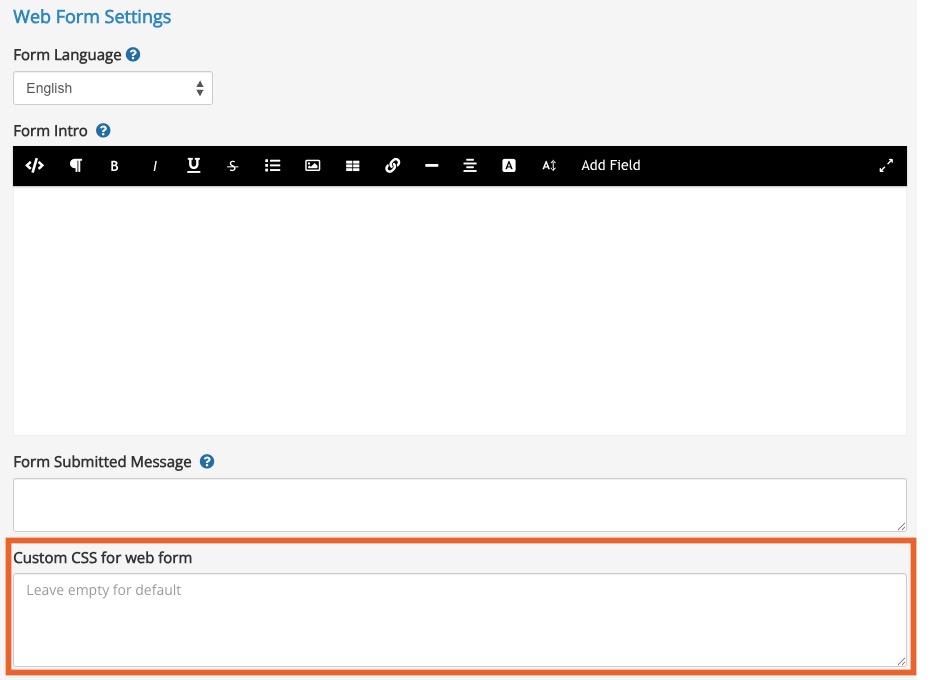
- Scroll down to Web Form Settings.
- Enter your custom CSS in the Custom CSS for web form field.
Jump to a Section
- Adjust the background 'grey' color for the Web version of forms
- Disable the "Sign Out" Button on Forms
- Remove the "Previous" Buttons in Interactive Mode
- Import/Change the Main Form Font
- Enter a Custom Message after 'Thank you for filling out the form'
- Remove Web Form Question Numbers
- Change Intake Package Consent Form Title
- Go to My Forms and open the form template.
- Open the three dot menu and select Settings.
- Select the Advanced tab.
- Scroll down to PDF Settings.
- Enter your custom CSS in the Custom CSS for PDF field.
- PDF Form Color Adjustments
- PDF Bold Adjustment (Swap)
- Change all the answers on PDF printout to black/non bold
- Change all the answers on PDF printout to black/non bold (Treatment Notes)
- Edit PDF Margins
- PDF Printout Font Adjustments
Adjust the background 'grey' color for the Web version of forms:
Use this to change the background color of your web form.
.intake2 .question .panel-body {background:#0E72BA;}
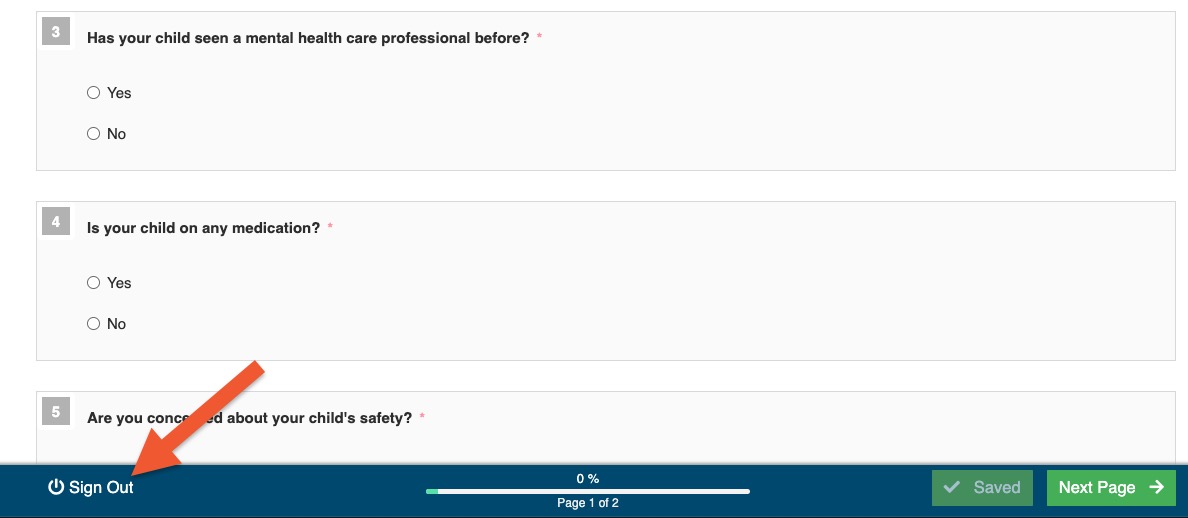
Disable the "Sign Out" Button on Forms
Use this to remove the button to sign out, only leaving clients the option to submit the form.
.row .left .btn {display:none;}
.btn-primary {display:none !important;}
Remove the "Previous" Buttons in Interactive Mode
Use this to remove client's ability to return to previous pages in forms.
.interactive .navigation-bar #previous-page {display:none;} 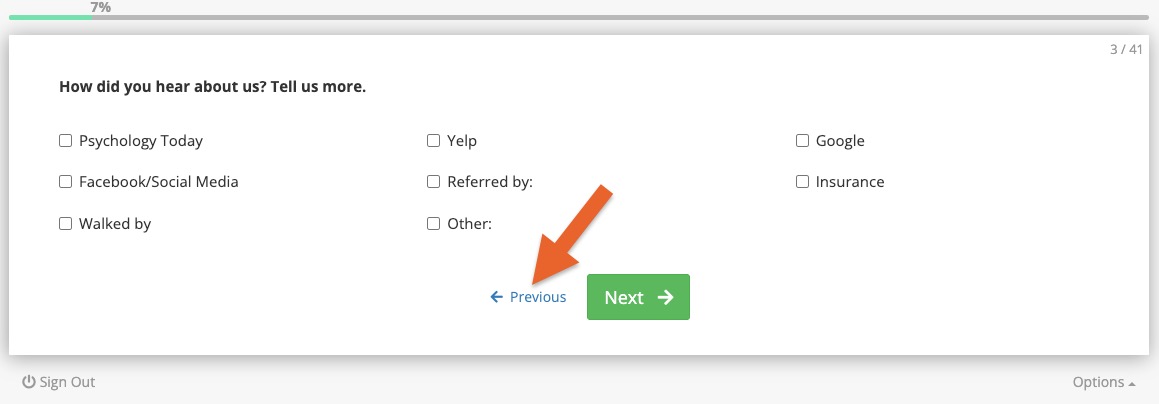
Import/Change the Main Form Font
Use this to change the font for the entire web form. Note: This can cause forms to require a few extra seconds to load.
h1, h2, h3, h4, h5, h6 , p, div, span, pre, td, th {font-family: 'Stoke', serif !important;}
Enter a Custom Message after 'Thank you for filling out the form'
Use this if you wish to add an additional message. This is useful if your form automatically redirects the client, as the message will not change the "5 seconds until redirect" setting. Note: If your form is not set to automatically redirect, use More → Settings → Advanced → Form Submitted Message instead.
.submit-success p::after {color:#333; content: "\A Please wait while you are redirected to the online scheduler."; text-align:center; white-space: pre; !important; font-size: 16px; visibility:visible !important;} 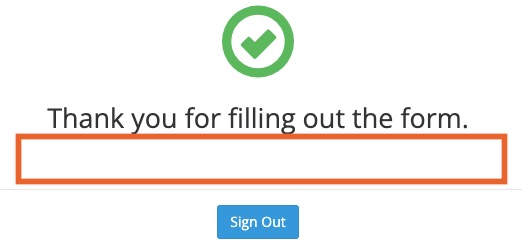
Remove Web Form Question Numbers
Use this to remove question numbers on web version of forms only. For PDFs, use More → Settings → Advanced → Hide Question Numbers on PDF instead.
.intake2 .question .question-number {display:none;}
.intake2 .question .panel-body {padding-left:20px;} 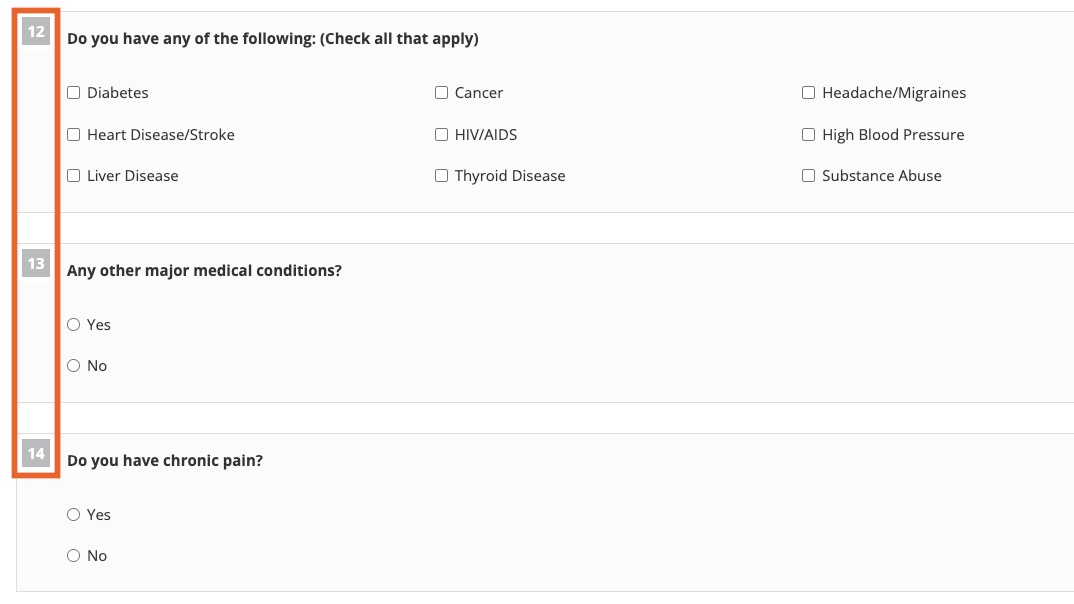
Change Intake Package Consent Form Title
Use this if you wish to alter the 'Consent Forms' heading that displays above attached consent forms.
.consent-list h3 span {visibility:hidden;}
.consent-list h3 span::before {content:"Consent forms"; visibility:visible;}
Form Customizations for PDFs
Get Started:
Jump to a Section
PDF Form Color Adjustments
NOTE: If you use RTF for a question item, this customization has no effect.
.intake2 .question h2.section {color:#0E72BA;}
.intake .note h4 {color:#0E72BA;}
.intake2 .bottom-bar {background:#0E72BA;}
.intake .note {border-left:3px solid #0E72BA !important;}
.btn-primary {background:#0E72BA; border-color:#0E72BA;}
.btn-primary:hover {background:#0E72BA; border-color:#0E72BA; opacity:0.8;}
.btn-success {background-color:#02A7CD; border-color:#02A7CD;}
.btn-success:hover {background-color:#02A7CD; border-color:#02A7CD; opacity:0.8;}
.interactive .progress .progress-bar {background-color:#0E72BA;}
.btn-warning {background-color:#0E72BA; border-color:#0E72BA;}
.btn-warning:hover {background-color:#0E72BA; border-color:#0E72BA; opacity:0.8;}
PDF Bold Adjustment (Swap)
By default, questions are in bold and answers are not; the customization below reverses this formatting. This does NOT affect RTF questions.
.answer pre, .answer .checked, .answer, .answer-text, .item-row span {color:#000 !important; font-weight:normal !important;}
Change all the answers on PDF printout to black/non bold
The customization below removes all bold type and overrides the More → Settings option for the specific PDF questionnaire template.
.question .text.text-print, .question .item-row.mixed-controls {color:#000 !important;}
.question .answer p > pre, .answer pre, .answer .checked, .answer, .answer-text, .item-row span {color:#000 !important; font-weight:normal !important;}
.question .text-print {color:#000 !important;}
.question .text {color:#000 !important;}
.intake2 .question h2.section {color:#000;}
Change all the answers on PDF printout to black/non bold (Treatment Notes)
This will remove all bolded answers in PDF printout, but only for treatment notes.
.question .text.text-print, .question .item-row.mixed-controls {color:#000 !important;}
.question .answer p > pre, .answer pre, .answer .checked, .answer, .answer-text, .item-row span {color:#000 !important; font-weight:normal !important;} .question .text-print {color:#000 !important;}
.question .text {color:#000 !important;}
.intake2 .question h2.section {color:#000;}
.intake .note h4 {color:#000;}
Edit PDF Margins
PDF MARGINS ADJUSTMENT (FORM):
.container {padding:20px 20px;}
PDF MARGINS ADJUSTMENT (NOTE):
.container-fluid {padding:20px 20px;}
PDF Printout Font Adjustments
Use if you wish to modify the fonts of specific items in your form.
.question .text.text-print, .question .item-row.mixed-controls {color:#000 !important;}
.question .answer p > pre, .answer pre, .answer .checked, .answer, .answer-text, .item-row span {color:#000 !important; font-weight:normal !important;}
.question .text-print {color:#000 !important;}
.question .text {color:#000 !important;}
.intake2 .question h2.section {color:#000;}
.intake .note h4 {color:#000;}