.png)
How does PracticeQ Information Populate in the CMS-1500 Claim Form?
Wondering where your PracticeQ data appears on the CMS-1500 claim form? Use the guide below to see how each field maps.
Click a Claim Field from the list to see how it's mapped!
**Any fields not listed below are not supported by PracticeQ.
- Field 1
- Field 1a (Insured’s I.D. Number)
- Field 2 (Patients Name)
- Field 3 (Patient’s Birth Date/Sex)
- Field 4 (Insured’s Name)
- Field 5 (Patient’s Address)
- Field 6 (Patient Relationship to Insured)
- Field 7 (Insured’s Address)
- Field 9 Boxes
- Field 9a (Other Insured’s Policy or Group Number)
- Field 9d (Insured’s Plan Name or Program Name)
- Field 10a.b.c. (Is Patient Condition Related to)
- Field 11 (Insured’s Policy Group or FECA Number)
- Field 11a (Insured’s Date of Birth)
- Field 11c (Insurance Plan Name or Program Name)
- Field 11d (Is there another health benefit plan?)
- Field 12 (Patient’s or Authorized Person’s Signature?)
- Field 13 (Insured’s or Authorized Person’s Signature?)
- Field 14 (Date of current Illness, Injury or Pregnancy)
- Field 15 (Other Date)
- Field 16 (Dates Patient Unable to Work in Current Occupation)
- Field 17 (Name of Referring Provider)
- Field 17a (Name of Referring Provider)
- Field 17b (NPI)
- Field 18 (Hospitalization Dates Related to Current Services)
- Field 19 (Additional Claim Information)
- Field 20 (Outside Lab)
- Field 21 (Diagnosis or Nature of Illness or Injury)
- Field 22 (Resubmission Code)
- Field 23 (Prior Authorization Number)
- Field 24A (Date(s) of Service)
- Field 24B (Place of Service)
- Field 24D (CPT/HCPCS)
- Field 24D (Modifiers)
- Field 24E (Diagnosis Pointer)
- Field 24F (Charges)
- Field 24G (Days or Units)
- *Field 24H (EPSDT)
- Field 24I (ID. QUAL.)
- Field 24J (Rendering Provider ID#)
- Field 25 (Federal Tax I.D.Number)
- Field 26 (Patient’s Account Number)
- Field 27 (Accept Assignment)
- Field 28 (Total Charge)
- Field 29 (Amount Paid)
- Field 31 (Signature of Physician or Supplier)
- Field 32 (Service Facility Location Information)
- Field 32a (NPI)
- Field 32b (Service Facility Location Information)
- Field 33 (Billing Provider)
- Field 33a (NPI)
- Field 33b (Taxonomy)
- Lists → Claims → Claim Settings → Payers Tab → Payer → Payer Type
- Lists → Clients → Client → Overview → Primary Insurance → Member ID/Policy# field
- Lists → Clients → Client → Overview → Basic Information → Name field, OR
- Lists → Clients → Client → Claims Tab → Claim Defaults Button → Patient Legal Name field
- Lists → Clients → Client → Overview → Basic Information → Date of Birth field and Sex field
- Lists → Clients → Client → Overview → Primary Insurance → Policyholder Information → Name field
- Lists → Clients → Client → Overview → Basic Information → Address field
- Lists → Clients → Client → Overview → Primary Insurance → Policyholder Information → Client Relationship field
- Lists → Clients → Client → Overview → Primary Insurance → Policyholder Information → Street Address field(s)
- Lists → Clients → Client → Overview → Secondary Insurance → Policyholder Information → Name field
- Lists → Clients → Client → Overview → Secondary Insurance → Member ID field or Group Number field
- If both the Member ID and the Group Number are present in the Client Overview, the Group Number will populate on the claim.
- Lists → Clients → Client → Overview → Secondary Insurance → Plan/Program Name field
- Lists → Clients → Client → Overview → Primary Insurance → Group Number field
- Lists → Clients → Client → Overview → Primary Insurance → Policy Holder Information → Date of Birth and Sex fields
- Lists → Clients → Client → Overview → Primary Insurance → Plan/Program field
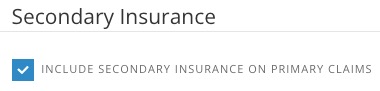
- Lists → Clients → Client → Overview → Secondary Insurance → Include Secondary Insurance on Primary Claims check box.
- This field will populate automatically with the Signature on File.
- This field will populate automatically with the Signature on File unless:
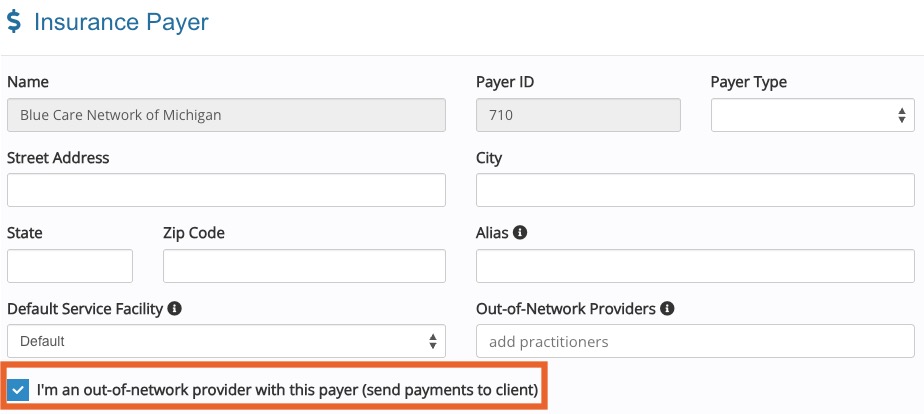
- Lists → Claims → Claim Settings → Payers → Payer → I’m an Out-of-network provider with this payer (send payments to client) is checked. In this case, the field will be blank.
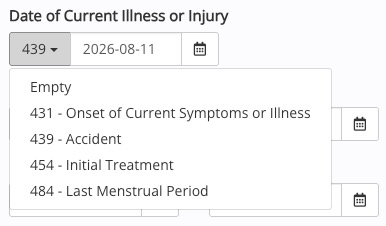
- Lists → Clients → Client → Claims Tab → Claim Defaults Button → Date of Current Illness or Injury field, including the dropdown for Qualifier.
- Lists → Clients → Client → Claims Tab → Claim Defaults Button → Other Date field Including dropdown for Qualifier.
- Lists → Clients → Client → Claims Tab → Claim Defaults Button → Dates Patient Unable to Work field (Start and End).

- Lists → Clients → Client → Overview → Basic Information → Referring Provider
- ***Field 17 information will only populate on the claim if you click the doctor symbol and select the Referring Provider from the list you created in Profile Settings.
- Lists → Clients → Client → Overview → Basic Information → Referring Provider → Other ID field
- ***Field 17 information will only populate on the claim if you click the doctor symbol and select the Referring Provider from the list you created in Profile Settings.
- Lists → Clients → Client → Overview → Basic Information → Referring Provider → NPI field
- ***Field 17 information will only populate on the claim if you click the doctor symbol and select the Referring Provider from the list you created in Profile Settings.
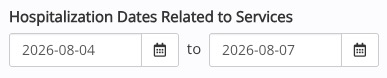
- Lists → Clients → Client → Claims Tab → Claim Defaults Button → Hospitalization Dates Related to Services field (Start and End).
- Lists → Clients → Client → Claims Tab → Claim Defaults Button → Additional Information (Box 19) field.
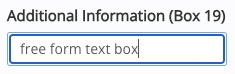
- Lists → Clients → Client → Claims Tab → Claim Defaults Button → Outside Lab (Yes/No).
- Lists → Clients → Client → Diagnosis Tab, OR
- The diagnosis defined in the Note of the Date of Service being billed.
- Pointers A through L are defined by the order of the Diagnosis in Lists → Clients → Client → Diagnosis tab (Pointer A is the first in the list).
- Resubmission Code:
- Lists → Claims → Claim → Other Details → Drop Down (6, 7 or 8);
- Original Ref. No.:
- Lists → Claims → Claim → Other Details → Empty Box next to dropdown.
- Lists → Clients → Client → Claims Tab → Claim Defaults Button → Prior Authorization Numbers
- Bookings → Edit Appointment → Date
- This will be tied to the Place of Service you have assigned to the Service in your Booking Settings.
- This can be adjusted in Bookings → Booking Settings → Services → Edit the Service → CPT Codes → Place of Service (dropdown menu)
- Bookings → Edit Appointment → Service
- This can be adjusted in:
- Bookings → Booking Settings → Services → Edit the Service → CPT Codes, OR
- The Procedure section of the Note for the date of service in question
- ***What you enter in More → Billing Details in the appointment dialog will populate to the Procedure section of the Note.
- Bookings → Edit Appointment → Service
- This can be adjusted in:
- Bookings → Booking Settings → Services → Edit the Service → CPT Codes, OR
- The Procedure section of the Note for the DOS in question, OR
- Lists → Claims → Claim Settings → Payers → Edit Payer → CPT Overrides
- Based on what is entered in Field 21; see above.
- Pointers will display A through L in the order they appear in the Diagnosis tab.
- Bookings → Edit Appointment → Service
- This can be adjusted in:
- Bookings → Booking Settings → Services → Edit the Service → CPT Codes, OR
- Lists → Claims → Claim Settings → Payers → Edit Payer → CPT Overrides
Field 24G (Days or Units)
- Bookings → Edit Appointment → Service
- This can be adjusted in:
- Bookings → Booking Settings → Services → Edit the Service → CPT Codes, OR
- The Procedure section of the Note for the date of service in question.
*Field 24H (EPSDT)
* This value currently displays in the bottom box; it will be corrected to display in the top box.
- Lists → Clients → Client → Claims Tab → Claim Defaults Button → EPSDT(Box 24H) field.
- More → Account → Clinical → Taxonomy, OR
- Lists → Claims → Claim Settings → Payers → Edit Payer → Additional Provider IDs
- Top box:
- More → Account → Clinical → Taxonomy, OR
- Lists → Claims → Claim Settings → Payers → Edit Payer → Additional Provider IDs
- Bottom box:
- More → Account → Clinical → NPI (or Lists → Claims → Claim Settings → Providers)
- Lists → Claims → Claim Settings → Payers → Edit Payer → Supervisor Relationship
Field 25 (Federal Tax I.D.Number)
- Lists → Claims → Claim Settings → Defaults → Tax ID field
- The C value is found in Lists → Claims → Claim Number for date of service being billed
- The P value is found in Lists → Clients → ID# of client
Example:

- Lists → Claims → Claim Settings → Payers → Payer → I’m an out-of network provider with this payer (send payments to client) check box
- If this box is checked, No will be checked in Field 27
- Total of Column 24F values
- This is the amount invoiced and collected for the date of service in question.
- This will appear on the claim if:
- The money is collected upfront (prior to claim creation), AND
- Lists → Claims → Claim Settings → Defaults → Include patient paid amount on claims is checked off
- This field will automatically fill with Signature on File from the server
- Lists → Claims → Claim Settings → Facilities → Name and Address
- Lists → Claims → Claim Settings → Facilities → NPI
- Lists → Claims → Claim Settings → Facilities → Edit Facility → Facility Other ID
- Lists → Claims → Claim Settings → Defaults → Name and Address
- Lists → Claims → Claim Settings → Defaults → NPI or Lists → Claims → Claim Settings → Payers → Edit Payer → Override Group NPI (Box 33) with Rendering Provider NPI check box
- Lists → Claims → Claim Settings → Defaults → Taxonomy

Field 1a (Insured’s I.D. Number)
Field 3 (Patient’s Birth Date/Sex)
Field 6 (Patient Relationship to Insured)
NOTE: The Field 9 boxes below will populate only if Include Secondary Insurance on Primary Claims is checked under the Secondary Insurance heading.
Field 9 (Other Insured’s Name)
Field 9a (Other Insured’s Policy or Group Number)
Field 9d (Insured’s Plan Name or Program Name)
Field 10a.b.c. (Is Patient Condition Related to)
Lists → Clients → Client → Claims → Claim Defaults → Patient condition related to: (Check Boxes) 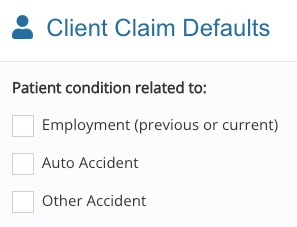
Field 11 (Insured’s Policy Group or FECA Number)
Field 11a (Insured’s Date of Birth)
Field 11c (Insurance Plan Name or Program Name)
Field 11d (Is there another health benefit plan?)
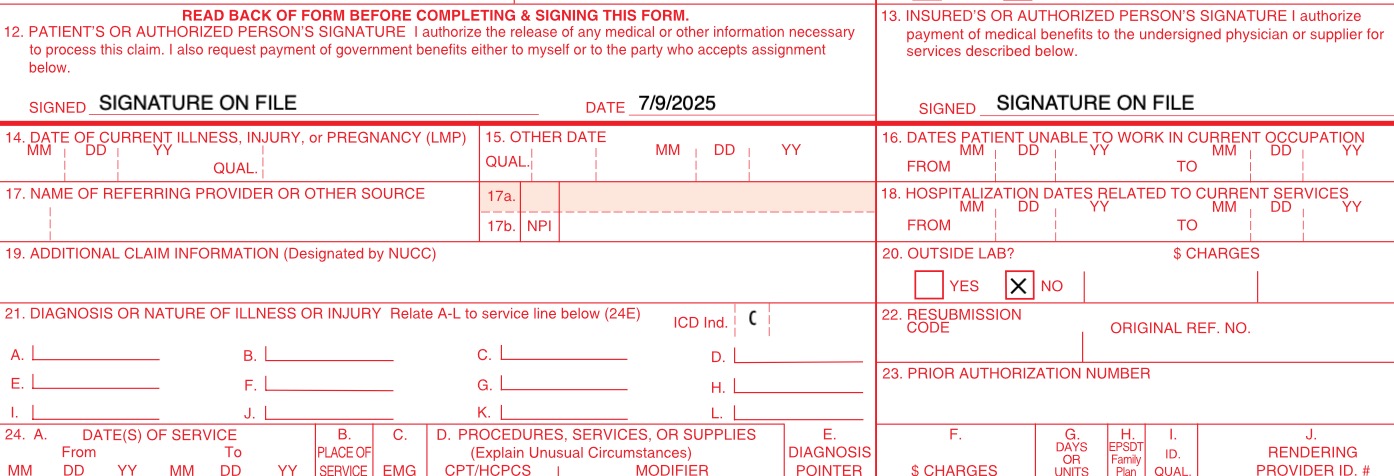
Field 12 (Patient’s or Authorized Person’s Signature?)
Field 13 (Insured’s or Authorized Person’s Signature?)
Field 14 (Date of current Illness, Injury or Pregnancy)
Field 16 (Dates Patient Unable to Work in Current Occupation)
Field 17 (Name of Referring Provider)

Field 17a (Name of Referring Provider)
Field 18 (Hospitalization Dates Related to Current Services)
Field 19 (Additional Claim Information)
Field 21 (Diagnosis or Nature of Illness or Injury)
Field 23 (Prior Authorization Number)
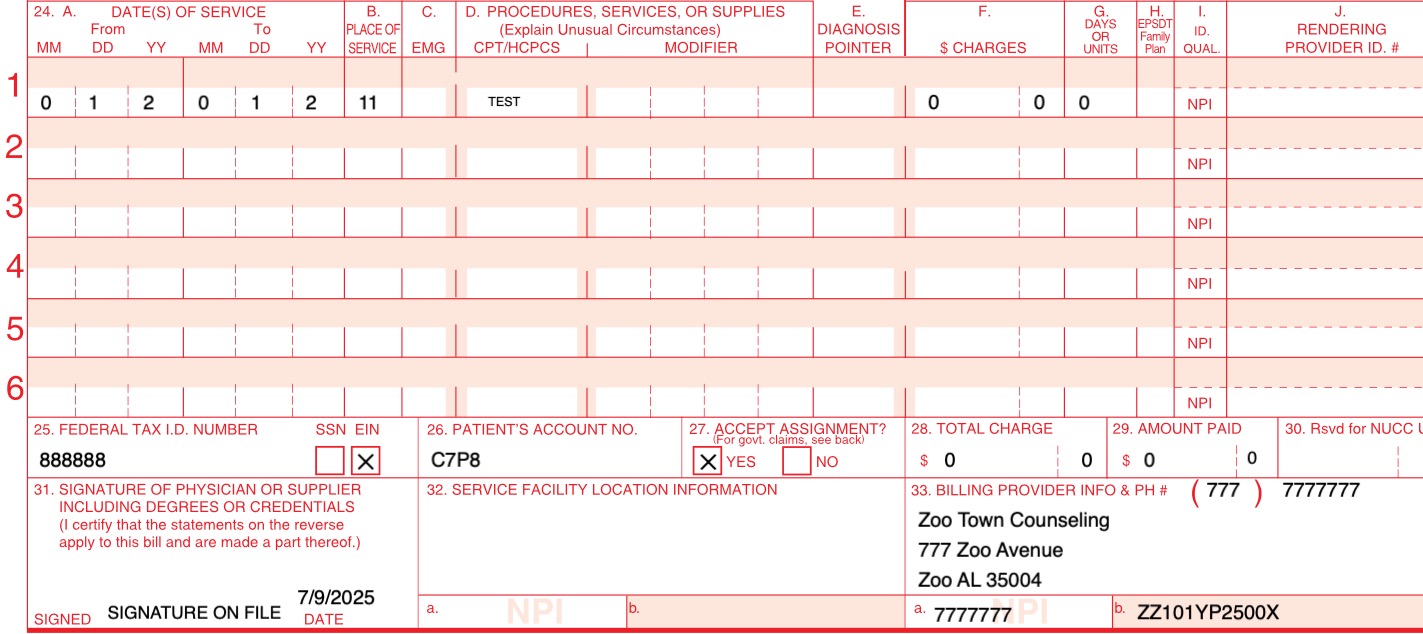
Field 24A (Date(s) of Service)
Field 26 (Patient’s Account Number)