.png)
NEW: Improved PDF Appearance for Treatment Notes
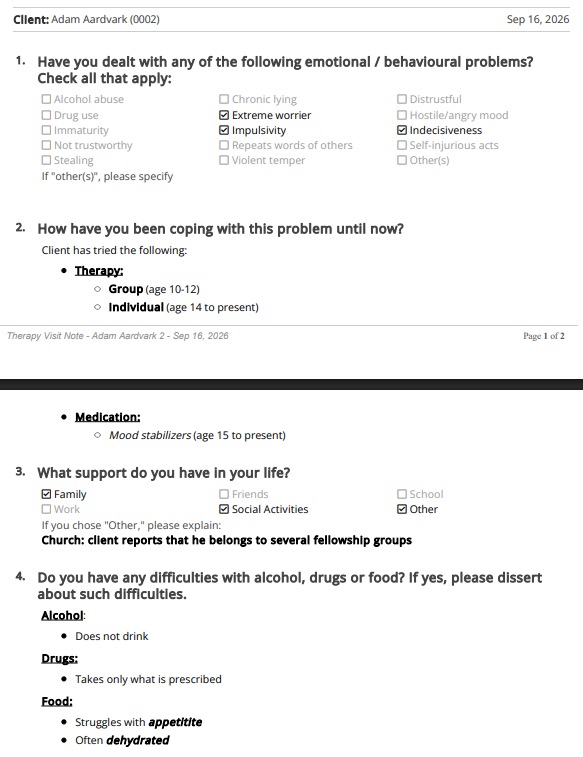
Give your treatment notes a professional look! You can now select your preferred response color and preserve rich text formatting in your printed/exported treatment notes!
Select PDF Response Color
- Click More → Settings.
- Select the Settings tab.
- Scroll down to the Other Settings heading.
- In the PDF Response Color field, select Blue or Black in the dropdown menu.
- Scroll down and click Save.

Use Rich Text Formatting
First, make sure that you have selected the Include Rich Text Formatting option for the question in the Note Template.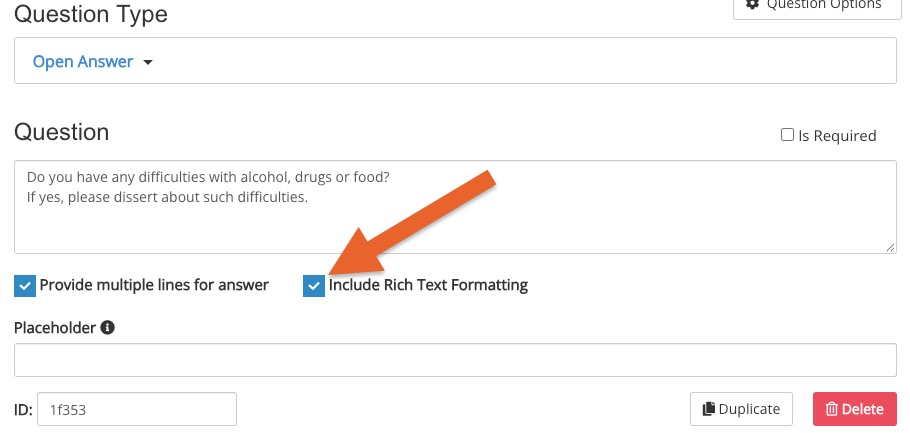
- Complete the treatment note. Include rich text formatting, such as:
- Bold text
- Underlined text
- Italicized text
- Bullet points
- Save and lock your note.
- Click Print. Your resulting PDF will reflect:
- Your chosen text color (all blue or all black)
- Your applied formatting.
- Clear distinctions between questions and responses (questions will appear in larger, bold text).
NOTE: Customized text colors will not reflect in the exported/printed PDF.