.png)
NEW: Customize Locked Note Response Color
Customize the appearance of your treatment notes! Choose whether responses appear in blue or black after you lock your treatment notes.
NOTE: The Locked Note Response Color you select will apply to your past treatment notes. You may need to refresh the page to see the new color take effect for past notes.
Select your preferred color:
- Click More → Settings.
- Select the Settings tab
- Scroll down to the Other Settings heading.
- Open the dropdown menu titled Locked Response Color.
- Select blue or black as your preferred text color for PDF responses.
- Scroll down and click Save.

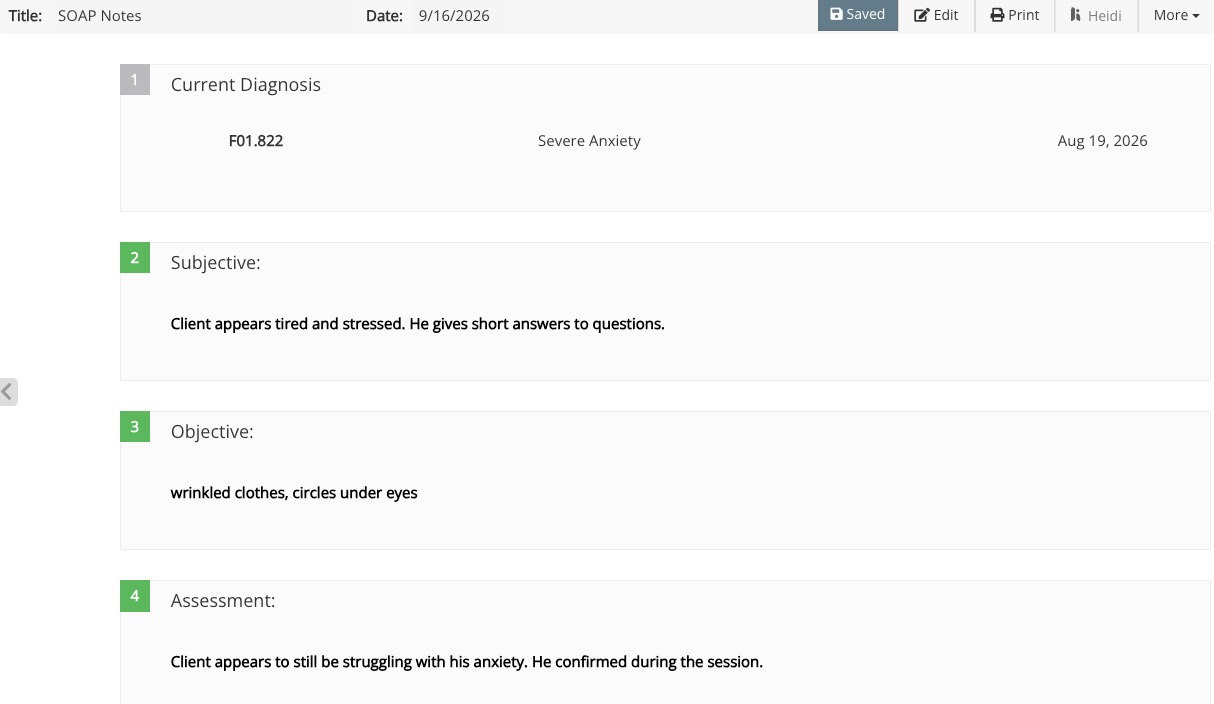
Examples:
- Locked note appearance when blue is selected:
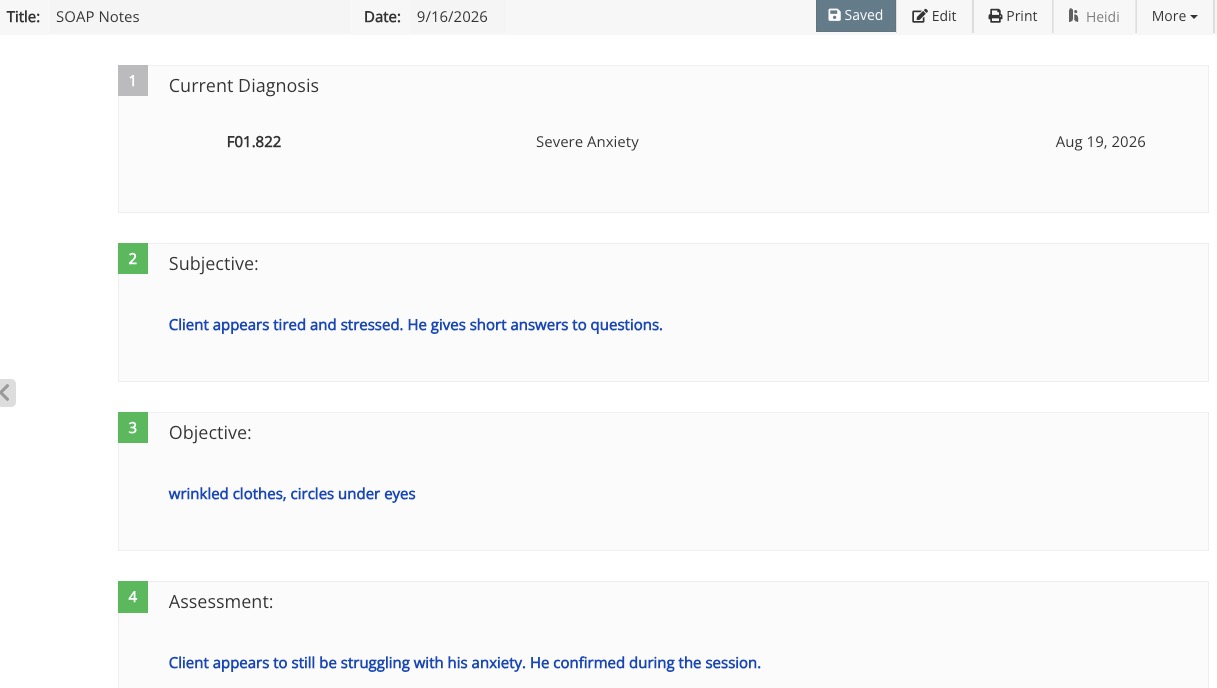
- Locked note appearance when black is selected: