.png)
Process Virtual Credit Cards
Some insurance payments are issued as Virtual Credit Cards (VCCs). Use the guidance below to properly process and record these payments.
IMPORTANT: Do not add VCCs to client profiles and process them as client payments.
Process the VCC following the steps below.
Step 1: Retrieve the funds from the VCC
- VCCs must be brought to your bank for them to process and transfer funds to your practice account.
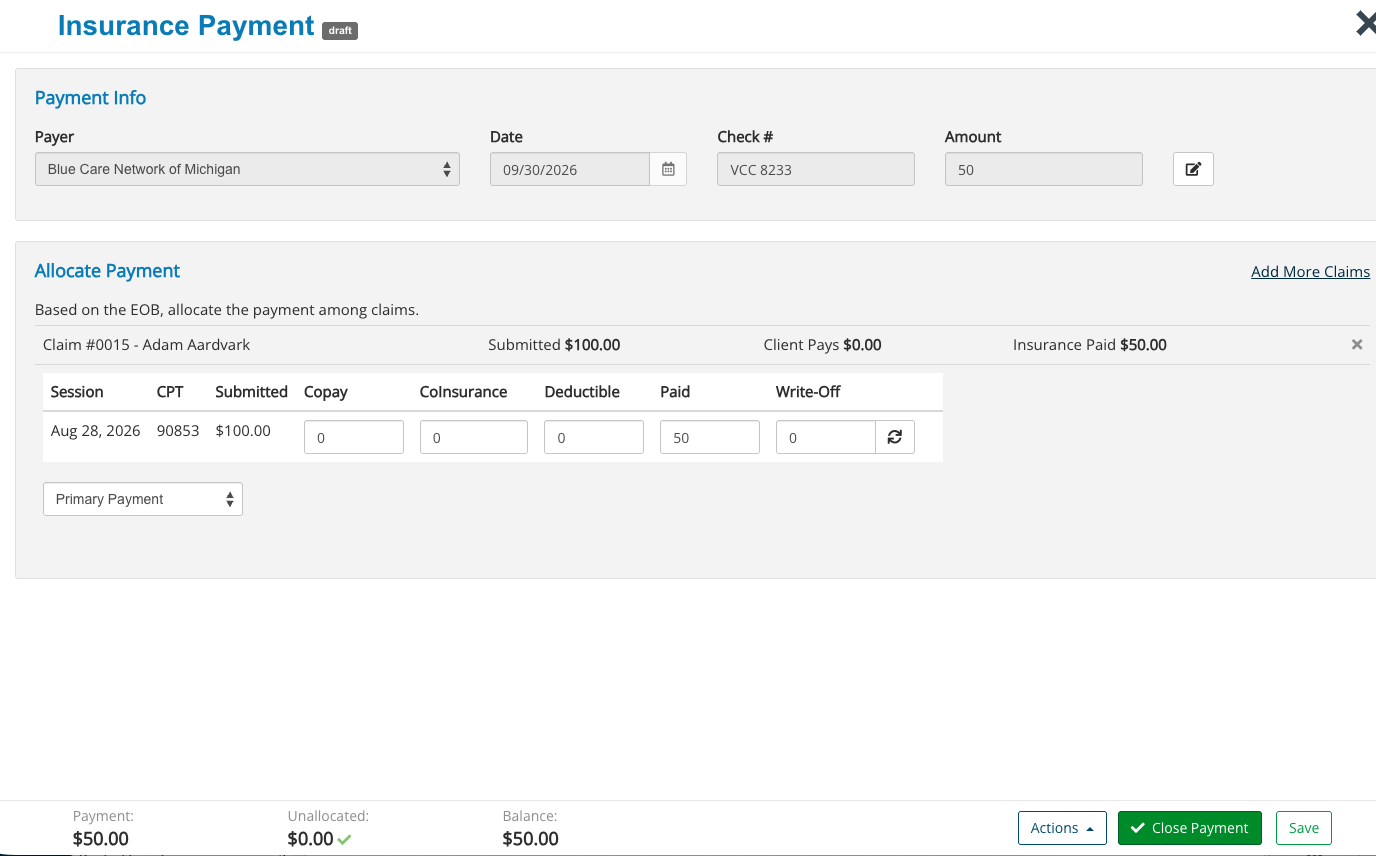
Step 2: Enter the VCC as a claim payment in PracticeQ
- Click Lists → Claims.
- Select the Payments tab at the top right.
- Click the +Add Payment button and do the following:
- Select the Payer from the dropdown menu.
- Use the date picker to enter the Date of the payment.
- In the Check # field, enter notes of your choosing.
- For example, you may choose to enter "VCC" and the last four digits of the VCC card number.
- Enter the Amount of the payment.
- Click Continue.

- Under the Select Claims heading, check the box for the claim to which the VCC payment belongs.
- Click Continue.

- Under the Allocate Payment heading, enter the VCC payment amount in the Paid field.
- Make the appropriate selection from the dropdown menu on on the bottom left:
- Primary Payment
- Secondary Payment
- Tertiary Payment
- Quaternary Payment
- Click Save.
- Click Close Payment.