.png)
Pre-Fill Forms Before Sending
The Form Prefill feature allows your staff to pre-fill fields on a form before sending it to a client.
When to Use the Form Profile Feature
- When the information you want to prefill varies by client.
- When you do not want to allow the client to change the information when they complete the form.
Note: For a more automated way of pre-filling client forms, use Pinned Notes and Mapping. These two features make it so your clients do not have to keep filling out the same information.
Prepare your Forms
- The first step is to identify what information you want to prefill on a form and where it should be placed. Pre-filled fields can be placed in both questionnaires and consent forms.
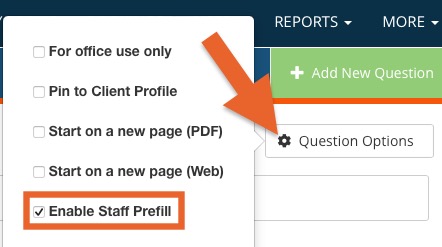
- To indicate that a questionnaire block should be pre-filled by the staff, select the question in the form editor, click Question Options and check the box labeled Enable Staff Prefill.
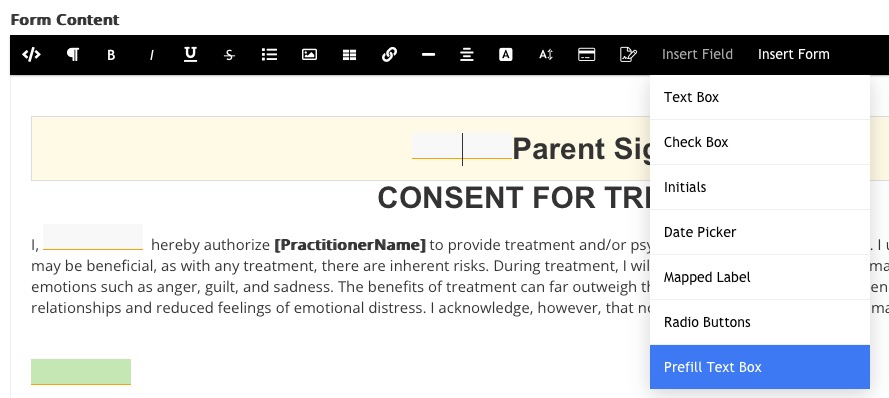
- On consent forms (both Rich Text and PDF modes), you have the option to include prefill fields in the form body.
- On Rich Text consent forms, click the Insert Field toolbar button and select Prefill Text Box.
- On Native PDF consent forms, you will find a Staff Prefill field type that you can drag onto your PDF form.
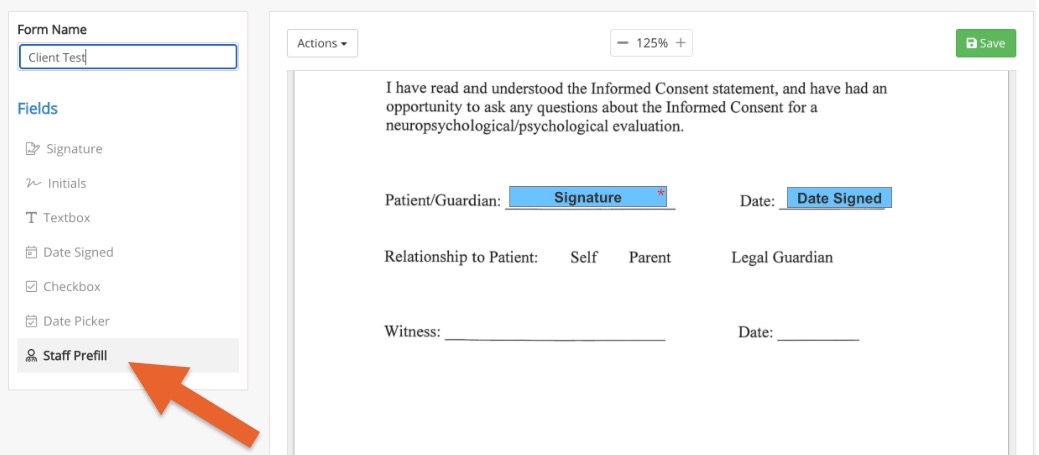
- Note: You can set your pre-fillable fields to required if you wish to prevent the staff from sending a form without required information.
Pre-Fill Forms
- Begin the process of sending the form as normal.
- PracticeQ will detect that the form you are about to send has at least one pre-fillable field.
- The button text will change from Send Form to Prefill & Send.

- Click Prefill & Send; PracticeQ will guide you through all the pre-fillable fields before the form is sent.


- The client will see the information that has been pre-filled while filling out the form, but they will not be able to change it.
 Public URL Considerations
 Public URL Considerations
- Do not enable Staff Prefill on any forms that have Public URL access enabled.
- If a client is filling out your forms through your website, or on your office's tablets, the prefill fields will be left empty.
Limitations
- Only certain questions types can have prefill enabled. Signatures, attachments, and body maps cannot be pre-filled.
- Currently, it is not possible to pre-fill a form that is sent via the appointment dialog.