.png)
Use Auto-Suggest Questions
Long dropdown lists can be frustrating to navigate. With Auto Suggest, simply start typing to quickly find the option you need.
The Auto Suggest feature allows you to create long dropdown fields that support free-typing, so that you can limit the options. This feature is useful in both note templates and questionnaires.
Note Template Example:
- You are entering a client note and you wish to prescribe a specific dosage and brand of B-12.
- Your medication list has hundreds of options, but with Auto-Suggest, you can simply start typing B-12. The list automatically narrows to options containing those characters.
- You can quickly find and select the correct prescription option.
Questionnaire Example:
- Your clients need to select how they were referred to your practice from a long list of publications.
- You have entered the list of publications to your Auto-Suggest question, so the client simply starts to type the publication name.
- They are provided a shorter list of items matching their entry, and can easily select the correct publication.
Create an Auto Suggest Item
- Open the form or note template editor.
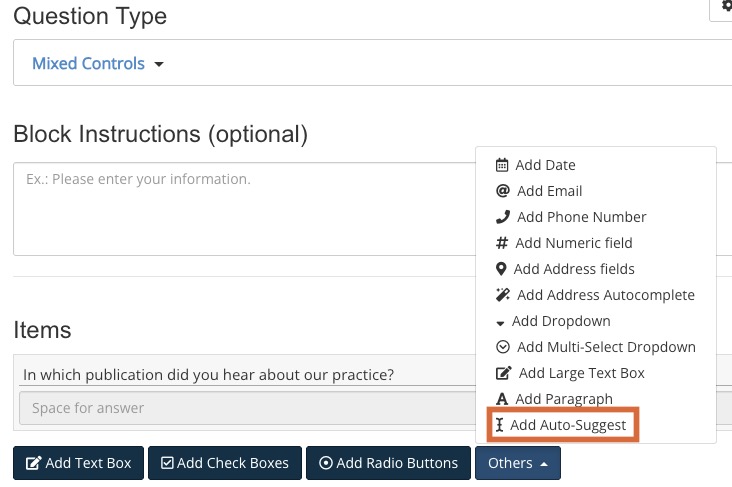
- Click Add New Question.
- Select the Mixed Controls question type.
- Open the Others dropdown menu and select Add Auto-Suggest.
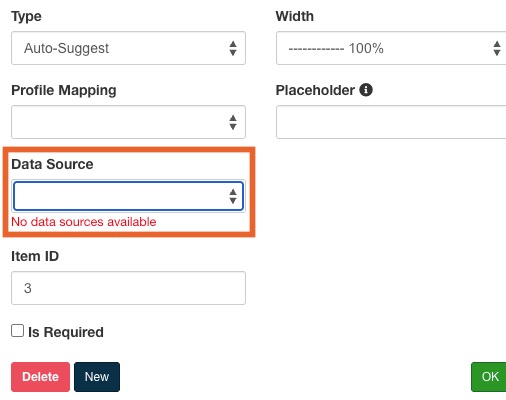
- Type your question, then click the gear wheel icon for the question.
- You will see a red message stating No data sources available.
- This is normal; proceed to the next steps.
Upload a Data Source
IMPORTANT: Data sources should never contain PHI.
- First, prepare a CSV file:
- The file should contain a single column titled Description.
- Enter all the possible options into the rows of the CSV file.
- Make sure there are no empty rows.
- Once the CSV file is complete, contact our Support team at hello@intakeq.com.
- Attach the CSV file to your email.
- Our Support team will review the file, and let you know once the data source has been added to your account.
- Once the upload is complete, open the note or form template.
- Click the gear wheel icon for the Auto-Suggest question and select the data source from the dropdown menu.
- Click OK and save the template.