.png)
Chart the Spine in a Treatment Note
IntakeQ and PracticeQ offer a unique question type for spine charting so that chiropractors can chart their findings and treatment directly within the application.
This feature is currently in beta.
By using Pinned Notes, these charts can carry over from one note to the next automatically.

Add the Spine Chart Question to a Treatment Note Template
To add the spine chart to the note template so you can chart the spine during your session, please follow the below instructions.
- Click My Forms.
- Scroll down to the Note Templates section.
- Click the treatment note template to which you want to add the Spine Chart question type.
- Click the Add New Question button.
- Click the Open Answer dropdown under Question Type and select Spine Chart.
- This will add the spine chart question to your treatment note template.
- To preview the chart, click the Preview button.
- To use the chart for a client's session, click Create New Note from the client's timeline and complete the note.
Chart the Spine During a Session
To use the spine chart during your session:
- Create a new note using the note template with the spine chart question type added.
- Scroll to where the spine chart question type is located.
Chart Functions:
- Highlight a Section
- Click once on a section to highlight the section but not display a note.

- Click once on a section to highlight the section but not display a note.
- Add a Note to a Section
- Click once on the section to highlight it, then click the Note link to display the note field.
- This will display an area to write a note.

- Add Multiple Sections to a Single Note
- Once you have the note popup, click the plus sign icon to add the section below the selected section to the note so that you can write one note that would apply to multiple selected sections.
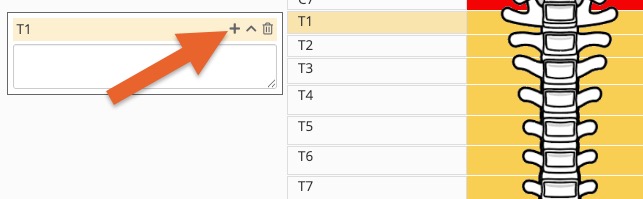

- Once you have the note popup, click the plus sign icon to add the section below the selected section to the note so that you can write one note that would apply to multiple selected sections.


Carry Over the Spine Chart From One Session to the Next
In order to view the previous sessions findings in the current note, you must pin the spine chart question using our Pinned Notes feature.
- Open the Note Template.
- Go to the spine chart question type and open the Question Options. Check the box labeled Pin to Client Profile.
- Next, go to your Client Profile settings page
- Select the Pinned Notes tab and make sure the Use Pinned Note to populate client notes is checked.
- Now, for new notes, the spine chart will display what was documented last time. You can keep it the same or edit the documentation to fit the client's current state, and the previous session's notes will not change.

