.png)
Issues Importing Clients: Troubleshooting Guide
Having trouble importing your client list? Below are the resolutions to three common issues.
Note: If there is an error on your first import due to bad data on your CSV file, update the CSV file and import again. As long as the client names and emails match the original import, PracticeQ will update the client files instead of creating duplicates.
Possible Issue 1: The file is not in the correct format
- Files must be in CSV (comma separated values) format to be successfully imported into PracticeQ.
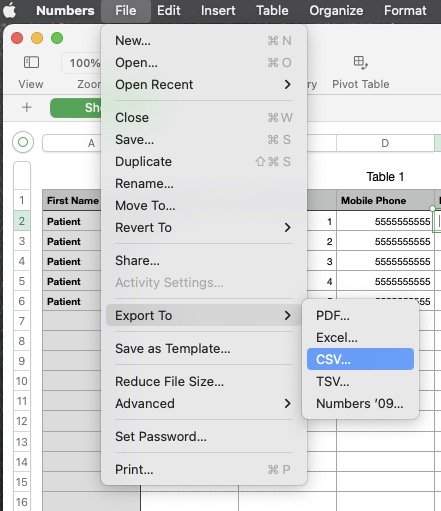
- Mac users: if you created your client list in Numbers, please go to File → Export To → CSV... and follow the prompts to save your file. Re-attempt the import.
Possible Issue 2: The file contains incorrect column header formatting
- Your CSV file cannot contain extra headings; see the green and gray headers in the example below.
- Remove the extra headings/formatting, save the CSV file, and try the import again.

Possible Issue 3: Column headers are not recognized by PracticeQ
- PracticeQ is very intuitive and will do its best to reconcile the column headers with fields in the client profile; however, in some cases, the wording of the headers in the CSV file may need to be adjusted.
- Adjust the names of the column headers in your CSV file and re-attempt the import.
If you are still unable to import your client list, please contact us at hello@intakeq.com for assistance.