.png)
ePrescribe: Add a Client
Add a client to PracticeQ to sync them with ePrescribe.
Required Fields to Add a Client
- You must always add a client to PracticeQ first; you cannot add clients in ePrescribe.
- Once you add a client in PracticeQ, they will sync to ePrescribe.
- When adding a new client to PracticeQ, the following fields must be complete to connect them to ePrescribe:
- First Name
- Last Name
- Date of Birth
- Gender
- Street Address
- Zip Code
- City
- State
- At least one phone number (home, work, or cell)
Note: If any of these fields are missing, the client cannot be added via merge or interfaced successfully. If a client is missing information, you will receive a message when you select their Prescriptions tab.
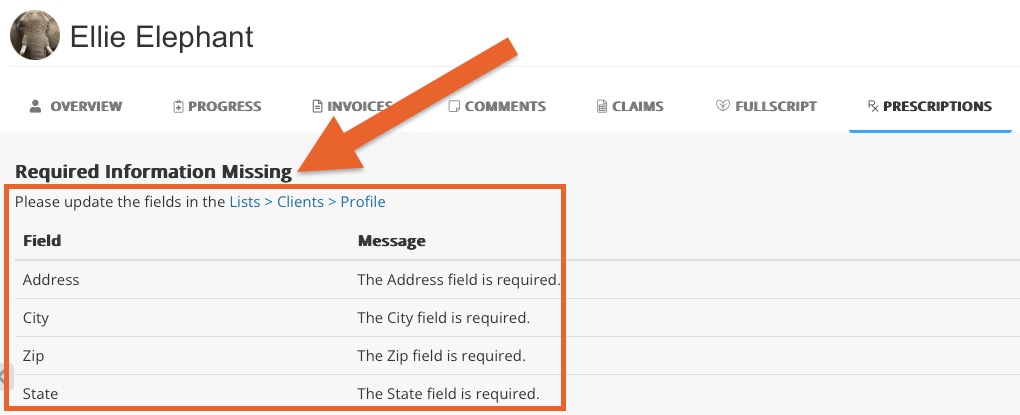
Fill in the Missing Information
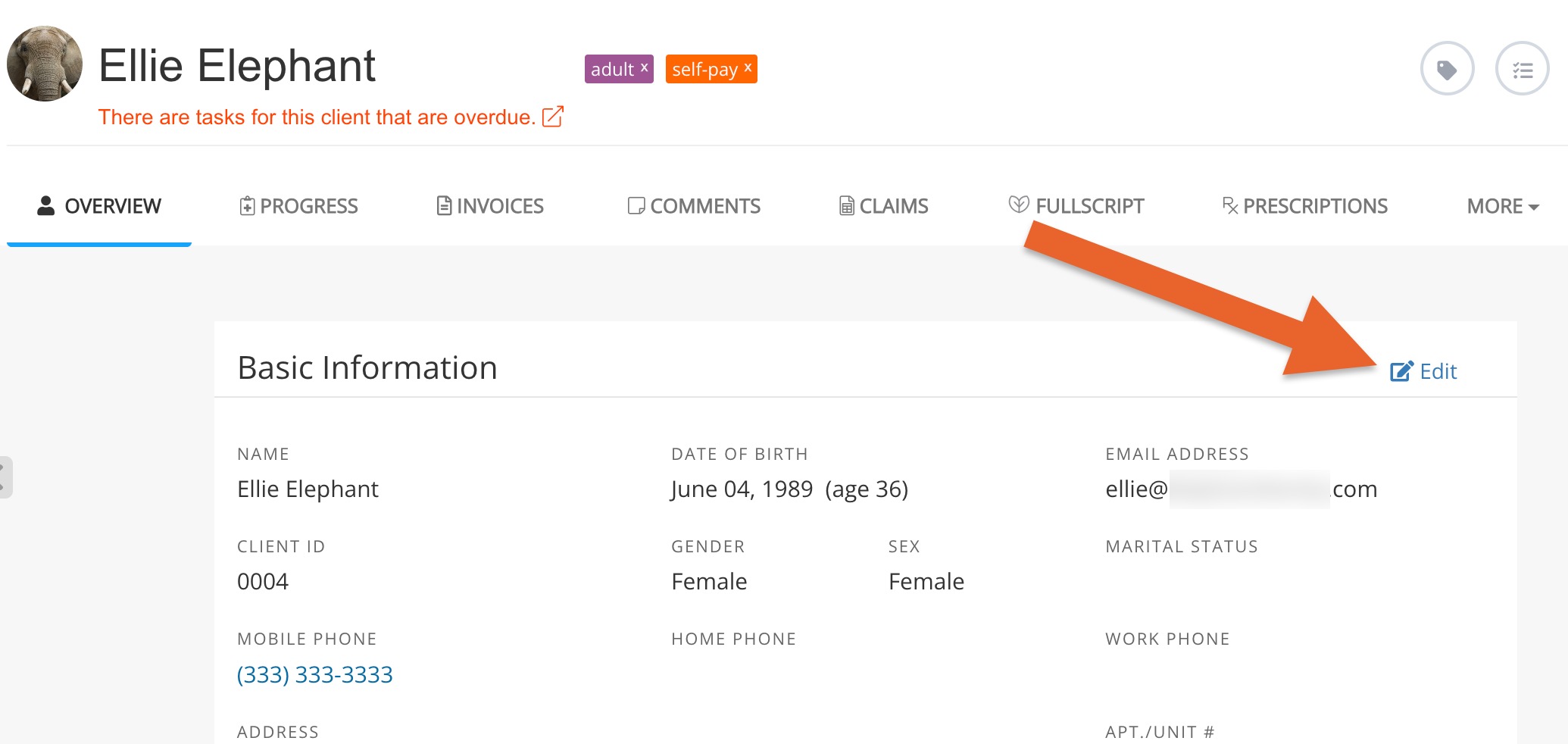
- Select the Overview tab of the client's profile.
- Click Edit in the top right corner.
- Complete the fields required for ePrescribe.
- Click Save in the top right corner.
- Refresh the browser tab.
- Select the Prescriptions tab again.