ePrescribe: Edit and Troubleshoot Client Demographics
Edit a client's demographics in PracticeQ and the changes will sync to ePrescribe. Follow the steps below if a client is not syncing to ePrescribe.
If you are not able to sync information to ePrescribe after following the steps below, contact PracticeQ Support at hello@intakeq.com and provide the following:
- The PracticeQ Client ID
- The ePrescribe Chart ID (if available)
Edit a Client's Demographics
- Click Lists → Clients.
- From their Client Profile, click Edit.
- Make the necessary updates and click Save.
- Click Edit.
- Make changes and click Save. This step saves the changes in PracticeQ.
- Refresh the webpage.
- Click Save again. This step syncs the changes to ePrescribe.
TIP: If the steps above do not work, update the client's name to something different, such as "Smith" instead of "Aardvark." Save and refresh, then try again with the correct information. This process may help to trigger the API process.

Troubleshoot a Client's Demographics
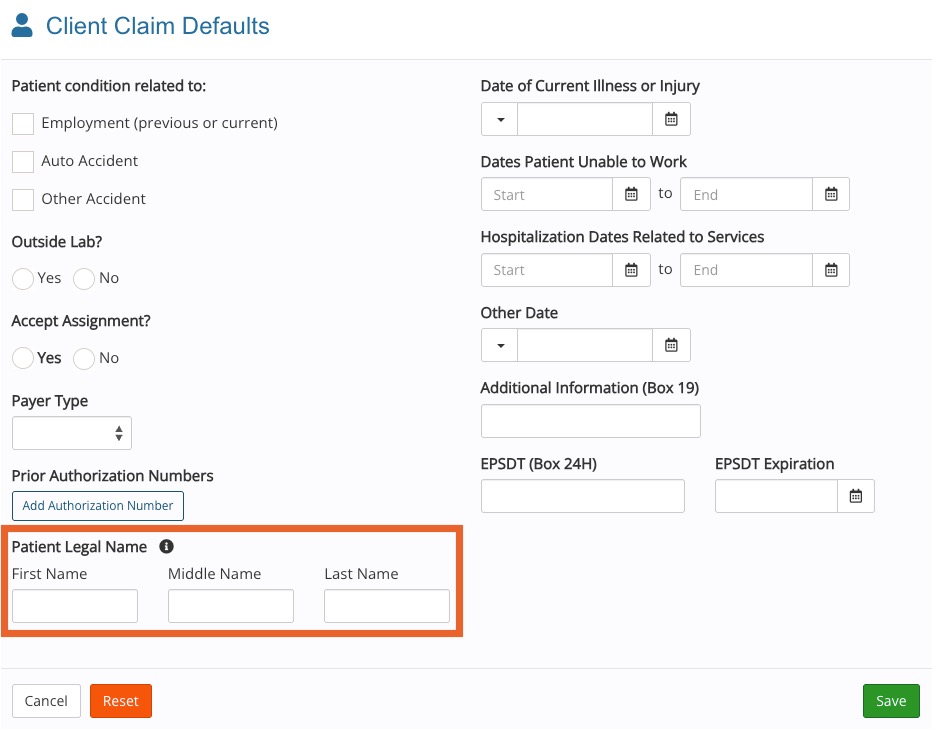
Are you still having trouble finding the client in ePrescribe? If a legal name has been entered in the client's Claim Defaults, ePrescribe will use the legal name instead of the name entered in the Client Profile.
- Click Lists → Clients.
- In the Client Profile, select the Claims tab.
- Click the Claim Defaults button.
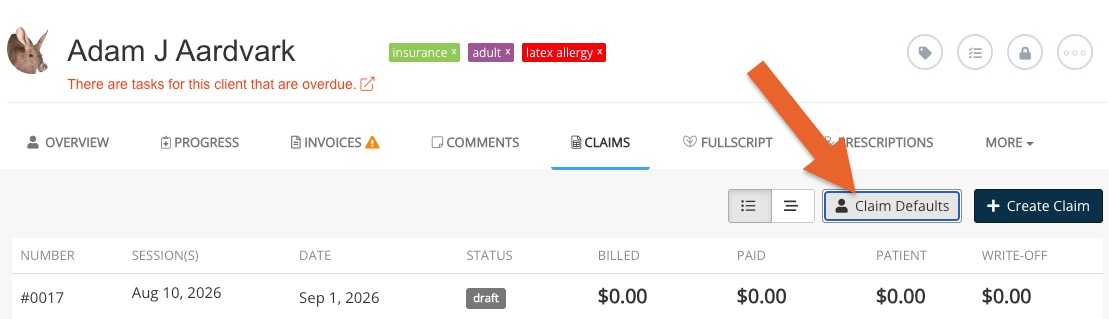
- In the Client Claim Defaults window, note the name entered in the Patient Legal Name fields.
- Make edits if necessary, then click Save.