.png)
Edit the Client Profile
It's easy to edit the client profile when a client's information changes or requires correction.
Edit information in existing fields
- Open the client's profile.
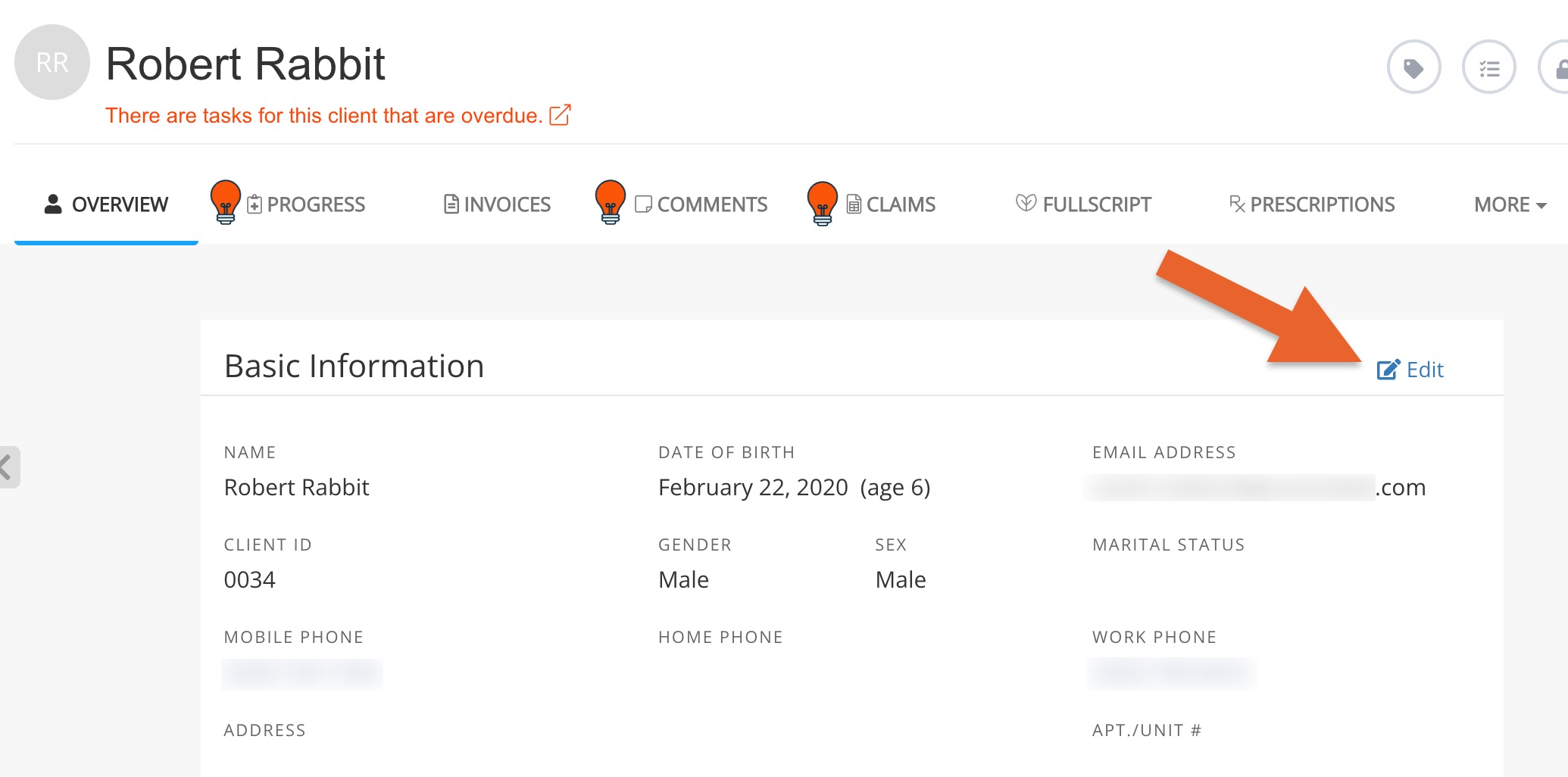
- Click Edit in the top right corner of the profile page.
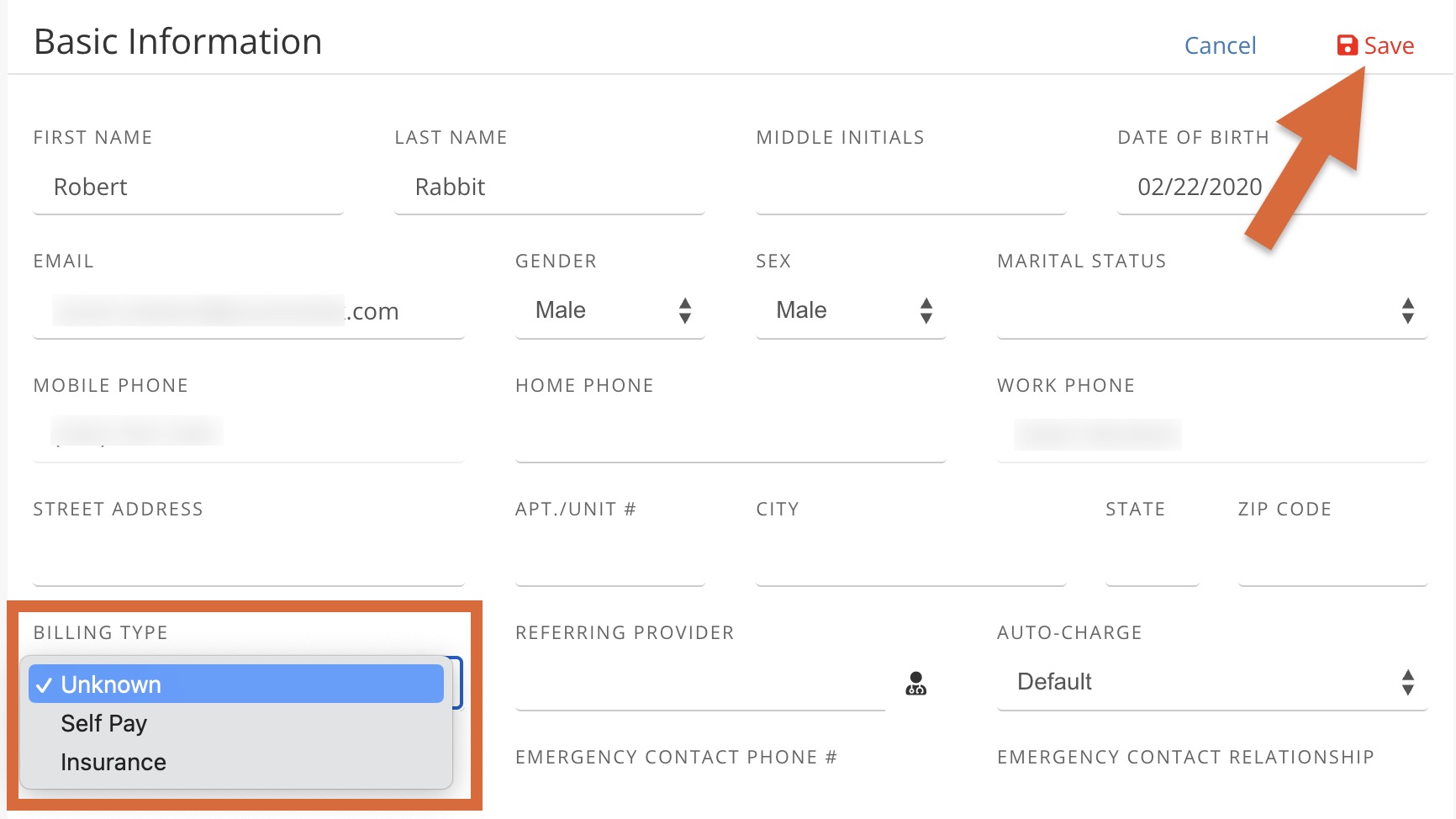
- Open the dropdown menus and/or enter information in the free-form fields to reflect the changes.
- Once all edits are complete, click Save in the top right corner of the profile page.
Add custom fields
- PracticeQ allows you create and map your own custom field in the client profile.
- To learn how, read Map a Custom Field to Client Profiles.
Remove fields and tabs
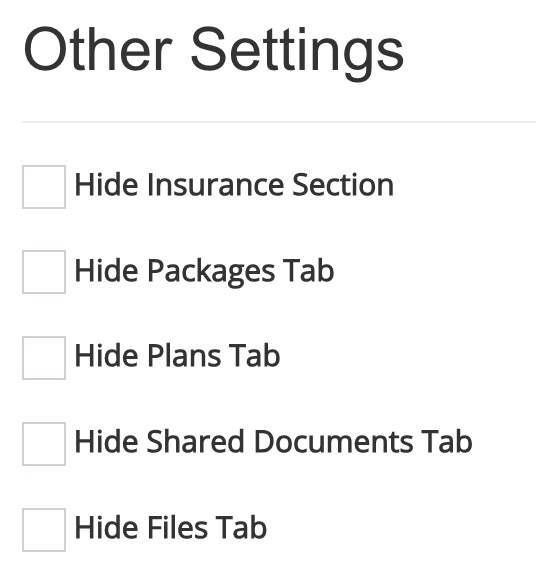
Some client profile fields and tabs can be removed in your account's Profile Settings.
- Click Lists → Clients.
- Click Profile Settings.
- Select the Other tab.
- Check the boxes for the fields/tabs you wish to hide under the Other Settings heading.
Enable or disable the automatic avatar feature
When this feature is enabled, PracticeQ will search for an image to apply to a client based on their email address.
- Click Lists → Clients.
- Click Profile Settings.
- Select the Other tab.
- Click the Enable Automatic Avatar or Disable Automatic Avatar button.
Add a custom gender
- Click Lists → Clients.
- Click Profile Settings.
- Select the Other tab.
- Click the Add New Custom Gender button under the Custom Genders heading.
- Enter the name of your custom gender.
- Click Save.
