.png)
Share Documents with Client Contacts
Share documents with a client's contact when the client's profile does not include an email address.
If you have not done so already, add a contact to the client's profile.
Share a form with the client's contact
Do not do this by opening the form and selecting More → Share. Instead, share the form via the Secure Client Portal:
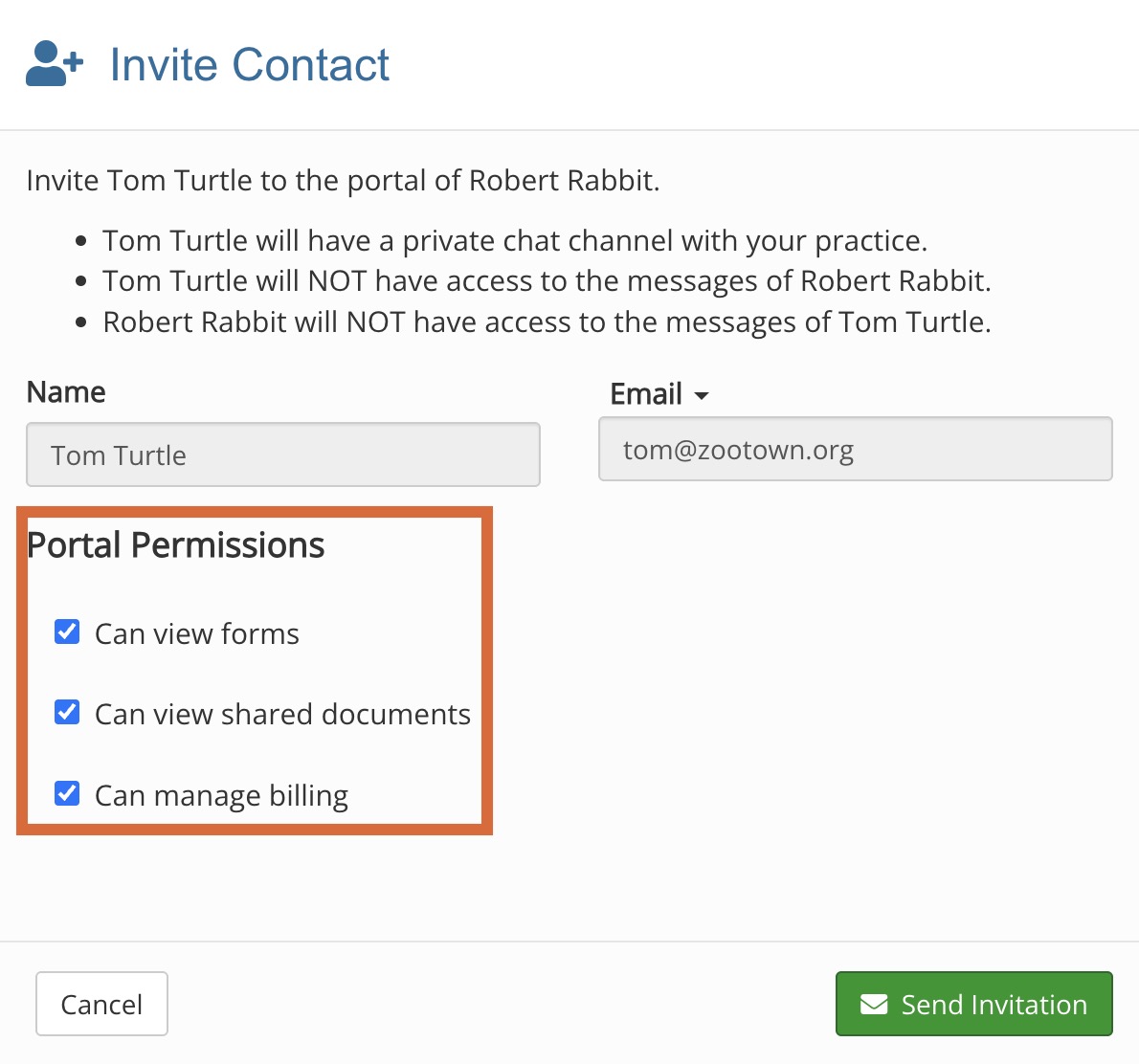
- Invite the contact to the client portal; click the three dot icon next to their name in the Contacts section of the client profile and select Invite to Portal.
- Select the Portal Permissions you wish them to have; select Can view forms and Can view shared documents.
- After the contact accepts the portal invitation, click the three dot icon next to their name and select Open Chat.
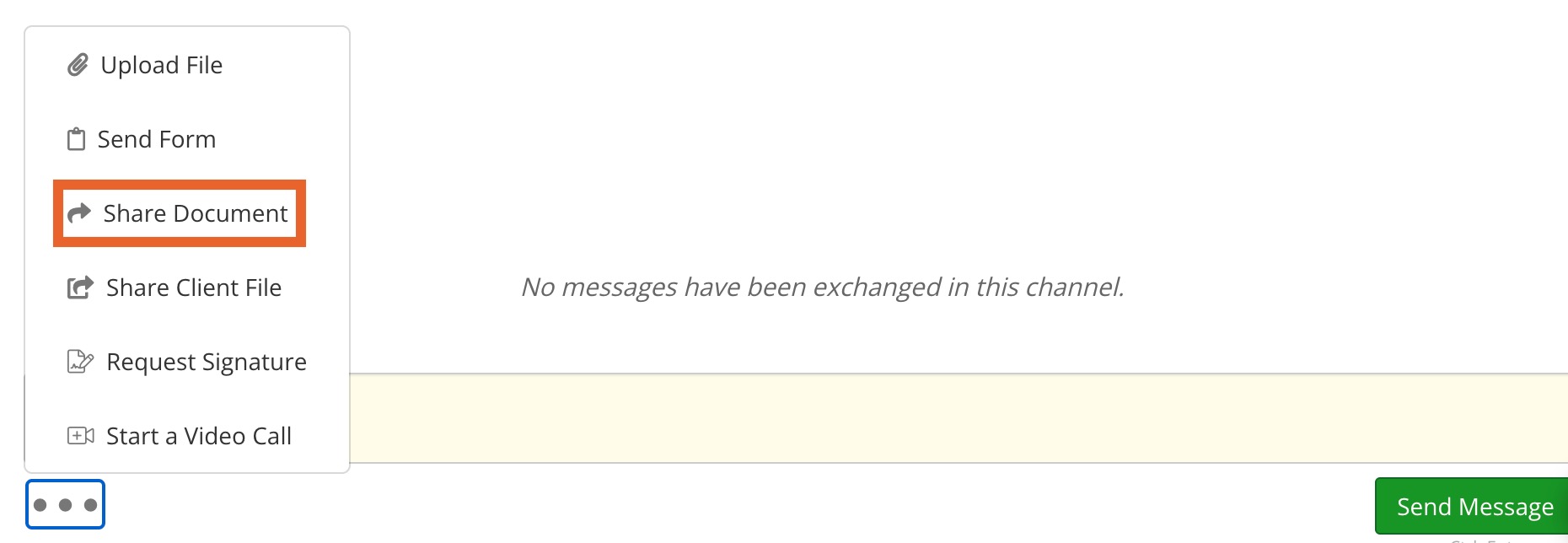
- Click the three dot icon on the bottom left corner of the chat.
- Select Share Document.
- Select the form to share with the contact.
- Click Send Document.