.png)
Map Legal Name to Client Profile
Map a client’s legal name to their profile for use with prescriptions, insurance claims, and other official records.
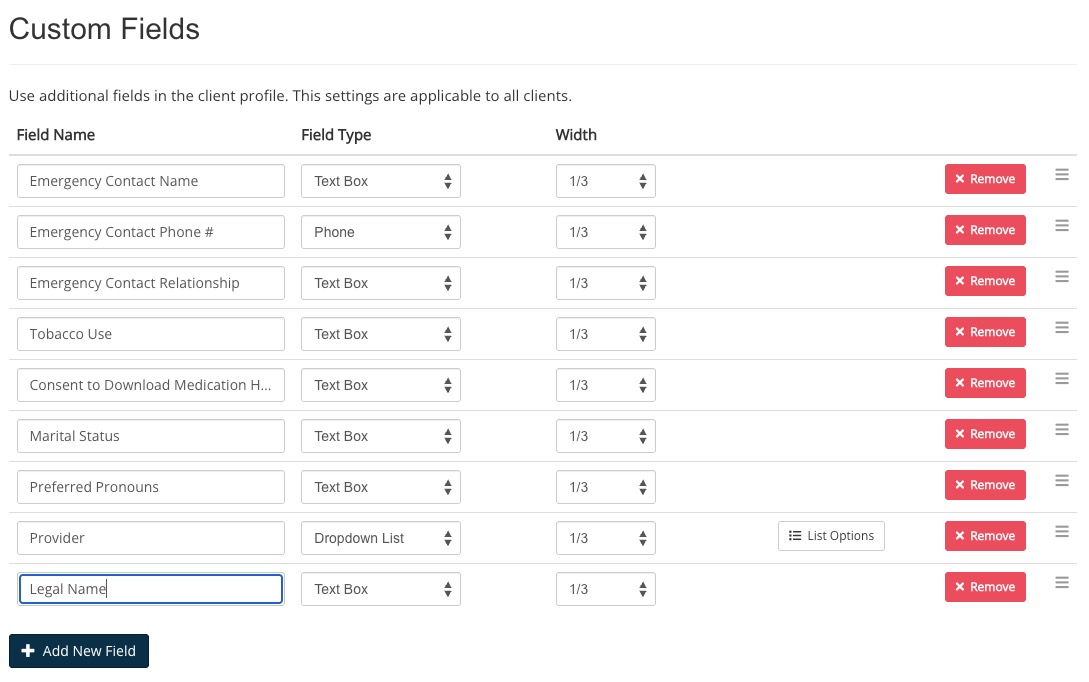
Create a Custom Field
- Click Lists → Clients.
- Click Profile Settings.
- Select the Custom Fields tab.
- Click Add New Field.
- Name the field Legal Name.
- For Field Type, select Text Box.
- Click Save Settings.
Map the Field in your Questionnaire
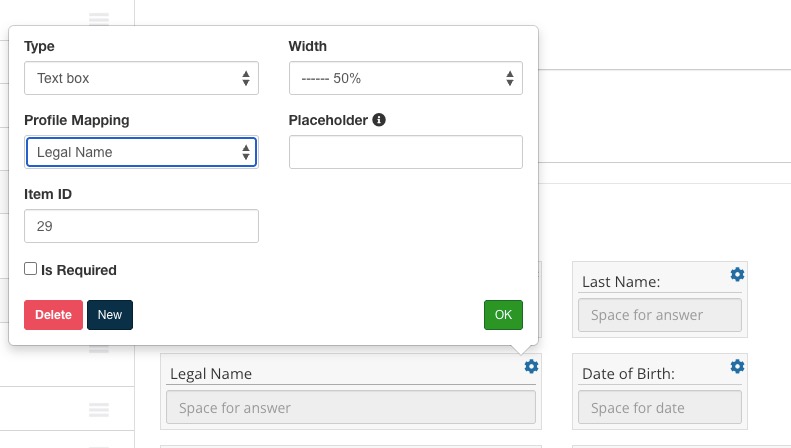
- Add a new question or question item to your questionnaire prompting the client to enter their Legal Name.
- Click the gear wheel icon for the question/question item.
- Select Text Box in the Type dropdown menu.
- Select your Legal Name custom field from the Profile Mapping dropdown menu.
- Click OK.
Enter Form Settings
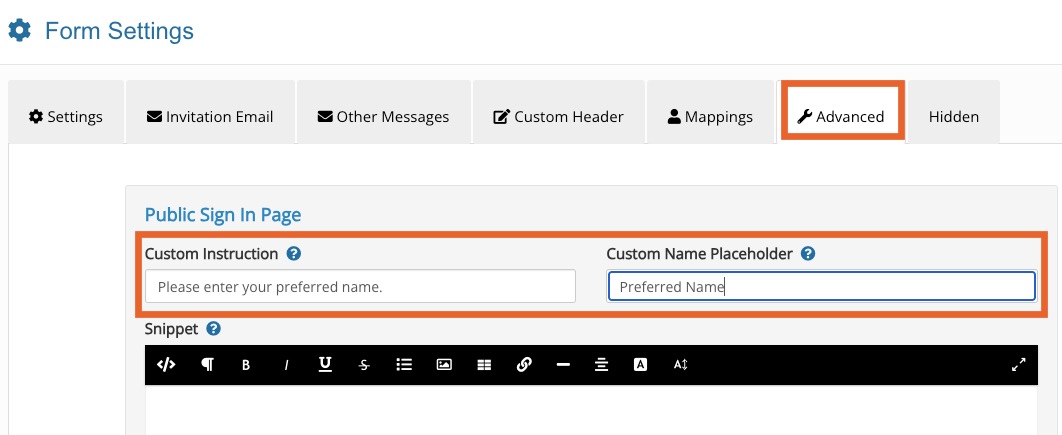
- While in the questionnaire editor, click the three dot icon and select Settings.
- Select the Advanced tab.
- In the Public Sign In Page section, enter the Custom Instruction and the Custom Name Placeholder asking client to enter their preferred name.
Client Entry and Lookup
- Add clients to the system using their Preferred Names; this allows you to use the Name field in the client portal.
- Instruct clients to book appointments using their Preferred Names.
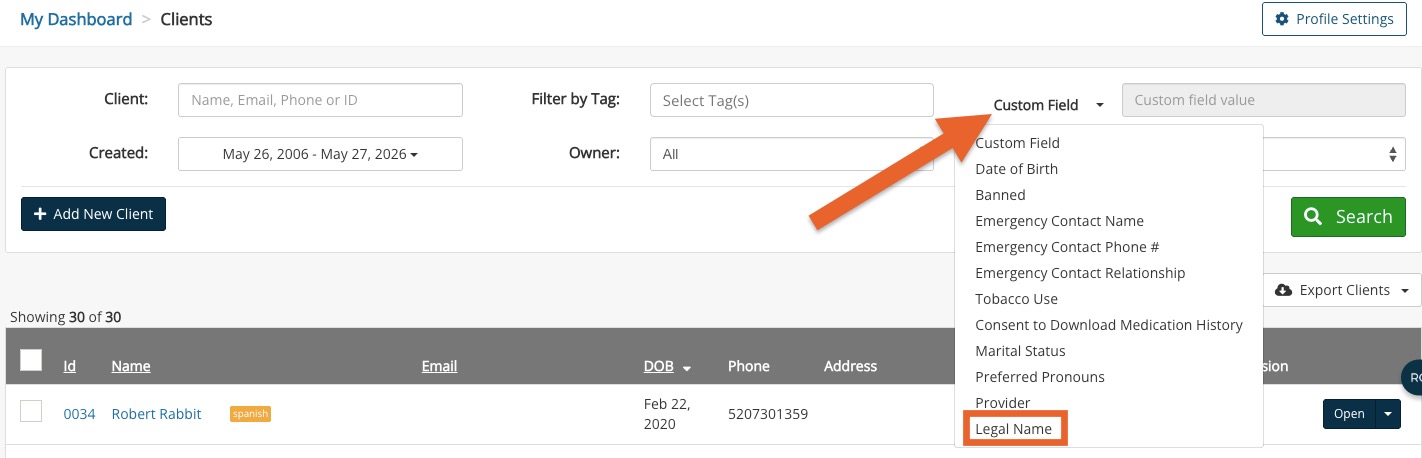
- Search clients by their Legal Names in Lists → Clients using the Custom Field filter.