.png)
AI Form Builder: Upload a Consent Form
Already have a consent form you'd like to upload and convert with AI? The process is easy.
Unlike questionnaires, which only support PDF uploads, consent forms can be created from either editable Rich Text files or scanned or native PDF files.
- Click My Forms and locate the Consent Forms section.
- Click the Create New button (now located next to the New Folder button).
- Choose Upload a Form.
- You will see two options:
- Editable File
- Scanned File
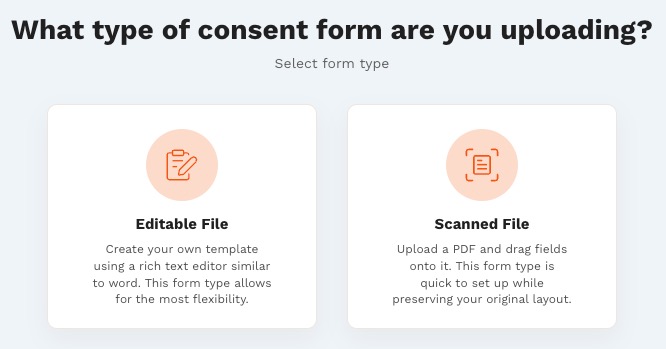
Editable File Workflow
- Select the form to upload or drag and drop it into the window.
- Make sure to save the file in .rtf format.
- Click Process with AI.
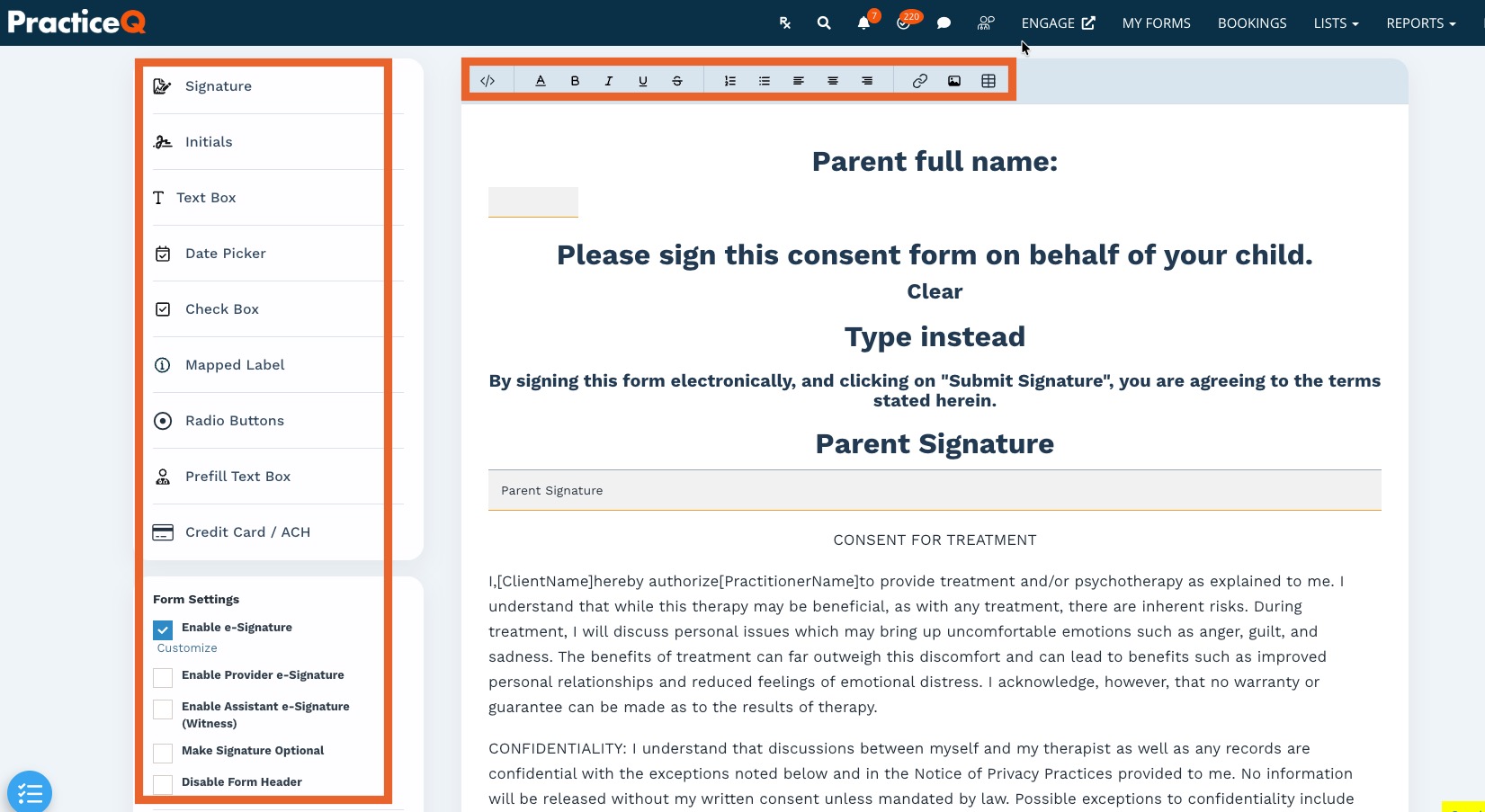
- The form contents will be imported into the text editor. AI will do its best to recognize elements, such as signature fields, and insert them into the consent form draft for you.
- To edit the title of the form, click the pencil icon.
- Use the formatting and editing tools at the top of the text editor to refine your form.
- To add elements, such as signatures, text boxes or date pickers, place your cursor where you would like the element to be inserted.
- Select the element from the menu on the left to insert it.
- On the bottom left, select your desired Form Settings using the provided checkboxes. AI will attempt to extract form settings from your scanned document, but it may not process all settings.
- Click Preview to view your consent form as your clients will see it.
- Click Publish when you are ready to add it to your forms collection.
IMPORTANT: Do not close the browser tab as you edit your AI-generated consent form draft. Once you have closed the tab, you will not be able to return to the original draft.
Scanned File Workflow
- Select the form to upload or drag and drop it into the window.
- Make sure to save the file in .pdf format.
- You will have two choices:
- Edit Manually
- The Edit Manually option displays your PDF in its original format; you can then manually map fields on the document.
- For details on how to map fields on your PDF, click here.
- Process with AI
- The Process with AI option will do its best to detect the necessary form fields and insert them for you.
- AI may not detect all fields, and some fields may require minor adjustments.
- To add fields, drag and drop them from the menu on the left.
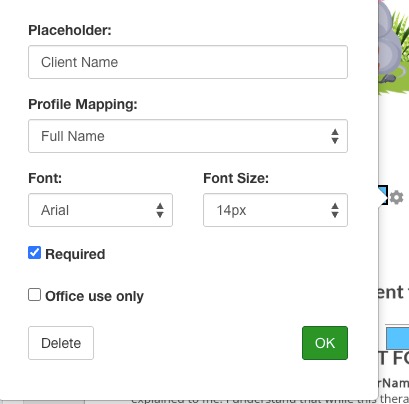
- Click the gear wheel icon to add settings such as Placeholder and Profile Mapping. (See Text Box example below.)
- Click OK.
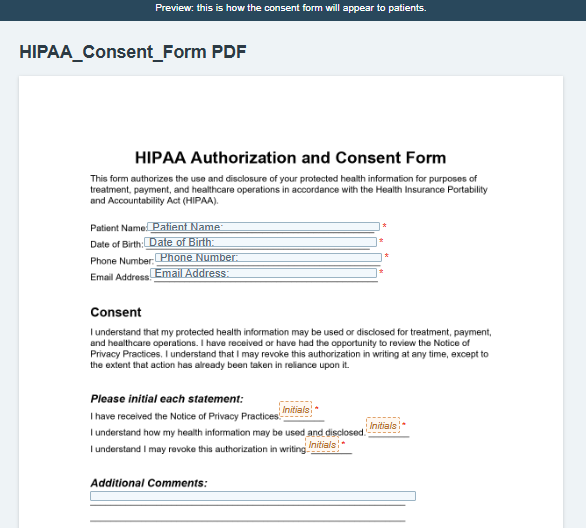
- Click the Preview button on the top right to view your consent form as clients will see it. The preview will open in a new browser tab. (See screenshots below.)

- Edit Manually
- When your consent form looks the way you want, click Publish to add it to your collection. You will be redirected to the Consent Form in the form editor
IMPORTANT: Do not close the browser tab as you edit your AI-generated consent form draft. Once you have closed the tab, you will not be able to return to the original draft.