.png)
Support Multiple Languages
While the admin area of PracticeQ is English only, you can make your forms available in other languages.
In order to have a form in a different language, there are two parts that need to be considered:
1. Questions and Consent Forms:
- This is the content that you create.
- You can simply create the questions and consent forms in the desired language.
- If you do that, you will notice that even though the questions are in the desired language, the default buttons, labels and system messages will still appear in English.
2. Buttons, Labels and System Messages:
- These are the static parts of the form that are responsible for its functionality.
- Examples: the Submit Form button, e-signature disclaimers, and the message letting the user know that required fields were left blank.
- To change the static parts of the form to another language, do the following:
- Click My Forms and open the desired form.
- Click the three dot icon → Settings.
- Select the Advanced tab.
- Scroll to the Web Form Settings section to find the Language field.
- Currently, only English, Spanish, French and Portuguese (BR) are supported. We will consider additional languages upon request.
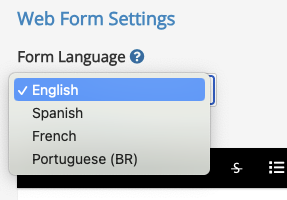
The setting mentioned above does not translate your forms to the specified language; that must be done manually.
- When creating forms in different languages, we recommend that you also translate the form email that is sent to the client. The following article explains how to customize the email for an individual form: Customize Your Form Email Template and Header.