.png)
Use Heidi Health with PracticeQ
PracticeQ is excited to work with Heidi Health to bring AI Scribing to your Clinical Notes!
With Heidi, you can use a special widget in your treatment notes to record your session and receive summarized note content directly within PracticeQ!

Benefits of Using Heidi
- Time Savings: Reduce documentation time, allowing more focus on patient care.
- Improved Accuracy: AI technology helps capture key details that may be missed manually.
- Consistent Quality: Using PracticeQ’s standardized templates ensures structured and uniform notes.
- Reduced Burnout: Streamlines administrative tasks, helping to lower clinician fatigue.
Important: Always review the note text that Heidi creates for accuracy.
Get Started with Heidi Health
To integrate Heidi with PracticeQ, you will need a Practice plan for each user. Check pricing here.

Create an Account with Heidi from PracticeQ
- Open a treatment note in PracticeQ.
- Click the Heidi button.
- The Heidi widget will appear at the bottom of the screen.
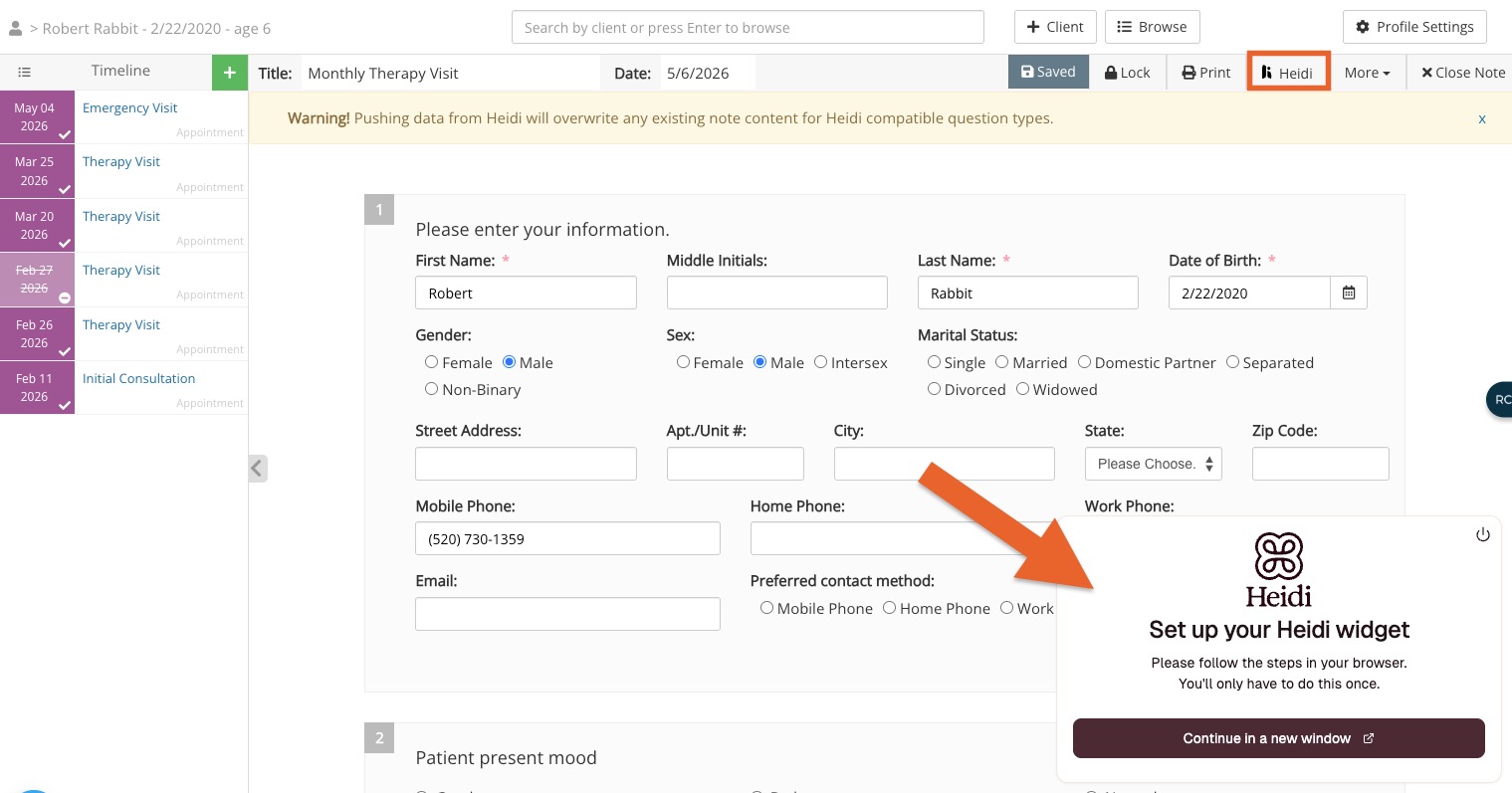
- Sign in to your existing account or create a Free 30-Day Trial within the widget.
- Once logged in, click the Start Visit button to begin recording your session
- Log in or Sign Up:
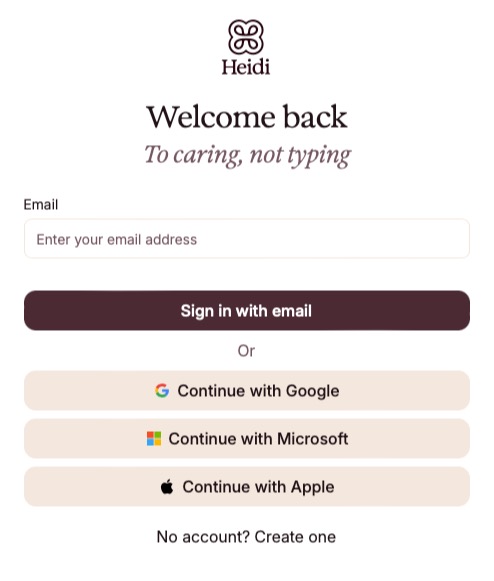
7. If signing up, select the Practice plan. Once complete, you will be able to use the integration:

Use Heidi On Visit Notes
Use the Heidi widget to listen to your session:
- Open a treatment note and click the Heidi button.
- The Heidi widget will appear at the bottom of the screen.
- Click Start Visit to begin recording your session.
- Speak clearly and follow these best practices:
- Start Recording Early: Capture the entire patient interaction.
- Speak Clearly: Ensure accurate transcription.
- Use Relevant Templates: Choose the right template for the visit type.
- Provide Prompts: Call out different sections explicitly (e.g., "The plan for the client is...").
- Review and Edit: Check the generated notes for accuracy.
Best Practices for Using Heidi in Telehealth Sessions
- Experiment with Headphones: Heidi can work with headphones using Google Meet and Chrome. Test this with your setup if you use other video call software. Heidi relies on audio from both the provider and patient.
- Ensure Adequate Speaker Volume: If using speakers, make sure your speakers are loud enough for Heidi to pick up the conversation.
Navigate PracticeQ While Using Heidi
It's possible to navigate around while the widget is listening but in order to push the data to the note, you MUST be on the original note.
- Always start Heidi from the note you want to integrate with to ensure proper data integration.

Use AI Scribes Safely
- For best practices on AI scribing safety, please visit this link.
- If you want to learn more about Heidi Privacy and Security, please visit here.
We're Here to Help!
- By following these tips, you can maximize Heidi AI Scribe’s capabilities and ensure accurate and efficient note-taking.
- If you have any questions or need further assistance, reach out to our support team at hello@intakeq.com!