.png)
Enable Telehealth Button Disabled for a Service
Trying to enable Telehealth for a service but the button is disabled? Read on to learn how to fix it.
Step 1: Confirm that the Telehealth feature is enabled
- Click More → Settings.
- Select the Features tab on the left.
- Scroll down to the Telehealth heading.
- If the Manage Practitioners button is still live, the Telehealth feature is not yet enabled.
- Click Manage Practitioners to enable Telehealth.


Step 2: Review Google Meet or Zoom history for the service
If the service in question had Google Meet or Zoom enabled, then the Google Meet or Zoom integration was disconnected, the service still has Google Meet or Zoom enabled on the backend.
To fix this, complete the following:
- Reconnect the Google Meet or Zoom integration.
- Go to Bookings → Booking Settings → Services and disable the Google Meet or Zoom integration.
- Repeat this process for any other services you wish to use for Telehealth but the Enable Telehealth button appears disabled.
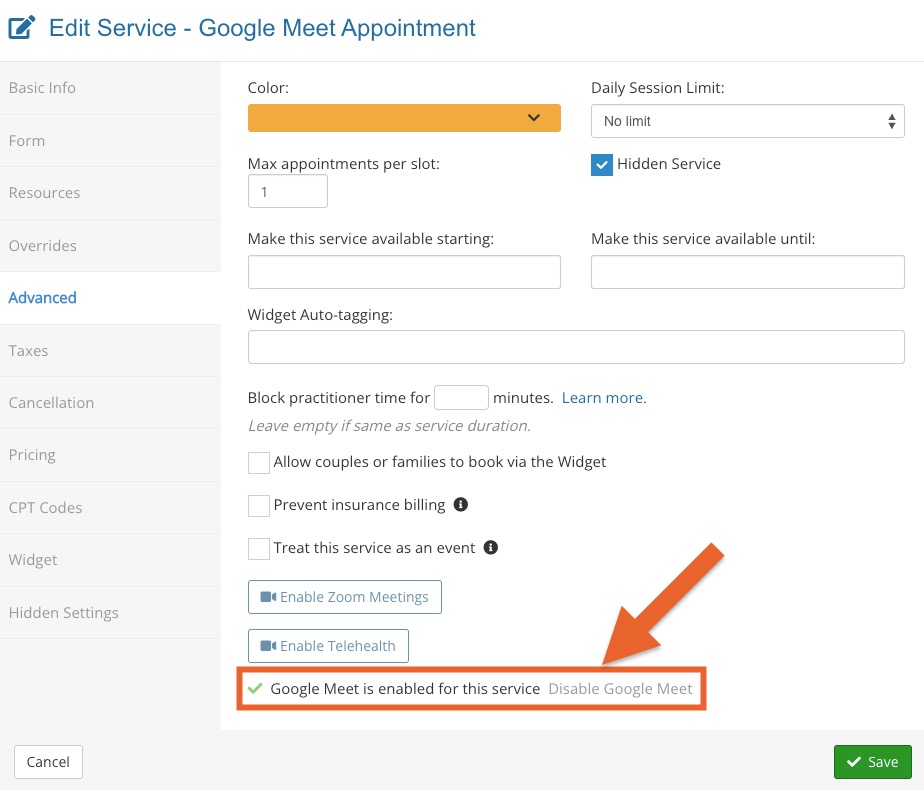
- Disconnect the Google Meet or Zoom integration once again.
- Return to Bookings → Booking Settings → Services; you should now be able to click the Enable Telehealth button for the service.
We're here to help! If you continue to experience issues with the Enable Telehealth button after following the steps above, reach out to us at hello@intakeq.com!