.png)
Advanced Form Rules and Customization
Ready to dig deeper with form rules and skip logic?
Show and Hide Questions
- Question: When you create a rule to show a question or consent form and then create a rule to hide the same question/consent form, what will happen?
- Answer: The hide question/consent form rule will not take effect.
- We recommend using the show question/consent form rule whenever possible to avoid this issue.
IMPORTANT: As soon as you create a rule to show a question or consent form based on a trigger, that question/consent form will be hidden from clients until the trigger condition is met.
When Rules Take Effect
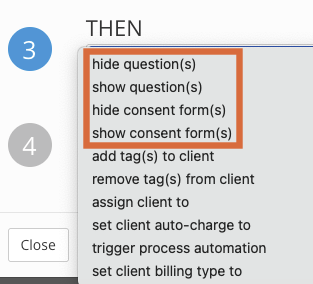
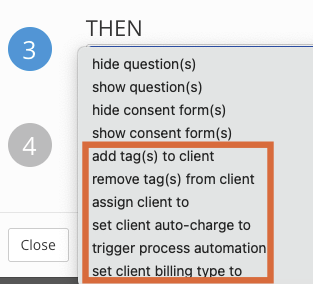
When you open the THEN menu, you have 10 action options.
- The first four actions (hide question, show question, hide consent form, and show consent form) will take effect immediately when clients answer the question.
- The last six actions (add tag to client, remove tag from client, assign client to, set client auto-charge to, trigger process automation, and set client billing type to) will take effect when the form is submitted or the note is locked.
Assign More than One Trigger to a Single Question
The system allows you to assign several triggers to the same question in a form or note.
Why would you use more than one trigger?
- For example, you may have one question you wish to use to trigger all of the following actions:
- showing additional questions
- showing a consent form
- assigning a client tag
- setting client billing type
As long as at least one of the triggers occurs, the action(s) you select in the THEN menu will take effect**
**One exception to this is if you assign both a show and a hide rule to the same question and trigger. In that case, the hide rule will not work.
Staggered Rules
For the best client experience, create separate rules as needed.
For example, let's say your questionnaire contains the following questions.

NOT Recommended:
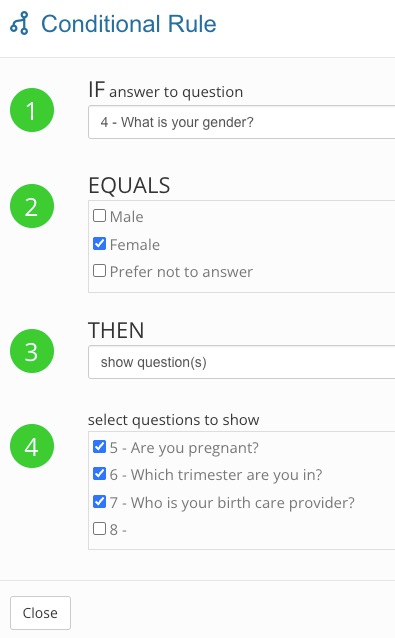
- You create a single rule that says if the client answers Female to question #4, show questions #5, #6 and #7.
- This is not ideal because if a client answers Female to #4 and No to question #5, she will be shown two additional questions that do not apply to her.
Recommended:
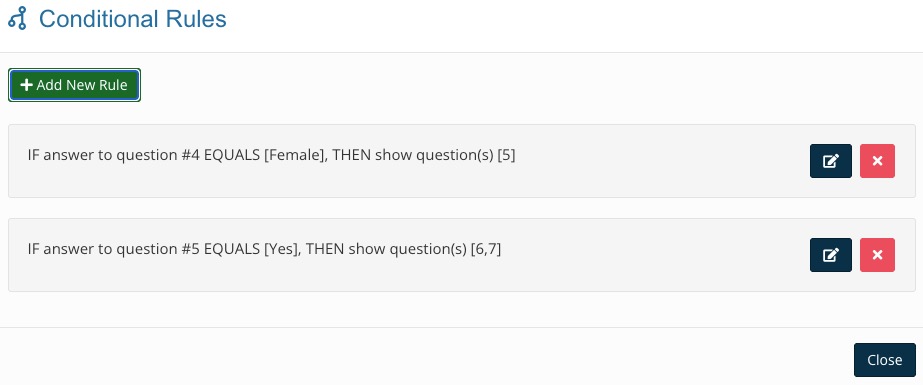
- You create a rule that says if the client answers Female to question #4, show question #5.
- You create a second rule that says if the client answers Yes to question #5, show questions #6 and #7.
- With this setup, the client will not be shown unnecessary questions.
Take Advantage of Task Automation
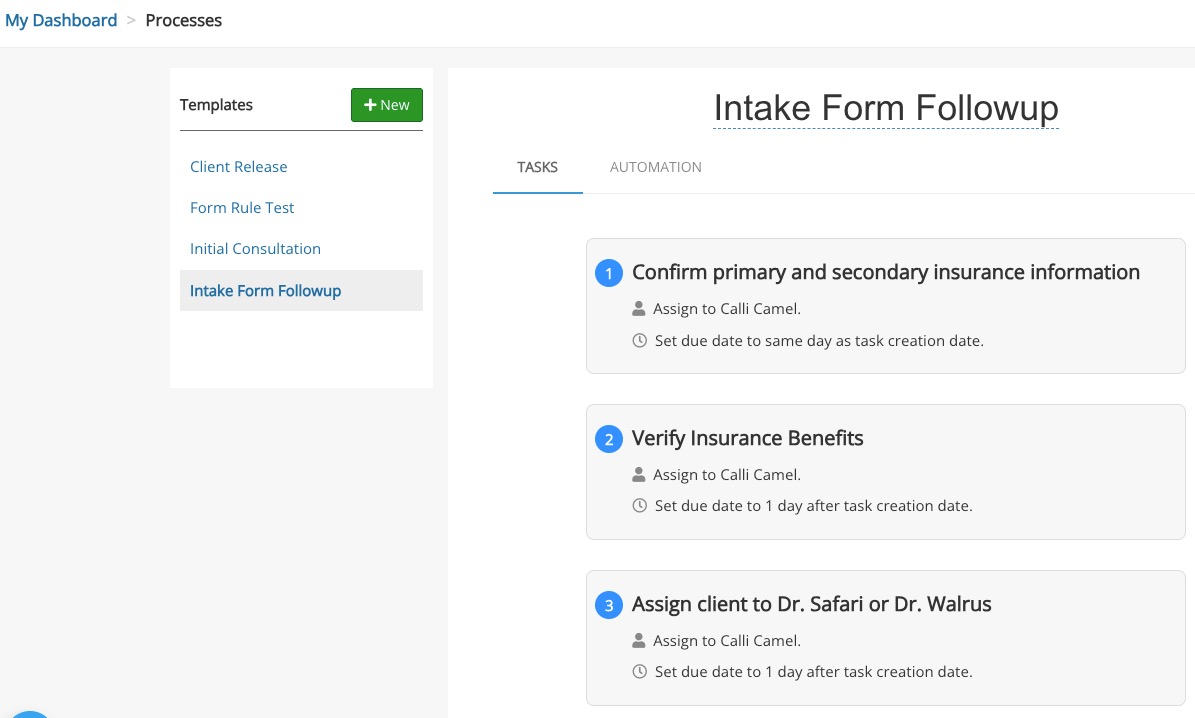
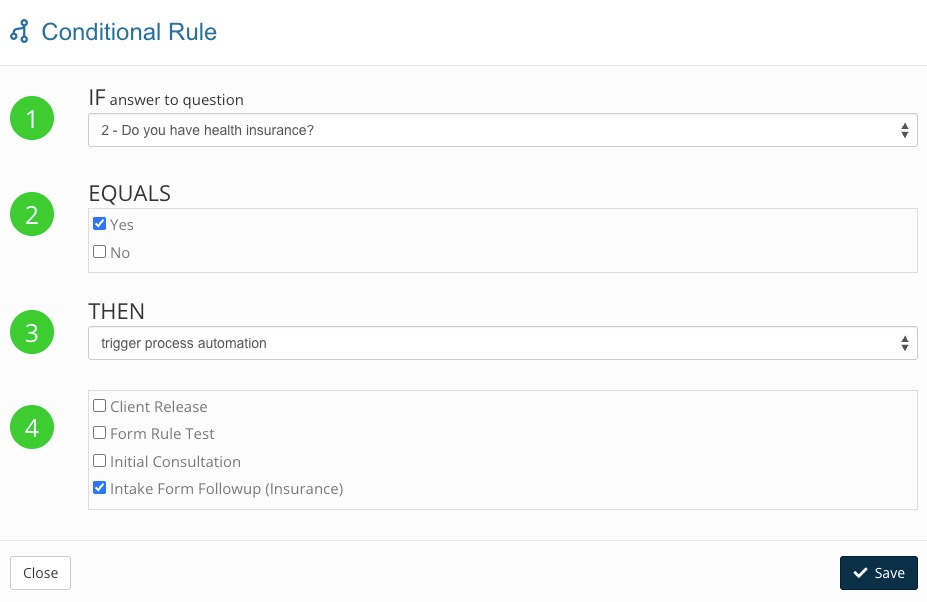
- Let a client's answer trigger a set of tasks for a staff member! For example, you can use a client's "yes" answer to "Do you have health insurance?" kick off a set of tasks for a staff member.
- First, create the task automation process using this article: Task Automation (Processes)
- Next, create a rule and select trigger process automation from the THEN menu.
- Check the box for the task automation process you wish to trigger.
Important Information about the "Assign client to" Action
- This action primarily assigns the form or note to the practitioner you select.
- Please be sure when creating this rule that you truly wish to change client ownership to another practitioner.