.png)
AI Form Builder: Edit and Publish a Questionnaire Draft
Now that the AI Form Builder has created your questionnaire draft, use the editor to customize the content and prepare it for publication.
First, use the AI Form Builder to generate your draft. You have two options:
IMPORTANT: Do not close the browser tab as you edit your AI-generated questionnaire draft. Once you have closed the tab, you will not be able to return to the original draft.
Edit the Questionnaire's Title
- Click the pencil icon next to the title to edit the questionnaire's name, if desired.

Edit Section Titles
- Simply click the title to edit.
Add Questions
- Select the question you wish to appear before the new question.
- Open the New Question dropdown menu and select the Question Type you wish to add.
- The new question will insert below the selected question.
Rearrange Questions
- Click and hold the dot handle for the question.
- Drag the question to your desired location.
Make Questions Required
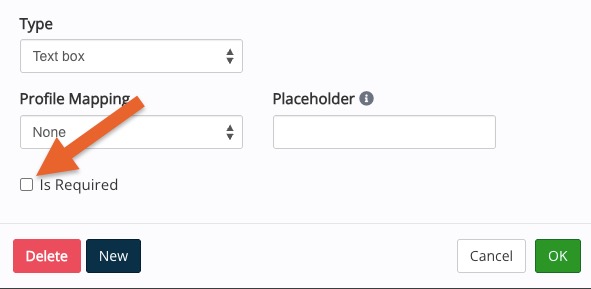
- For most question types, check the Is Required box in the top right corner of the editor.
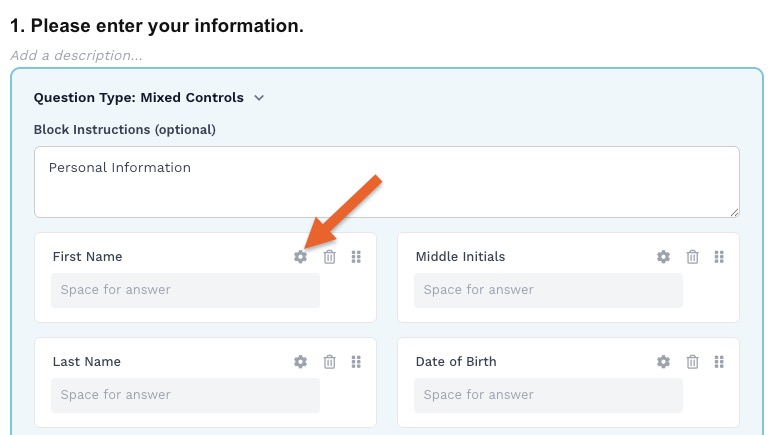
- For Mixed Control questions, each item can be marked required separately; click the gear wheel icon to select this option for each item.
Use Question Options
- Click the question to highlight it in blue.
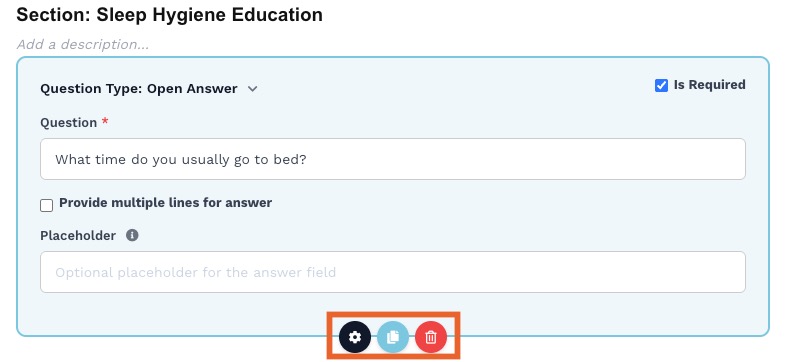
- Three icons will appear at the bottom of the selected question.
- Click the gear wheel icon to apply the Office Use Only, Pin to Client Profile, or Staff Prefill options to the question.
Delete Questions
- Click the question to highlight it in blue.
- Three icons will appear at the bottom of the selected question.
- Click the trash can icon to delete the question.
Duplicate Questions
- Click the question to highlight it in blue.
- Three icons will appear at the bottom of the selected question.
- Click the paper icon to duplicate the question.
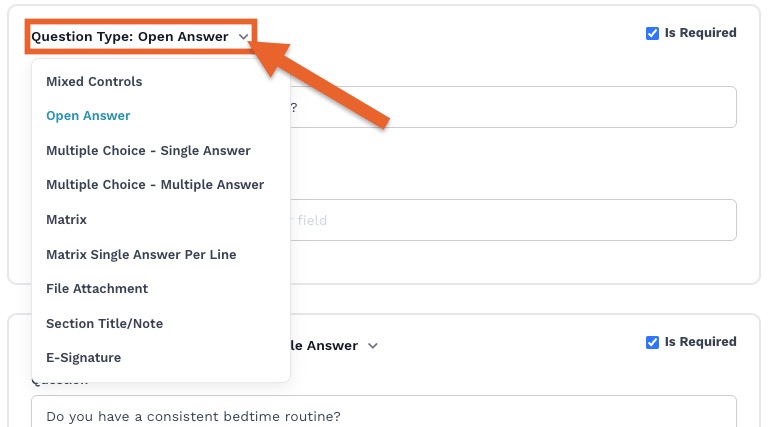
Change Question Types
- To change the question type of an existing question, click the arrow next to Question Type to open the dropdown menu.
- Select the new Question Type, and the question will update to reflect it.
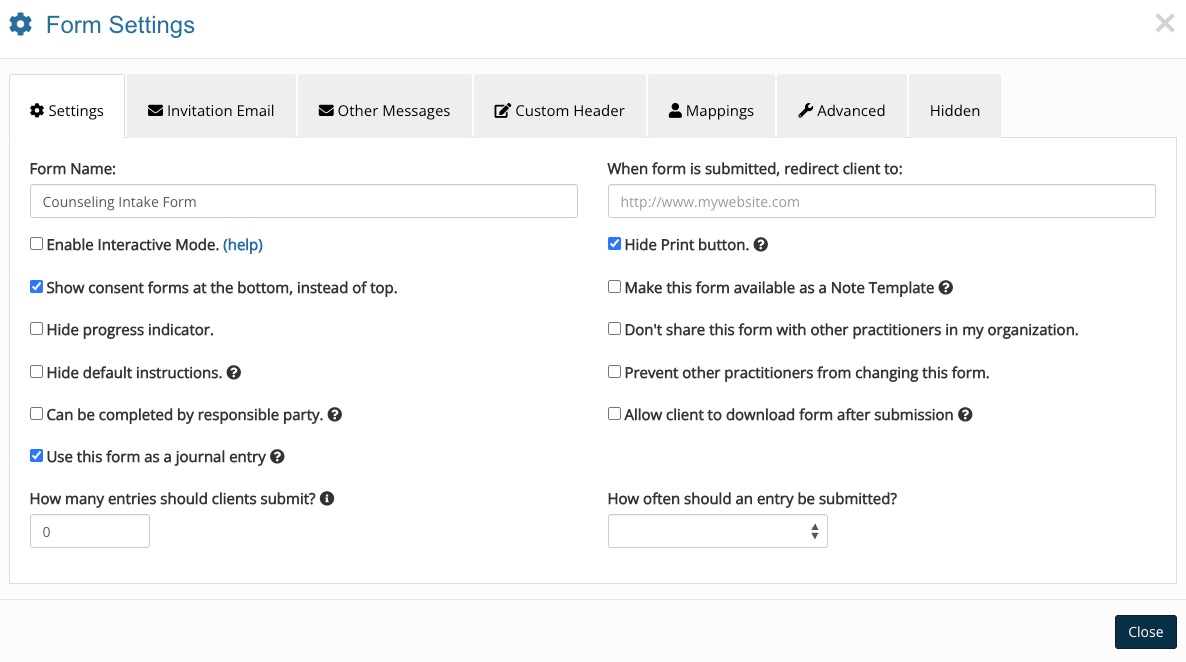
Advanced Settings
- Conditional rules are not yet available in the AI Form Builder editor.
- Rules and other advanced settings can still be applied in the form editor page once you publish your form!
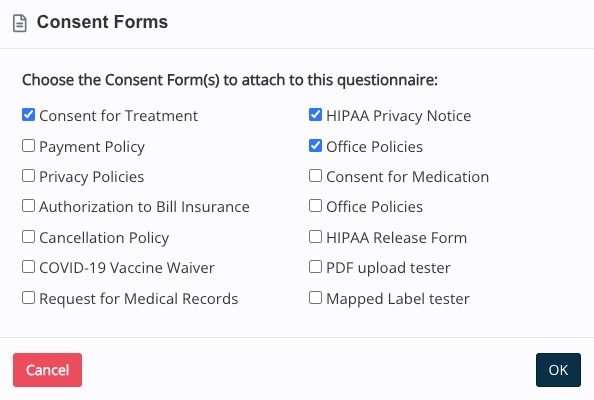
Attach Consent Forms
- Click the Consent Forms button on the left toolbar.
- All the Consent Forms on your account will display.
- Check off the Consent Forms in the order you wish for them to appear to clients.
- Attached Consent Forms will not be visible in the draft view; to see them, click Preview. (See section below)
NOTES: Consent Forms will be placed at the top of the questionnaire by default. If you wish, you can change this after publishing the form, using the standard form editor.
Preview the Questionnaire
- Click the Preview button on the top right.
- A preview of the questionnaire will open in a new browser tab.
Publish the Questionnaire
- Confirm that all questions are complete.
- Incomplete questions will display in red.
- Click the Publish button on the top right.
- The Publish button will be disabled until all incomplete questions have been addressed.
- Your new questionnaire will be immediately available in your Questionnaires collection.
Convert the Questionnaire to a Treatment Note (optional)
- Publish the questionnaire.
- Open the questionnaire from the My Forms page.
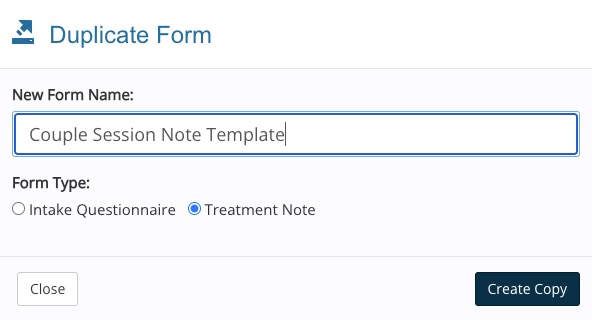
- Open the three dot menu and select Duplicate.
- Enter a name and select the Treatment Note radio button.
- Click Create Copy.