.png)
Identify Appointments with Missing Notes
PracticeQ makes it easy to identify appointments with missing notes!
Watch the video or follow the instructions below.To check which appointments have no corresponding notes, enable a setting that will make it easy to spot them.
- Click More → Settings.
- Select the Settings tab.
- Check the box labeled Warn about appointments with missing progress notes.
- Click Save.
- Perform a cache reset. For instructions on how to do so, click here.
- With this setting enabled, you will see a new Note column in Lists → Appointments.
- The orange add note button indicates that there are no notes for that appointment.
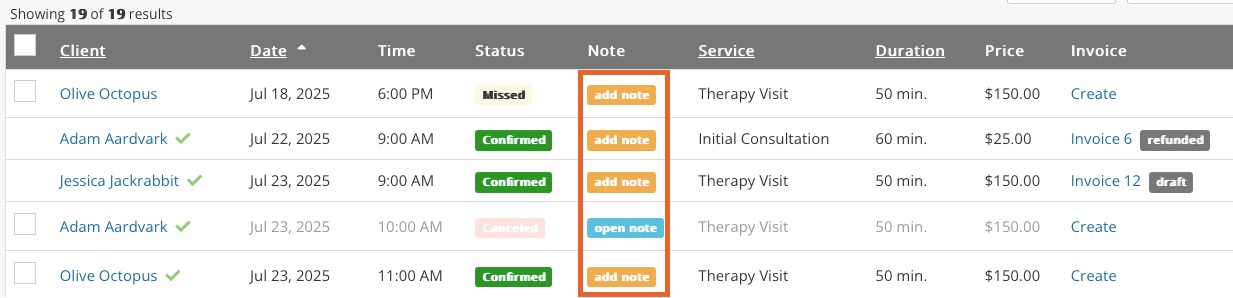
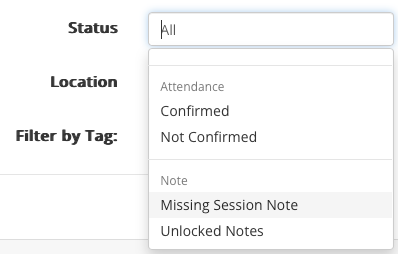
- There is also a filter in the Status option that will show only appointments with missing notes. It is called Missing Session Note. This filter will take additional clients into account, so if you have an appointment with three clients and notes for only two clients, the appointment will still display in the Missing Session Note listing.
Missing Note Notifications
Watch the video or follow the instructions below.
- Click More → Settings.
- Select the Notifications tab.
- Under the Note Notifications section, check the box labeled Notify me when an appointment is missing a note.
With this setting enabled, PracticeQ will send you an email notification about any appointment for which no notes have been created five days after the appointment date. Click the button in the email to go straight to the appointment list page showing which sessions are missing notes.