.png)
Troubleshoot Undelivered Emails
Sometimes clients tell you that they did not receive a form or an appointment confirmation email. Use this guide to help you troubleshoot these situations and prevent them from happening often.
Follow the steps in the order they are listed; this is the best way to diagnose and fix deliverability issues.
1. Double-check the email address
- The most important step is to confirm that you have the correct email address for the client.
- If you notice that you have entered the incorrect email address, open the client profile and click Edit.
- Update their email address, and resend the form or appointment confirmation.
2. Check the status of the email in the Events tab
Most emails sent via IntakeQ/PracticeQ are accessible in the client's Events log; check the status of the email to determine your next steps.
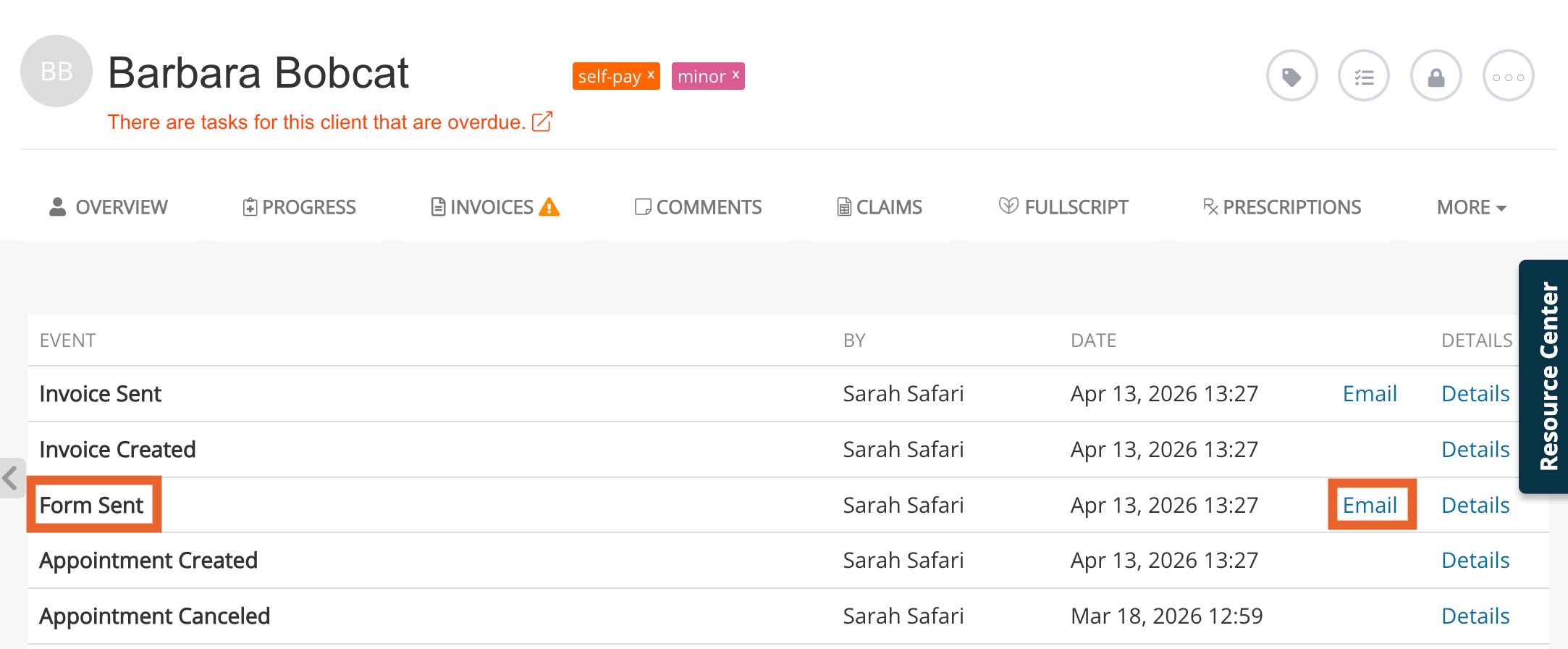
- Open the client profile and select the Events tab.
- Look for the event associated with the email you are troubleshooting (Form Sent, Appointment Reminder Sent, Form Reminder Sent, etc).
- Click the Email link in the same row.
- The email dialog will show you the email Status.
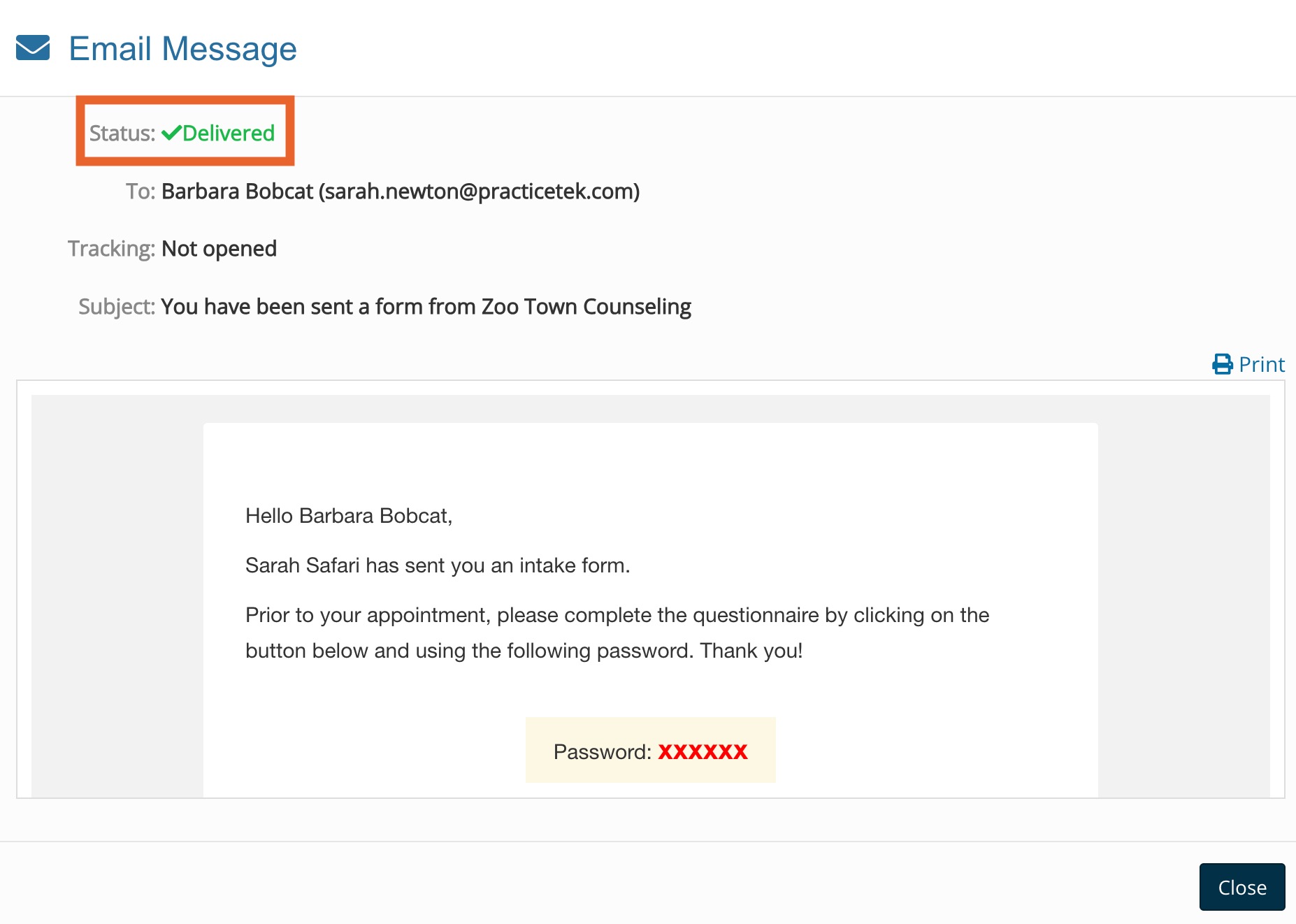
Delivered Status:
- If the status shows Delivered, it means that the client's email server has accepted the message, and, in theory, agreed to deliver it to the client. In most cases, this is what happens, and steps 3 and 4 below should resolve the issue.
- If it is determined that the email has not been delivered after performing steps 3 and 4, continue to steps 5 and 6.
Bounced Status
- If the status shows Bounced, it means that the user did not receive the email.
- This can happen for many reasons, but assuming your email does not have "spammy" content and that you have a relationship with the recipient, this is most likely a false positive. To address this issue, skip to steps 5, 6, and 7.

3. Ask the client to check their spam folder
- Most emails should not go to the spam folder, but when a client claims not to have received your email, always make sure that they checked their spam folder.
- In case the client finds your emails in their spam folder, ask them to mark it as "not spam" or move them to their inbox. This action typically teaches the spam filter that your emails are legitimate.
4. Ask the client to perform a search
- Some email providers categorize emails into folders (e.g. Gmail with its tabs), and sometimes even clients can create custom rules to tag emails containing certain keywords.
- For this reason, it's a good idea to ask the client to use the search feature in their email to make sure that the email didn't end up in an unexpected folder.
5. Ask the client to add your email address to their contact list
- Most ISPs claim that they do not drop emails silently, but we have seen strong evidence to the contrary.
- One way for your clients to "tell" their ISP that your emails are legitimate is for them to add your sending address to their address book or contact list.
- If you send forms from your own domain (using our sender feature), that's the email address that the client should add to their contact list. If you are not using the sender feature, the client should add app@intakeq.com to their contact list.
6. Ask the client to contact their ISP
- It is not uncommon for ISPs to make mistakes. Even when an email comes from a domain and IP with excellent reputation, and its content is not spammy, some ISPs will block it due to misconfigured rules, software updates, etc.
- The best way to resolve this is for your client to contact their ISP and ask them why your emails are not coming through.
7. Optimize your emails for deliverability
- To increase your email deliverability odds, there are certain etiquette rules that you should follow.
- We offer a full article about improving your deliverability rate here: Optimize Your Email Deliverability