.png)
Engage - Message Logs
Audit your delivered messages in a snap with Message Logs!
The Message Logs display automated messages only. To view messages you sent manually, search the client in the Patient Communicator and open their message thread.
- Click Engage from your PracticeQ toolbar.
- Click Appointments → Message Logs.
- Filter by message Method. Your options are:
- All
- Text
- Call
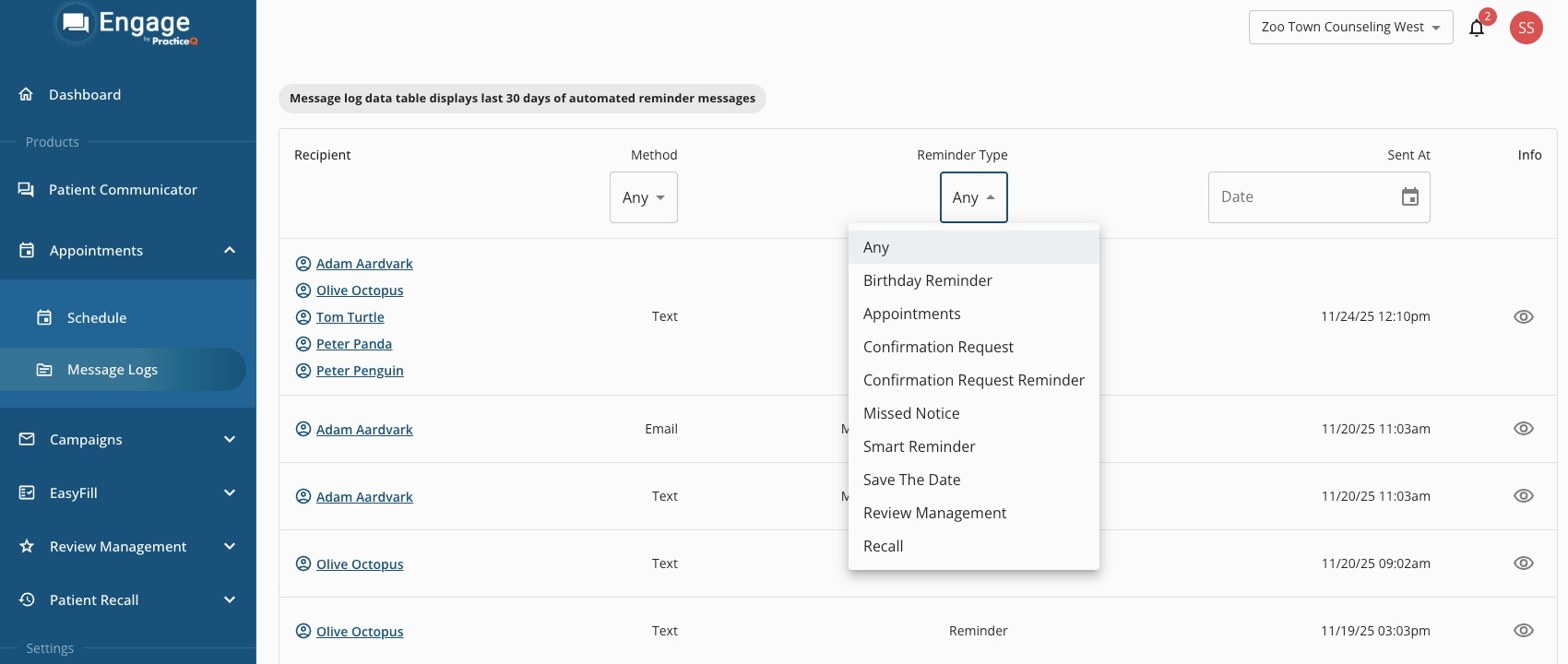
- Next, filter by Reminder Type, if necessary. Your options are:
- Birthday Reminder
- Appointments (basic reminders stating date and time)
- Confirmation Request (first message asking client to confirm appointment)
- Confirmation Request Reminder (follow-up message sent to client if they do not confirm after first request)
- Missed Notice
- Smart Reminder (customized appointment reminder set up for particular service or practitioner)
- Save the Date
- Review Management (request for client to write a review)
- Recall (messages reminding clients to book their next appointment)
- Finally, select a date in the Sent At field. If you do not select a date, Engage will display the last 30 days of messages sent that follow your parameters.
- The resulting report will show the Recipient, Method, Reminder Type, Date/Time sent and an Info icon.
- Click the Recipient's name to view their Engage profile (general information, appointments, and message history).
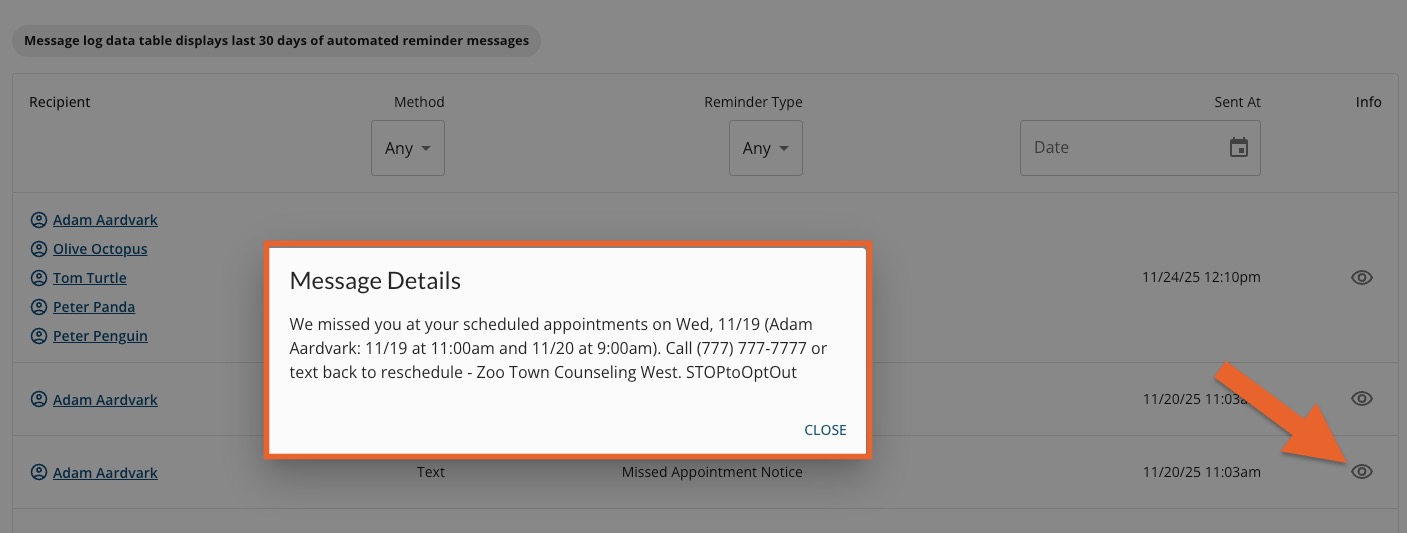
- Click the eye icon in the final Info column to view the contents of the message.
-
For more about Engage and how you can add it to your PracticeQ account, click here.
