.png)
Change Your Telehealth Integration
Are you switching from Google Meet to Zoom? From Zoom to PracticeQ Telehealth? Follow the steps below to change your integrated telehealth platform with minimal disruption.
Step 1: Phase out appointments using previous platform
If you disable your previous platform too quickly, the links for appointments still scheduled under it will become inactive. Follow the steps below to prevent staff and clients from scheduling services under the previous platform:
- Go to Bookings → Booking Settings and select the Services tab.
- Locate the service(s) and click the Duplicate icon.

- Alter the name of the original service (still linked to the old platform) to include the words DO NOT USE as a reminder to staff.
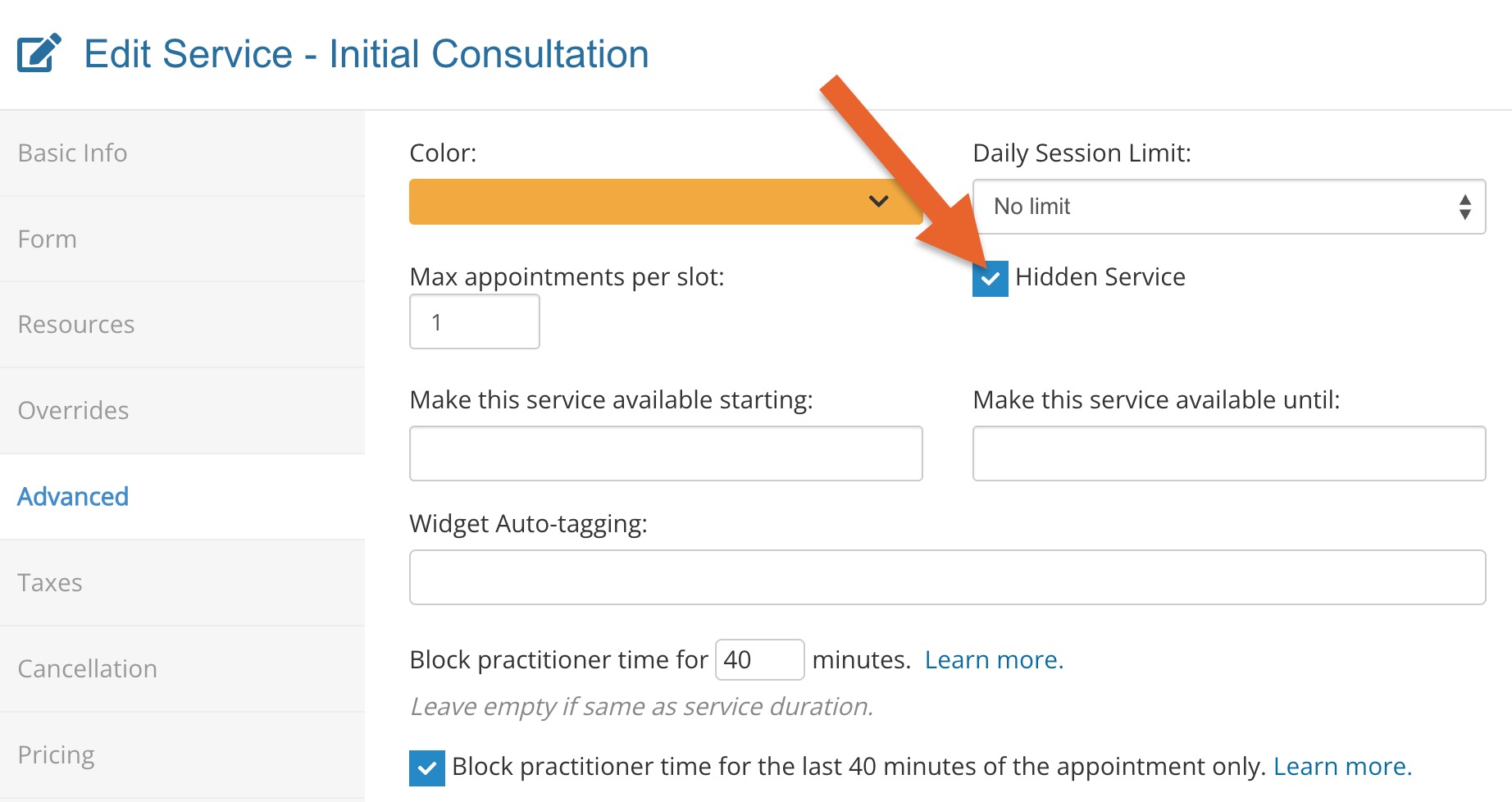
- For each original DO NOT USE service, click Edit and select the Advanced tab.
- Check the box labeled Hidden Service. This will hide the service in the booking widget, preventing clients from booking it.
Step 2: Connect to the new platform
- Connect to your desired telehealth platform using one of the following articles:
- Enable the new platform for each new, duplicated service so clients will book them moving forward.
- To do so, click Edit for the service and select the Advanced tab. Click the Enable button for the newly connected platform.
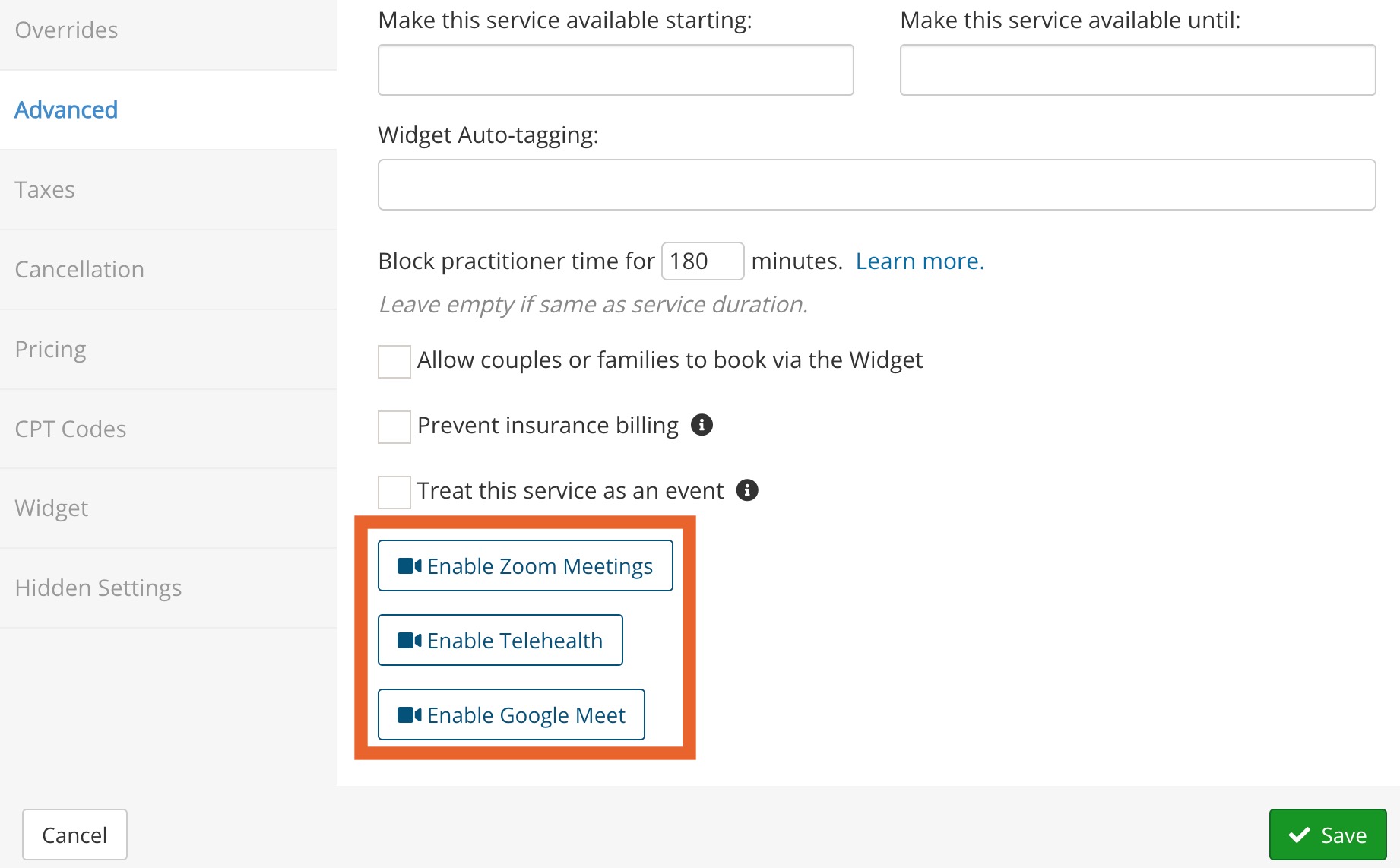
- To do so, click Edit for the service and select the Advanced tab. Click the Enable button for the newly connected platform.
Step 3: Disconnect the previous platform
IMPORTANT: Do not complete this step until all appointments connected to the previous platform have been completed.
Disconnect PracticeQ Telehealth:
- Click More → Settings.
- Select the Features tab.
- Scroll down to the Telehealth heading and click the Manage Practitioners button.
- Remove the checkmark for each practitioner you wish to disable.
- Click Confirm.
Disconnect Zoom:
- Click More → Settings.
- Select the Integrations tab.
- Scroll down to the Zoom heading.
- Click the Disconnect from Zoom button.
Note: These steps must be completed by each practitioner wishing to disconnect.
Disconnect Google Meet:
- Click Bookings → Booking Settings.
- Select the Sync tab.
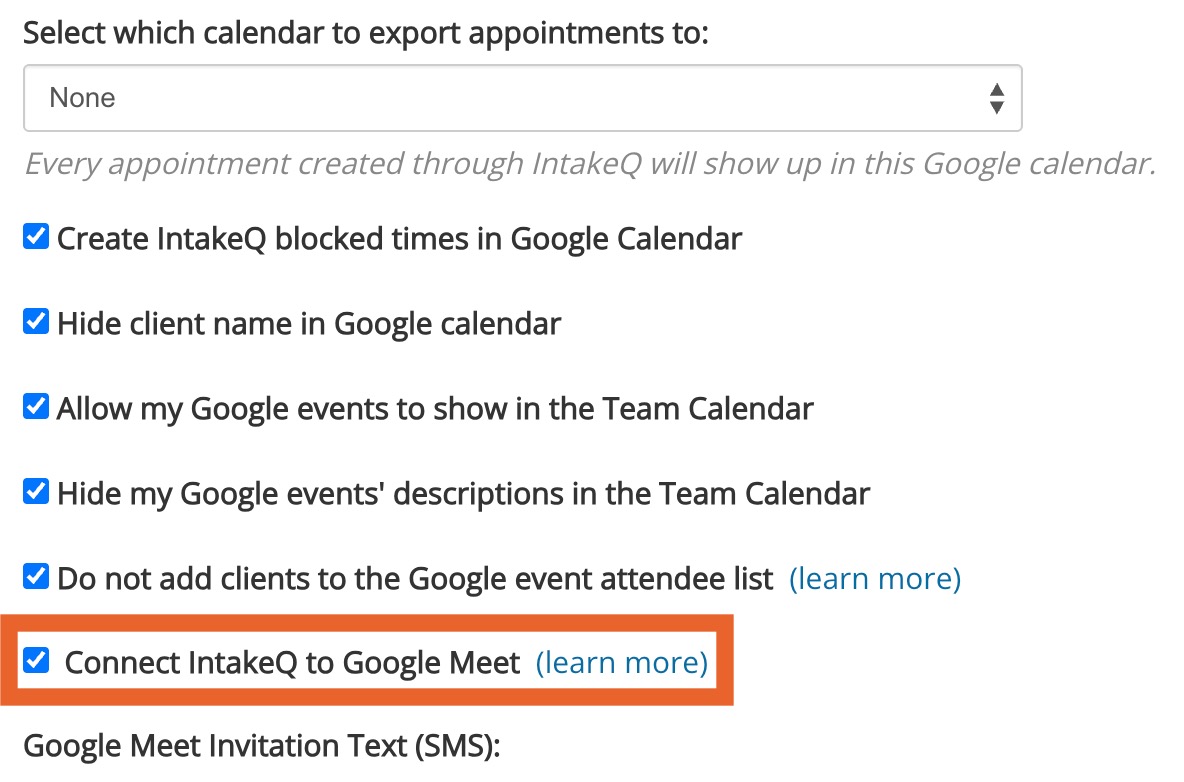
- Under the Synchronize with your Google Calendar heading, uncheck the box labeled Connect IntakeQ to Google Meet.
Note: These steps must be completed by each practitioner wishing to disconnect.