.png)
Engage - Set Up Your Recall Messages
Use Engage's recall feature to send reminders to clients who need to schedule their next appointment, and to clients who are behind in scheduling their next appointment.
Send Recall Messages
- Click Engage from the PracticeQ toolbar.
- Click Patient Recall.
- Click Daily Review.
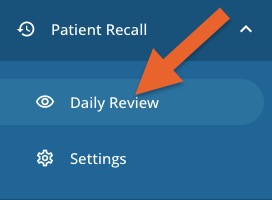
- Check the boxes beside the clients who should receive messages, or check the box at the top of the chart if all clients should receive messages.
 4. Click SEND RECALL REQUESTS.
The text of the sent message appears in your message history with the patient in Patient Communicator. Any response from the patient will also display there.
Enter Recall Settings
- Click Engage from the PracticeQ toolbar.
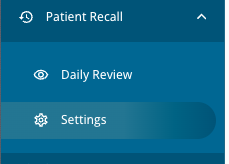
- Click Patient Recall.
- Click Settings.
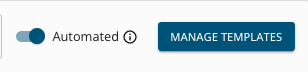
- Decide whether recall messages will be sent automatically or you want an opportunity to review the recipients of the messages before they are sent out. Toggle the slider on or off to adjust whether or not messages will be sent automatically.
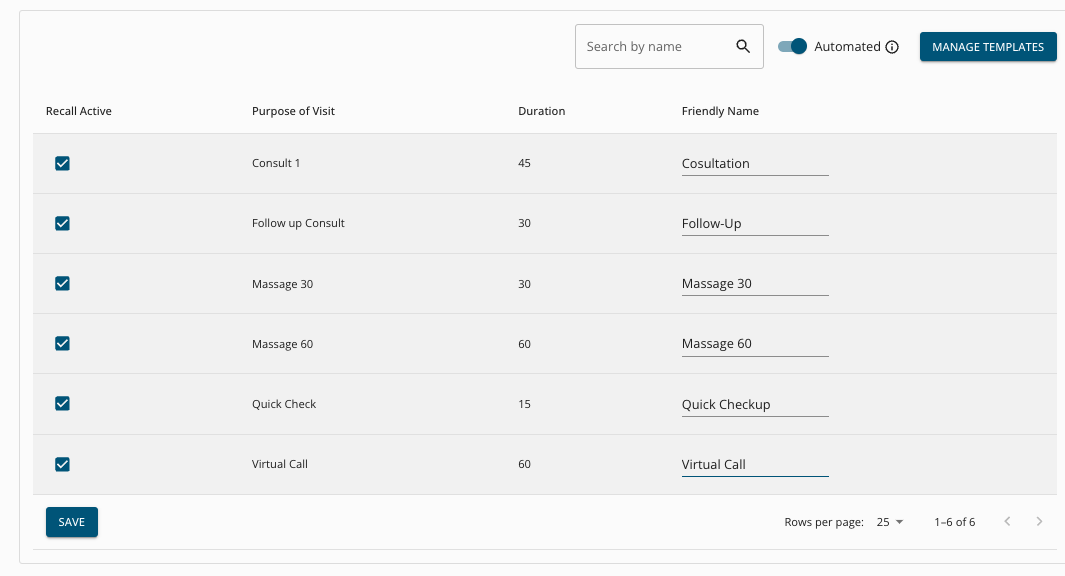
5. Indicate which appointment types in your practice will be eligible for Patient Recall messaging by checking the box corresponding to that appointment type in the Recall Active column.
For more about Engage and how you can add it to your PracticeQ account, click here.