Engage - Create Patient Groups
The Patient Group feature allows you to target specific clients when sending messages. Group by service types, practitioners, demographics, and more!
Once you have created Patient Groups, use them to send targeted reminders, broadcasts or campaigns.
- Click Engage from your PracticeQ toolbar.
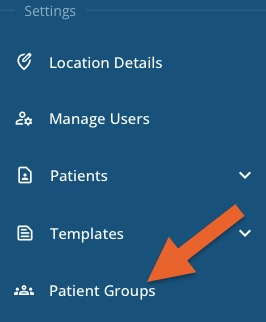
- Click Settings → Patient Groups.
- Click the gray plus sign icon on the top right corner.
- Complete the following for the new Patient Group:
- Name: the name you want to give the Patient Group; for example: Initial Consultations
- Practitioners: choose which doctors/specialists you wish to assign to the group
- Treatments: select the services you wish to assign to the group
- Patient properties: use this area to target specific demographics for your client group, if desired
- Click the checkmark to save the group.
- To delete the patient group, click the X icon.

Once you have created Patient Groups, you will see them as Filter options for your messages!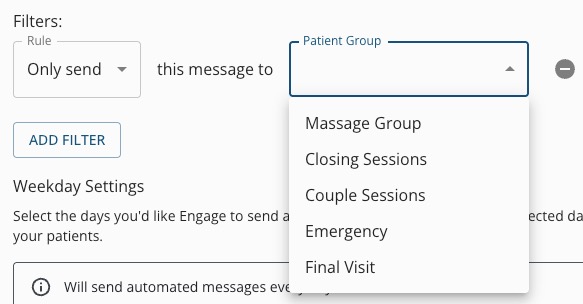
For more about Engage and how you can add it to your PracticeQ account, click here.
No results found
.png)

