.png)
Engage - Create a Campaign
A campaign allows you to send a single email message to a group of clients simultaneously!
- Click Engage from your PracticeQ toolbar.
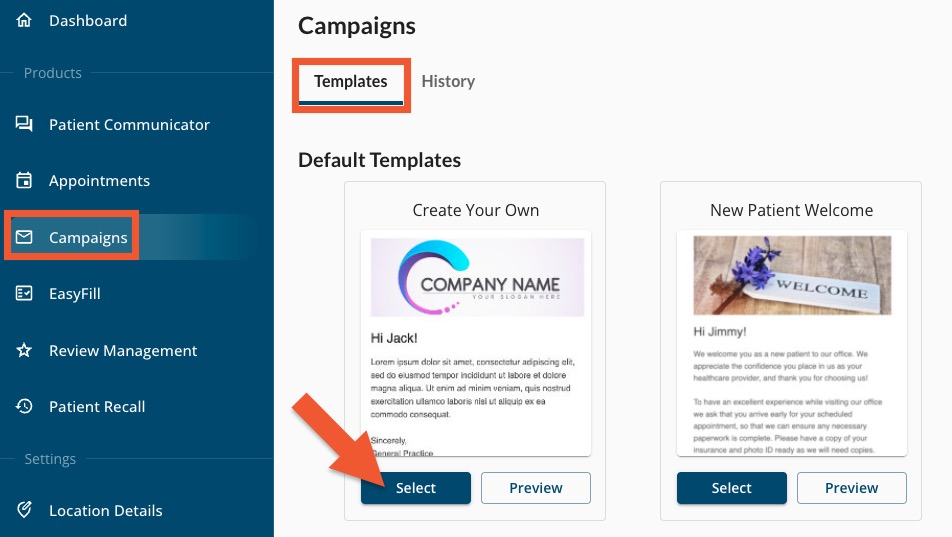
- Click Campaigns.
- Select the Templates tab.
- Find the template you wish to use, and click Select. You can use a default template, or create your own.
 5. In the To field, select the clients to whom you wish to send the campaign. In this example, the practice wants to send all clients their monthly newsletter.
6. Edit the Subject, Title, and Body of the email. Click the variables to pull individual client information from their PracticeQ profile.
Note: Short on time? Engage Premium's AI Campaign Generator will draft your campaign email based on your parameters! Read more about this feature here.

6. Use the editing tools to change the size, color, and other elements of the text.

7. Upload a file if you’d like to include one.
For example, a file upload could be used to send a coupon to clients with birthdays next month, or a flyer for an upcoming event.
8. Choose an option for how to send the campaign, or save your template for later.
- Test: sends the campaign to registered users of your account
- Schedule: allows you to launch the campaign at a later date and time
- Send: sends the campaign immediately

Note: If you send a Test campaign to yourself, any attached files will not be included in the email.
View Your Campaign History
Once you have scheduled the campaign, select the History tab to see any past or upcoming campaigns.
For more about Engage and how you can add it to your PracticeQ account, click here.