.png)
Engage - Upload Client Contact List for a Campaign
Upload a list of contacts to create an audience for a campaign.
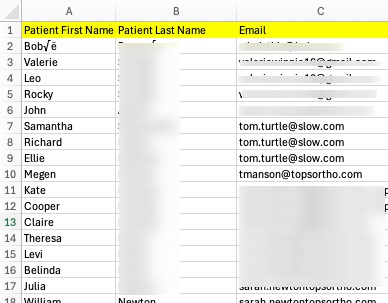
Important: The contact list must be saved as a Comma Separated Values, or .csv file. You can easily create .csv files using a spreadsheet software such as Microsoft Excel or Google Sheets.
- Choose a spreadsheet file that has columns labeled for Name and Email Address. Engage cannot import a spreadsheet that does not contain column headers.
- Click Engage from your PracticeQ toolbar.
- Click Campaigns → Templates.
- Click SELECT for the template you would like to use.
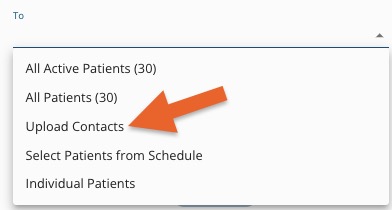
- Click the To section and select Upload Contacts from the list.
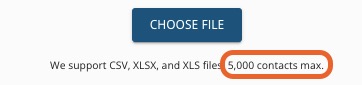
- Click Choose File and select the file from your device. Note: the limit for Campaigns is 5,000 contacts.
- Click DONE to complete the import. Depending on the file size, this may take 5-10 minutes.
- Only contacts with valid emails will be imported.
For more about Engage and how you can add it to your PracticeQ account, click here.