.png)
Engage - Add a Custom Image to a Campaign
Add an image to your campaign to break up the content. Your message will be easier to digest and the overall performance of your campaign will improve!
First, prepare your campaign following the instructions here.
Add an Image to the Campaign
1. Click Engage from your PracticeQ toolbar.
2. Click Campaign and select the Templates tab.
3. Find your desired template and click Select.
4. Select your recipients and review your subject line.
5. Click the Upload Image button in the email content window.

6. Follow the prompts to upload the image; drag and drop it or select it from your workstation.
7. Upload additional images if desired. Uploaded images will appear as thumbnails. Click the X on the thumbnail to remove an unwanted image.
8. Drag and drop each image to the desired position in the body of the email. You will see its positioning in the preview message on the right. 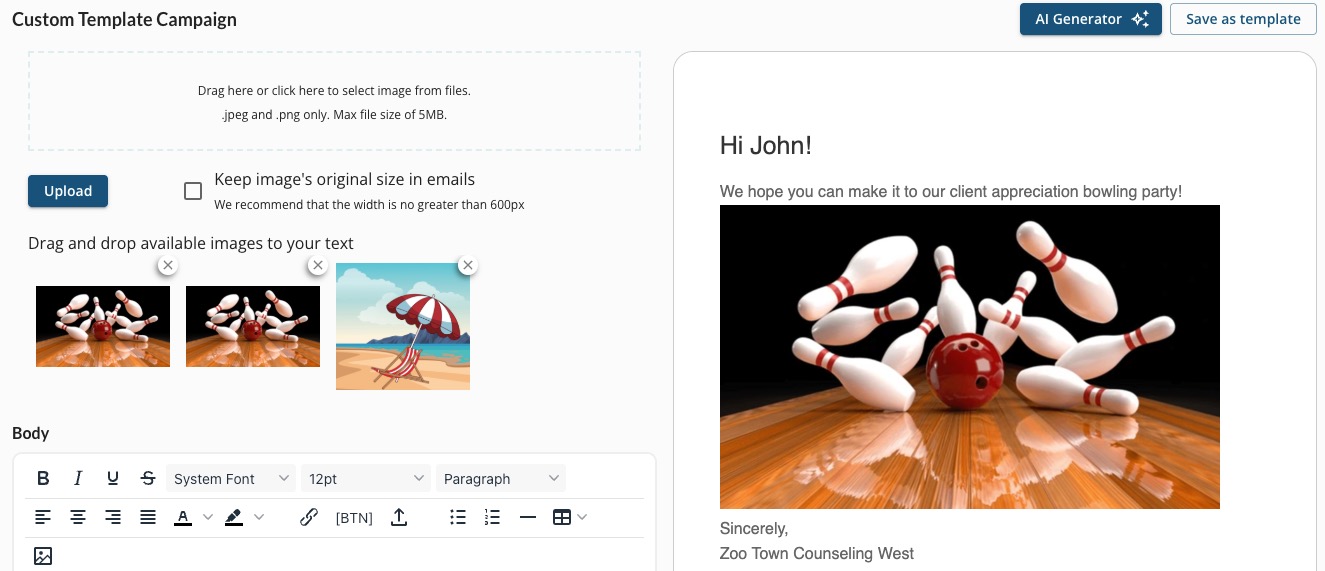
9. Complete the body of the message.
10. Click Save as template.
-
To learn more about Engage and how you can add it to your PracticeQ account, click here.