.png)
Engage - Send a Campaign via Bookings
Send a campaign to all clients booked within a specified date range. This is a great way to share newsletters or flyers for practice events.
- Click Engage on your PracticeQ toolbar.
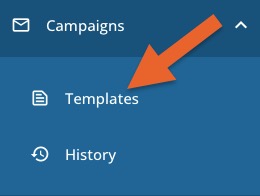
- Select Campaigns → Templates.
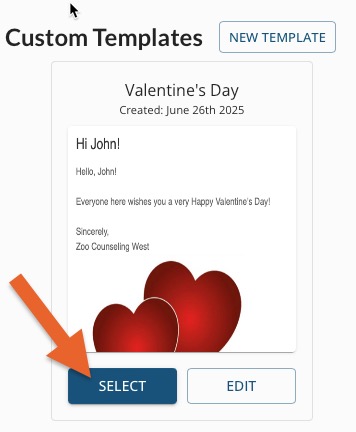
- Choose the your template; click Select.
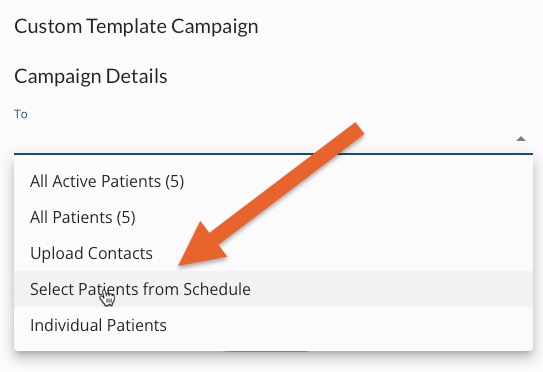
- Click the To section.
- Choose Select Patients from Schedule.
6. Select a date range of appointments to include in the email campaign.
 7. Click NEXT.
Note: Clients whose appointments were marked as Canceled or No Show will not be included in the campaign.
8. Choose up to five patient groups to receive the campaign.
9. Click NEXT.
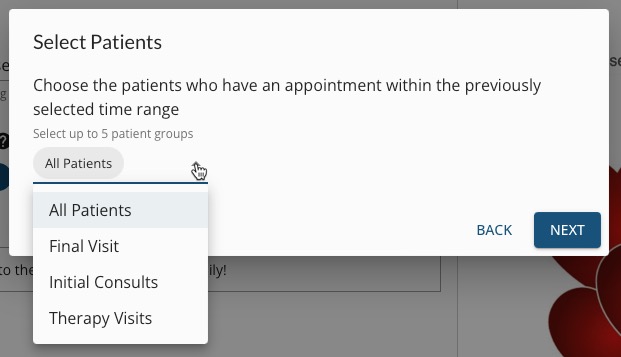
The To line will display the number of clients selected to receive the campaign message in parenthesis.

10. Create the content of your campaign. You can send it immediately, or schedule it to be sent later.
For more about Engage and how you can add it to your PracticeQ account, click here.