.png)
Engage - Bulk Upload of Contacts
Engage will automatically pull client contact information from your PracticeQ system. However, if you have additional contacts you’d like to add to Engage, you may import them.
Important: The contact list must be saved as a Comma Separated Values, or .csv file. You can easily create .csv files using a spreadsheet software such as Microsoft Excel or Google Sheets. It may take up to 10 minutes for a new client's information to be transferred to Engage from PracticeQ.Import Contacts:
- Click Engage from your PracticeQ toolbar.
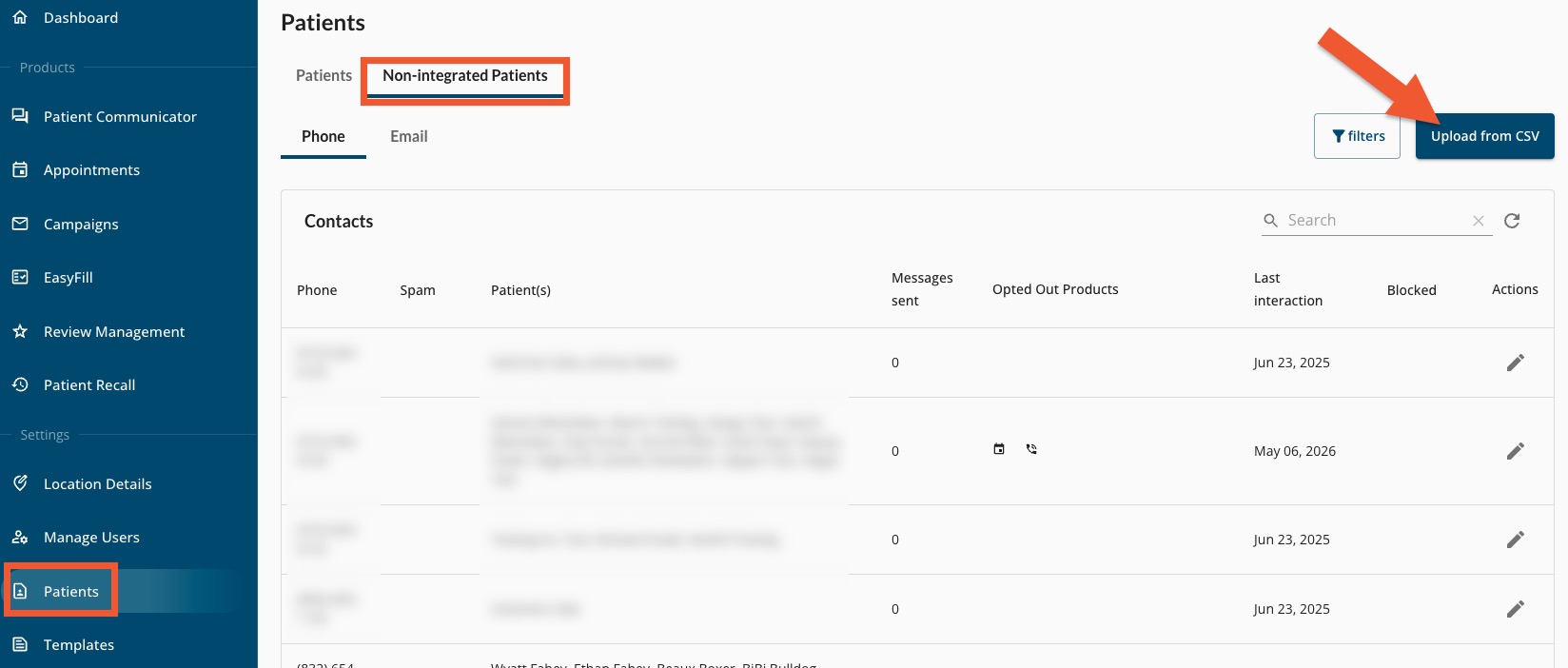
- Click Patients.
- Select the Non-Integrated Patients tab.
- Click Upload from CSV on the top right.
- Click Choose File and select the file for upload.
- Your contacts will display in a window; click Done to upload the contacts.
Search Contacts:
Once the upload is complete, you may search for imported contacts in two places:
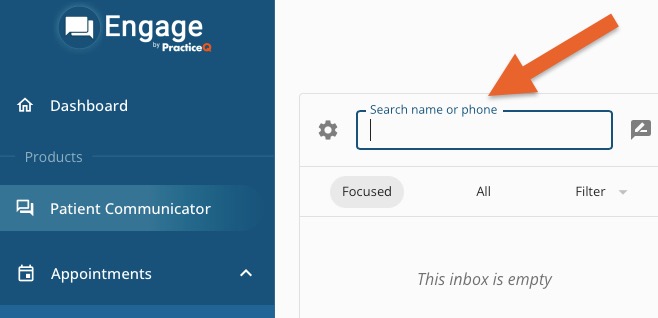
- In the Patient Communicator
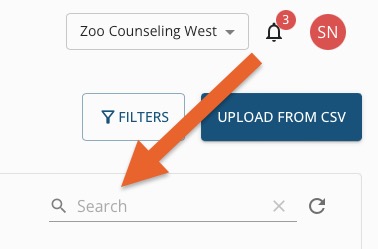
- In Patients, under the Non-Integrated Patients tab.
For more about Engage and how you can add it to your PracticeQ account, click here.