.png)
Engage - Send a Broadcast Message
Use the Broadcast feature in Engage to send the same message to a group of clients simultaneously!
- Click Engage from your PracticeQ toolbar.
- Click Patient Communicator.
- Click Broadcast.
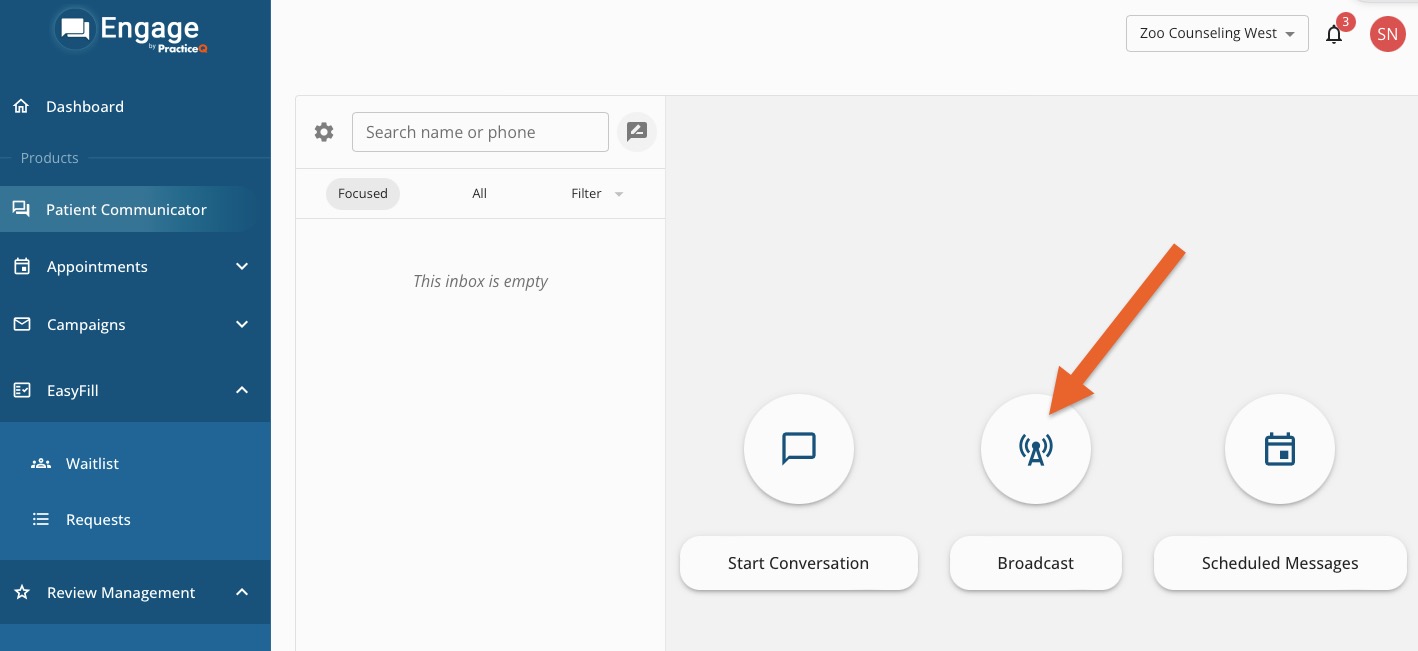
4. Choose one of the three options that display:
Note: Broadcast SMS messages should primarily be used for operational messages such as appointment reminders, office closures, and health updates. For marketing messages—such as promotions, offers, or sales-oriented content— we recommend using Email Campaigns.
- From schedule allows you to choose a date range of appointments
- From existing contacts allows you to search for and select a group of clients
- Uploading a contact list allows you to upload a .csv file of contacts
(For this example, we’ll choose From existing contacts.)
5. Search for and select the recipients. Only clients who have mobile phone numbers in your system will be selected.
 6. Click NEXT.
7. Choose a template from the dropdown menu or enter free form text into the Content field. If desired, click the Variables you wish to add to the message. Variables will pull specific information from each client's PracticeQ profile to make the message sound more personal.

8. Click NEXT.
9. Verify your message and the intended recipients.
10. Click SUBMIT.
-
For more about Engage and how you can add it to your PracticeQ account, click here.