.png)
Engage - Filter a Review Request by Patient Group
Send customized review requests to specific client groups!
Before you can send targeted reminders, you must create patient groups. Read Create Patient Groups to get started.
- Click Engage from your PracticeQ toolbar.
- Click Templates → Review Management.
- There will be one Review Request template by default. Click Create New Schedule to add more, if desired.
- Click the gear wheel icon for the Review Request you wish to filter.
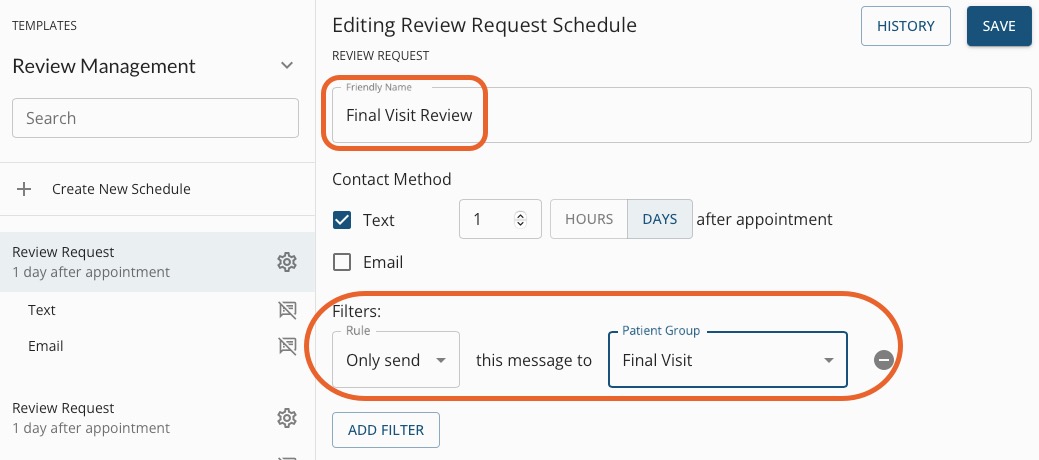
- Give the message a Friendly Name, if desired. For example, you can title it Final Visit Review.
- Check each Contact Method you wish to use. You can select Text, Email, or both.
- Select a number of days or hours.
- Select DAYS or HOURS. All review request messages are sent AFTER the appointment.
- Click Add Filter.
- In the first dropdown menu, select your filter choice. Options are ONLY SEND or DON'T SEND.
- In the second dropdown menu, select your Patient Group.
- To remove a patient group filter, click the minus sign icon to the right.
- Click SAVE.
-
Click on each of your chosen Contact Methods; you can enter a customized Text, Email or both.
-
Click SAVE.
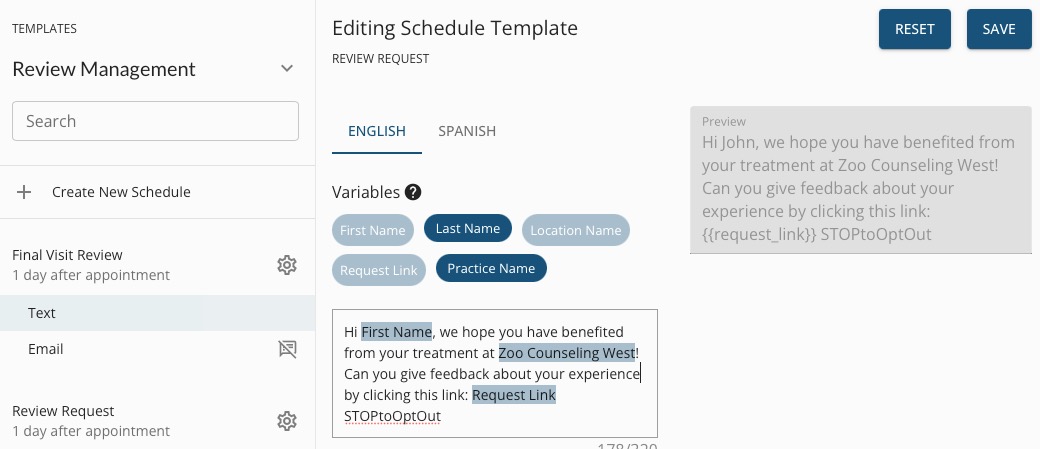
Note: The Review Site Buttons variable in the email template is linked to your public review sites, such as Google and Facebook. Read here to learn how to add public review sites to your Engage account.
For more about Engage and how you can add it to your PracticeQ account, click here.