.png)
Engage - Customize Review Requests
Use Engage to send review requests to individuals or groups of clients. Solicit positive reviews to build your practice!
Access Review Request Settings:
1. Click Engage from your PracticeQ toolbar.
2. Click Templates.
3. Click the arrow to the right of Patient Communicator to open the dropdown menu.
4. Select Review Management.
5. Locate the message titled Review Request; click the gear wheel icon to right of its title.
6. Give the message a Friendly Name, if desired, such as 2 Days After Review Request.
7. Check off the Contact Methods you wish to use. You can use Text, Email, or both.
8. The default for this message is 1 day after appointment. Use the dropdown menu to change the NUMBER of hours/days and click the tabs to change from Days to Hours if desired.
9. Under Weekday Settings, click the Enabled button under any day of the week you do NOT wish for the message to send, such as Saturdays/Sundays. The label under the selected days will change to Disabled.
10. Click Save.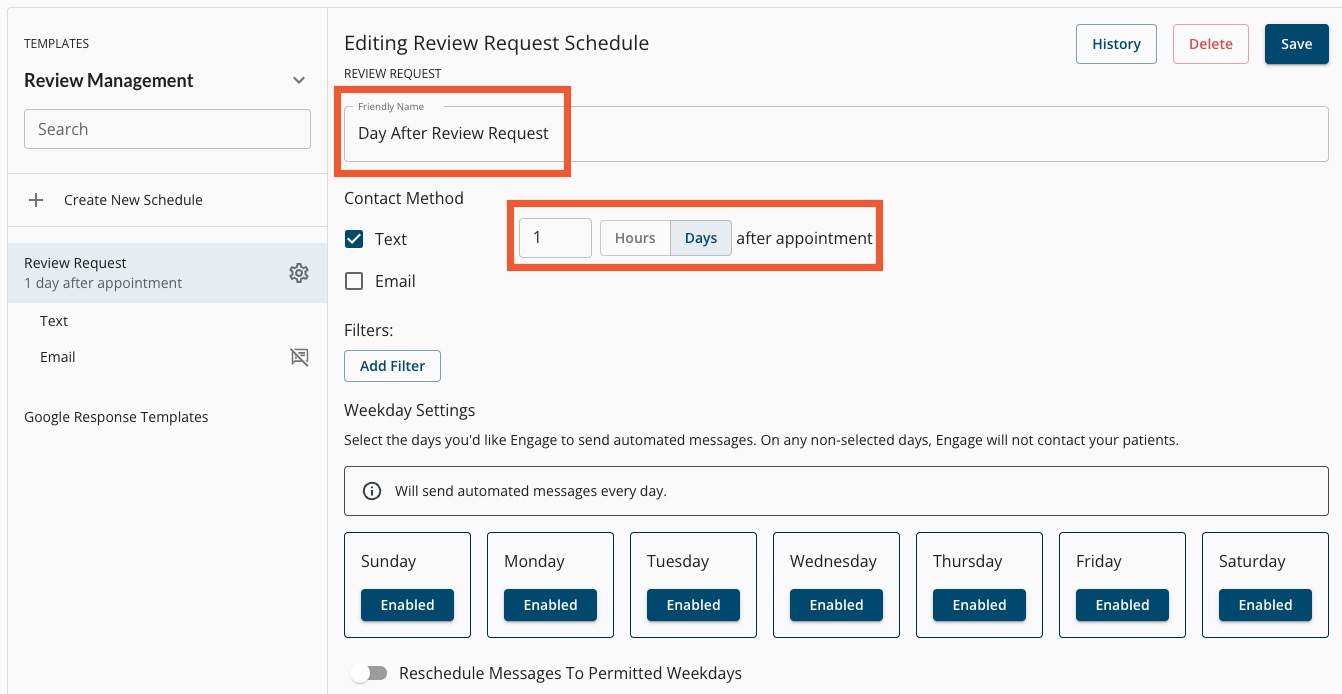
Customize Your Review Request Message
1. Click Engage from your PracticeQ toolbar.
2. Under the Review Request heading, click the Message Type you wish to edit, such as Text.
3. Edit the message to your liking.
4. Add or remove Variables as desired. A preview of your message will display to the right.
Do not remove the Request Link, Review Site Buttons or Feedback Button variables; these allow your clients to initiate their reviews. To see all public review sites supported by Engage, click here.
5. Click Save.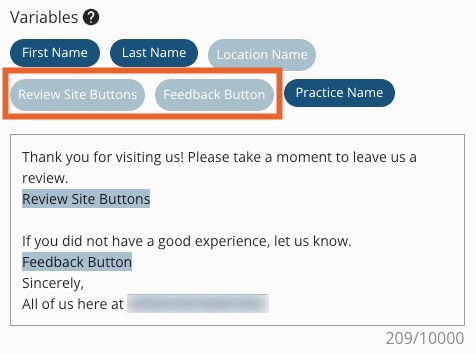
Note: The Review Site Buttons variable in the email template is linked to your public review sites, such as Google and Facebook. Click here to learn more: Engage - Add Public Review Site URLs.
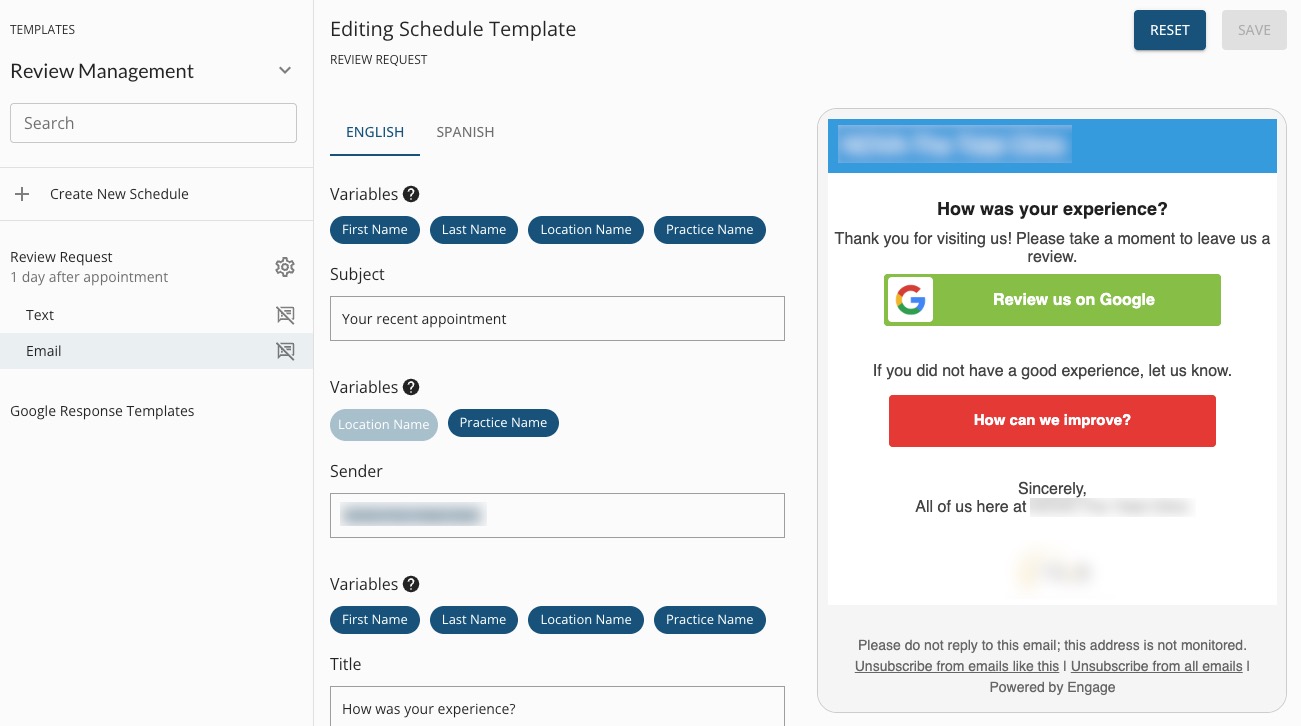
For more about Engage and how you can add it to your PracticeQ account, click here.