Send a request:
- Click Engage from your PracticeQ toolbar.
- Click Review Management → Feedback & Requests.

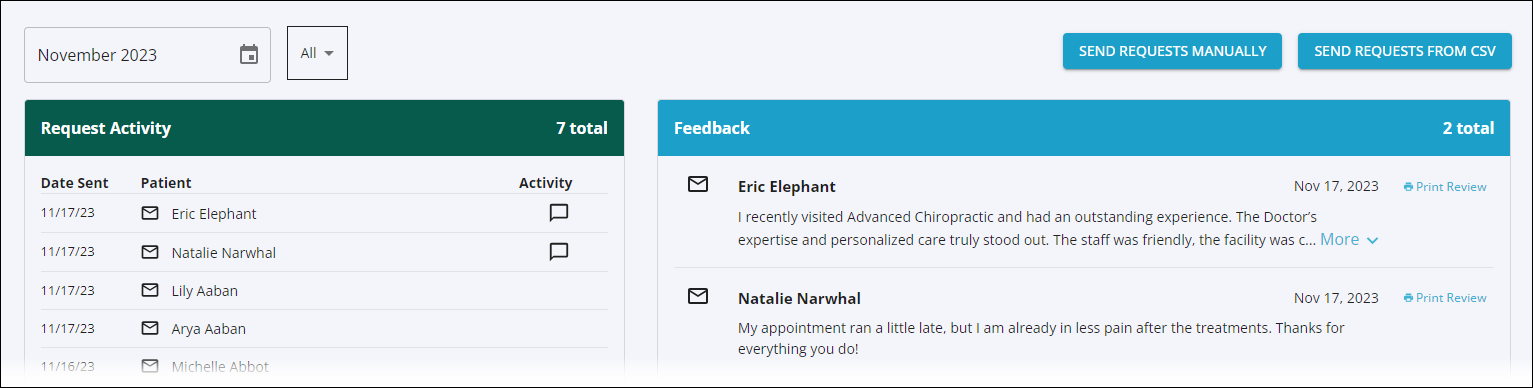
3. Under the green Request Activity banner, you will find a list of all clients to whom the practice has sent a review request.
Here is a key to symbols you may find in the Activity column:
- Hover over the ⓘ to see the public review site link the patient clicked, such as Google or Facebook.
- A speech bubble icon means the patient gave feedback directly instead of visiting a review site.


4. Check the blue Feedback section to see all the feedback you have received. You may also choose to receive a Feedback Report via email in the Manage Users section of the Engage toolbar. Just find your name in the Users lists and click Manage.
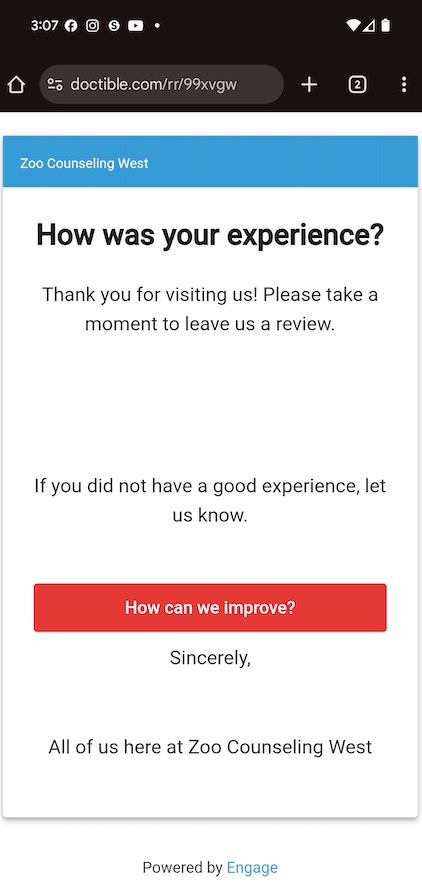
Below is an example of what your review request will look like if you do not link to a public review site. The client will see the red How can we improve? button only, and any feedback provided will be internal to the practice only.
For more about Engage and how you can add it to your PracticeQ account, click here.
.png)