.png)
Engage - Send Bulk Review Requests
Engage allows you to import a spreadsheet file of contacts. You can then send review requests to all of those contacts simultaneously.
Engage automatically recognizes any client added in PracticeQ. However, if you have an additional list of contacts to whom you’d like to send review requests, uploading a spreadsheet file of contacts eliminates the need to enter their names and phone numbers manually.
1. Save a list of patient contacts on your network in CSV/XLS/XLSX format. The file must have information under column headings labeled as follows. Other columns will be discarded when imported.
a. Name (can appear as a single column or be split across two columns as first name and last name)
b. Phone Number or Email
2. Click Engage from your PracticeQ toolbar.
3. Click Review Management → Overview.
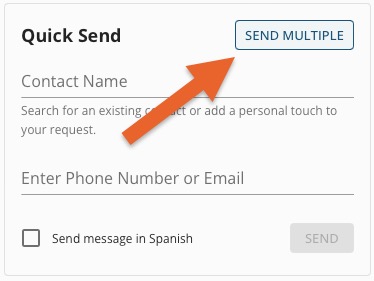
4. Click the SEND MULTIPLE button on the upper right corner of the Quick Send panel.
5. Click From CSV from the dropdown menu.
6. Click CHOOSE FILE and select the file you wish to upload.
7. Preview the list of recipients. Up to 500 contacts can be added at a time.
8. Click SEND REVIEW REQUESTS.
Note: Engage does not save a copy of the spreadsheet file. You must upload it each time you wish to send review requests in this way.
For more about Engage and how you can add it to your PracticeQ account, click here.